8 Best Beginner CAD Software for 3D Printing in 2026, Compared
Compare the 8 best beginner cad software for 3d printing on price, free plans and learning curve, with every price checked November 4, 2026.
 Shamim Mia, Founder, SerpAstraLast verified November 4, 202613 min read
We compare pricing pages, documentation and public reviews. We never accept payment for rankings.

Key takeaways
- Tinkercad is the easiest first step at $0; Autodesk Fusion gives hobbyists pro-grade parametric CAD free for personal use, and FreeCAD is the fully free option with no license strings.
- The single most important buying factor is the free plan's catch: Fusion and Onshape ban commercial use on their free tiers, Shapr3D caps free exports at low resolution, and Onshape's free documents are public.
- Four of the eight tools cost nothing at all — Tinkercad, FreeCAD, Blender and OpenSCAD have no paid plan — while the first paid plans run from $129 a year for SketchUp Go to $1,500 a year for Onshape Standard.
- Match the tool to the shape: Tinkercad and SketchUp for simple parts, Fusion or FreeCAD for measured functional parts, Blender for figures, and OpenSCAD for code-driven parts.
On this page
Quick comparison
| Tool | Best for | Starting price | Free plan |
|---|---|---|---|
| Tinkercad | Complete beginners and kids printing their first model the same day they sign up | Free | Yes (free) |
| Autodesk Fusion | Hobbyists who want professional-grade parametric CAD free for personal projects | Free; $680/yr | Yes (personal use) |
| FreeCAD | Makers who want fully free parametric CAD with no license strings or revenue limits | Free | Yes (free) |
| Onshape | Beginners on a Chromebook or shared computer who want pro CAD in a browser | Free; $1,500/yr | Yes (free plan) |
| SketchUp | Makers who think in boxes and rooms and want the fastest path from idea to model | Free; $129/yr | Yes (free plan) |
| Shapr3D | iPad owners who want to sketch parts with a pencil and print them the same evening | Free; $299/yr | Yes (Basic) |
| Blender | Makers printing figures, cosplay props and organic shapes that need sculpting | Free | Yes (free) |
| OpenSCAD | Programmers who want to build precise parts by writing code instead of clicking | Free | Yes (free) |
Make one of these tools?
We re-check this list every quarter. Send a correction, request a review, or ask about a clearly labeled sponsored spot.
Request a listingThe best beginner CAD software for 3D printing
Tinkercad
Best for: Complete beginners and kids printing their first model the same day they sign up
Tinkercad is the fastest route from a new printer to a finished part. It runs in a browser, so there is nothing to install and it works on a Chromebook or a borrowed laptop. You build by dragging shapes onto a workplane, grouping them and cutting holes, while the built-in lessons walk you to a first model in under an hour. One-click STL export sends it to your slicer.
The ceiling arrives quickly. With no parametric history, changing a dimension usually means rebuilding the shape, and precise mechanical parts with tight tolerances are hard work. Your designs also live in Autodesk's cloud, so there is no offline mode. Tinkercad is free forever with no paid tier. Start here when the printer is new, print something real, and move to Fusion or FreeCAD when the parts outgrow the tool.
What we like
- The easiest start in this list: drag-and-drop shapes, no install, runs in any browser
- Built-in lessons and starter projects get a first print out in under an hour
- One-click STL export sends models straight to any slicer
- Free forever with no paid tier, and it runs fine on a Chromebook
Watch out for
- No parametric history, so changing one dimension often means rebuilding the shape
- Too simple for precise mechanical parts, assemblies and tight tolerances
- Designs live in Autodesk's cloud, so there is no offline mode

Autodesk Fusion
Best for: Hobbyists who want professional-grade parametric CAD free for personal projects
Autodesk Fusion is the professional tool a hobbyist can use free. The personal-use license covers full parametric modeling — sketches, constraints, assemblies, drawings and basic simulation — for non-commercial projects, and the same workspace handles CAM and mesh repair. The tutorial library is enormous, which matters when you are learning: almost every beginner question already has a video answer.
The catch is the license, not the software. Personal use bans commercial work, caps you at 10 active documents and applies below $1,000 a year in revenue, so the month you start selling prints you need the $680-a-year subscription. It is also cloud-based, so saving depends on your connection. Choose Fusion when you want to learn the workflow professionals use, and you are happy to pay once the hobby turns into a business.
What we like
- The most generous free tier in pro-grade CAD: full parametric modeling for personal use
- One workspace covers sketching, assemblies, simulation, CAM and mesh repair for printing
- Huge tutorial library and community, so almost every beginner question is already answered
- Direct STL and 3MF export with mesh tools that fix common print problems
Watch out for
- Personal use is non-commercial, limited to 10 active documents and under $1,000 a year in revenue
- Cloud-based saving means a shaky connection interrupts work, and large meshes can lag
- The learning curve is real: expect several evenings before the workflow feels natural

FreeCAD
Best for: Makers who want fully free parametric CAD with no license strings or revenue limits
FreeCAD is the only tool here that is free in every sense: open source, no account, no subscription and no limit on what you earn from the parts you design. Underneath it is real parametric CAD — sketches with constraints, a feature history you can edit, and workbenches for parts, assemblies and drawings. Python scripting and a large add-on library mean it grows with you, and it runs offline on Windows, macOS and Linux.
The price is polish. The interface is rougher than Fusion or Onshape, the learning curve is steep, and assembly work is split across workbenches. Large models can run slowly. Pick FreeCAD when you want a tool that never asks for money and never limits what you sell — and you are willing to trade a few evenings of learning for that freedom.
What we like
- Completely free and open source: no account, no subscription, no revenue limit on what you sell
- Real parametric modeling with sketches, constraints and a full feature history
- Python scripting and a large add-on library extend it into almost any workflow
- Runs offline on Windows, macOS and Linux, and exports STL, OBJ and STEP
Watch out for
- The interface is rougher than the commercial tools, and the learning curve is steep
- Assembly work is split across workbenches, which confuses new users
- Large models can run slowly, and some operations need workarounds

Onshape
Best for: Beginners on a Chromebook or shared computer who want pro CAD in a browser
Onshape is professional CAD that lives entirely in the browser: nothing to install, no graphics card to worry about, and your work follows you to any device. It is a full parametric modeler with assemblies and drawings, and its built-in version control — branches, versions and releases — means you never lose a working version of a part.
The free plan's catch is privacy. Every document you make is public and the plan is non-commercial, so it suits learning and personal projects, not products you plan to sell. There is no offline mode at all. And when you do need private documents, Standard costs $1,500 a year — the steepest jump in this list. Choose Onshape when the computer is the constraint and public documents are acceptable.
What we like
- Full professional CAD in a browser: nothing to install, runs on any device including Chromebooks
- Built-in version control and branching, so you never lose a working version of a part
- Real-time collaboration: share a link and someone else can open and edit the same document
- Gentle learning curve for a pro tool, with a free learning center and active forum
Watch out for
- Free documents are public and non-commercial, so anything you design is visible to anyone
- No offline mode: a dropped connection stops work entirely
- Standard at $1,500 a year is a steep jump when you need private documents

SketchUp
Best for: Makers who think in boxes and rooms and want the fastest path from idea to model
SketchUp is the fastest sketcher in this list. You draw a rectangle, push it into a box, pull a face into a roofline, and a usable model exists within minutes. The free web version runs in a browser with 10 GB of cloud storage, and the 3D Warehouse holds millions of ready-made models to start from or remix, which is a genuine shortcut for common parts.
The speed has a cost in precision. SketchUp is direct modeling with no parametric history, so exact dimensions and tight fits take more effort than in Fusion or FreeCAD, and organic shapes are hard work. The free plan is personal use only, and desktop modeling plus LayOut wait for Pro at $399 a year. Pick SketchUp when your models are boxy and your priority is speed, not engineering precision.
What we like
- The fastest way to sketch a shape: push and pull faces into 3D in seconds
- 3D Warehouse holds millions of ready-made models to start from or remix
- Gentle learning curve with a huge tutorial library aimed at non-engineers
- Free web version runs in a browser with 10 GB of cloud storage
Watch out for
- No parametric history: changing one dimension often means rebuilding the shape
- Precise, dimension-driven mechanical parts take more effort than in parametric tools
- Desktop modeling and LayOut wait for Pro at $399 a year

Shapr3D
Best for: iPad owners who want to sketch parts with a pencil and print them the same evening
Shapr3D is the only tool here built around a pencil. Sketching directly on an iPad feels closer to drawing on paper than any mouse-driven CAD, and underneath it sits the Parasolid kernel, so the geometry is precise enough for real parts, not just sketches. It runs on iPad, Mac, Windows and Vision Pro, and the Pro plan adds history-based parametric modeling, technical drawings and high-resolution STL export.
The free Basic plan is a genuine trial, not a product: two projects and low-resolution STL exports will push you toward Pro quickly, and Pro costs $299 a year per editor seat. There are also fewer beginner tutorials than Fusion or FreeCAD offer. Choose Shapr3D when you design on an iPad and want the sketching to feel natural — and you are ready to pay once the two free projects fill up.
What we like
- Sketch directly on an iPad with a pencil: the most natural drawing feel in this list
- Parasolid kernel underneath, so the geometry stays precise and printable
- History-based parametric modeling with technical drawings on the Pro plan
- Basic plan includes 3 AI generative renders a day, plus AR preview on iPad
Watch out for
- The free Basic plan caps you at 2 projects and low-resolution STL exports
- Pro costs $299 a year per editor seat, a lot for a hobbyist who prints occasionally
- Fewer beginner tutorials than Fusion or FreeCAD, and the desktop workflow feels secondary

Blender
Best for: Makers printing figures, cosplay props and organic shapes that need sculpting
Blender is the odd one out here, and that is the point: it is a mesh modeler and sculptor, not parametric CAD, which makes it the best tool in this list for figures, creatures, cosplay props and anything organic. It is free and open source with no limits, and the community is enormous — tutorials and free add-ons cover almost everything, including the 3D Print Toolbox add-on, which checks wall thickness and manifold errors before you slice.
The trade-off is precision. There are no sketch constraints or dimensions, so a bracket that must fit a bolt to the millimeter is hard work, and the interface is crowded with a steep learning curve. Use Blender when the model is a shape you sculpt, not a part you measure — and pair it with FreeCAD or Fusion when a project needs both.
What we like
- Free and open source with no limits: sculpt, model, texture and render in one program
- The best sculpting tools here for figures, creatures and organic shapes
- Huge community and tutorial library, plus thousands of free add-ons
- 3D Print Toolbox add-on checks wall thickness and manifold errors before you slice
Watch out for
- Not parametric CAD: no sketch constraints or dimensions for measured parts
- Steep learning curve with a crowded interface and a lot of shortcuts to memorize
- Precision work needs add-ons and care, and the 3D Print Toolbox is not on by default

OpenSCAD
Best for: Programmers who want to build precise parts by writing code instead of clicking
OpenSCAD builds models from code instead of clicks: you write a few lines describing cubes, cylinders and holes, and the program turns them into a solid. Change one number and the whole part resizes, which makes it ideal for parametric parts like brackets, enclosures and adapters. The files are plain text, so they work with version control and shared libraries.
The catch is obvious: there is no visual modeling at all, so anyone who does not code is shut out, and rendering complex models is slow because the engine runs on a single CPU core. There are no assemblies and the error messages can be cryptic. Pick OpenSCAD when you think in code and want precise, repeatable parts — and skip it when you want to see the shape as you build it.
What we like
- One variable resizes the whole model, so a single file prints a part in any size
- Designs are plain text files, so they work with version control and shared libraries
- Free and open source with no account, no subscription and no commercial limits
- Huge library of shared parametric models, and the Customizer makes simple tweaks easy
Watch out for
- No visual modeling at all: every shape is written as code, which shuts out non-programmers
- Rendering complex models is slow, since the engine runs on a single CPU core
- No assemblies, and error messages can be cryptic for beginners
The best beginner cad software for 3d printing is the one you can learn in an evening and print from the next morning. A new printer is only as useful as the models you feed it, and the eight tools below cover every kind of beginner: the absolute first-timer, the hobbyist who wants precise mechanical parts, the iPad sketcher and the programmer. Four of them cost nothing at all, and the other four all start free, so the real question is not what you pay but what each free plan lets you do. We ranked them by fit for the most common buyer — someone with a new printer and no CAD experience — and every price was checked on the vendor's own pricing page on November 4, 2026.
How to choose the best beginner cad software for 3d printing
- Start with the shape you want to make. Simple brackets and boxes suit Tinkercad or SketchUp. Measured mechanical parts belong in Fusion or FreeCAD. Figures and props belong in Blender. Parts defined by numbers belong in OpenSCAD.
- Check the free plan's catch before you invest evenings in it. Fusion personal use bans commercial work and caps active documents at 10. Onshape Free makes every document public. Shapr3D Basic exports STL at low resolution only.
- Decide whether you need dimensions or sculpting. Parametric CAD keeps every measurement editable, so a bracket can be resized without rebuilding it. Mesh tools are better for organic shapes but poor for exact fits.
- Match the tool to your computer. Browser tools — Tinkercad, Onshape and SketchUp Free — run on a Chromebook. Fusion and Blender want a real desktop. Shapr3D shines on an iPad with a pencil.
- Think about selling prints later. FreeCAD, Blender and OpenSCAD are open source with no revenue limit. The free tiers of Fusion, Onshape, SketchUp and Shapr3D are non-commercial, so selling means upgrading.
If you plan to sell your prints online, the listing page matters as much as the model — run your titles through the free SERP snippet preview tool before you publish them, so you can see exactly how the title and description will look in Google. And whichever tool you shortlist, try it with a real model before you commit to it: design something you actually want to print, slice it, and hold the result. That one evening tells you more than any review can, including this one.
Beginner CAD software for 3D printing pricing: what you will actually pay
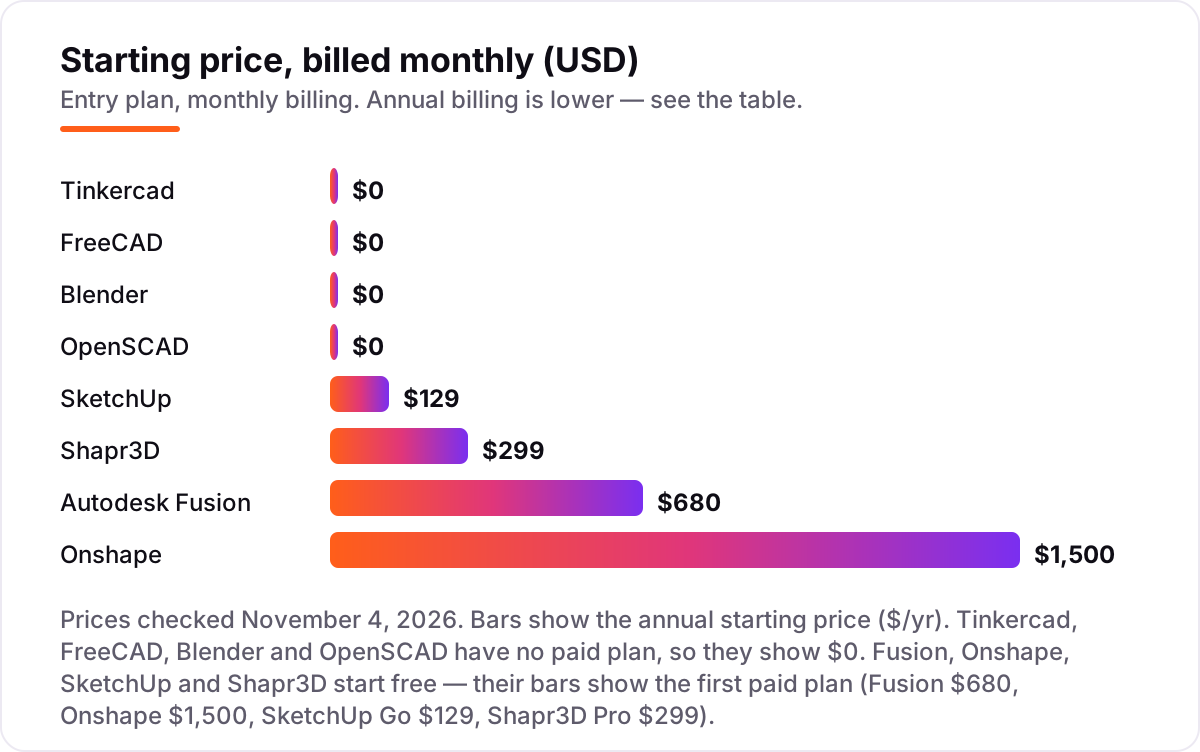
Take a beginner who prints two models a week and, after six months, decides to sell prints at a local market. Staying free costs $0 all year on Tinkercad, FreeCAD, Blender or OpenSCAD — those four have no paid plan at all, so the software never becomes a bill. The cost appears only when a free tier's license gets in the way: Fusion personal use stops at $1,000 a year in revenue, Onshape Free is non-commercial, SketchUp Free is personal use only, and Shapr3D Basic is non-commercial.
Selling legally on the freemium tools means paying for the first paid plan: SketchUp Go at $129 a year, Shapr3D Pro at $299 a year, Fusion at $680 a year, or Onshape Standard at $1,500 a year. The cheapest legal commercial setup is SketchUp Go at $129; the dearest is Onshape Standard at $1,500 — a $1,371 gap for the same market stall. Two of those numbers have cheaper paths: Fusion costs $85 a month if you pay monthly, so the $680 annual plan saves $340 a year, and Shapr3D Pro is $37.99 a month through the App Store, so the $299 annual plan saves about $157 a year.
One more cost to check before you commit: the computer. The browser tools run on hardware you already own, including a Chromebook, while Fusion and Blender want a desktop with a real graphics card — a cost that dwarfs any subscription here. If you already own a capable desktop, the software bill for year one can genuinely be $0; if you need new hardware to run it, the hardware is the purchase, not the CAD.
Know the difference: a free plan is not free software
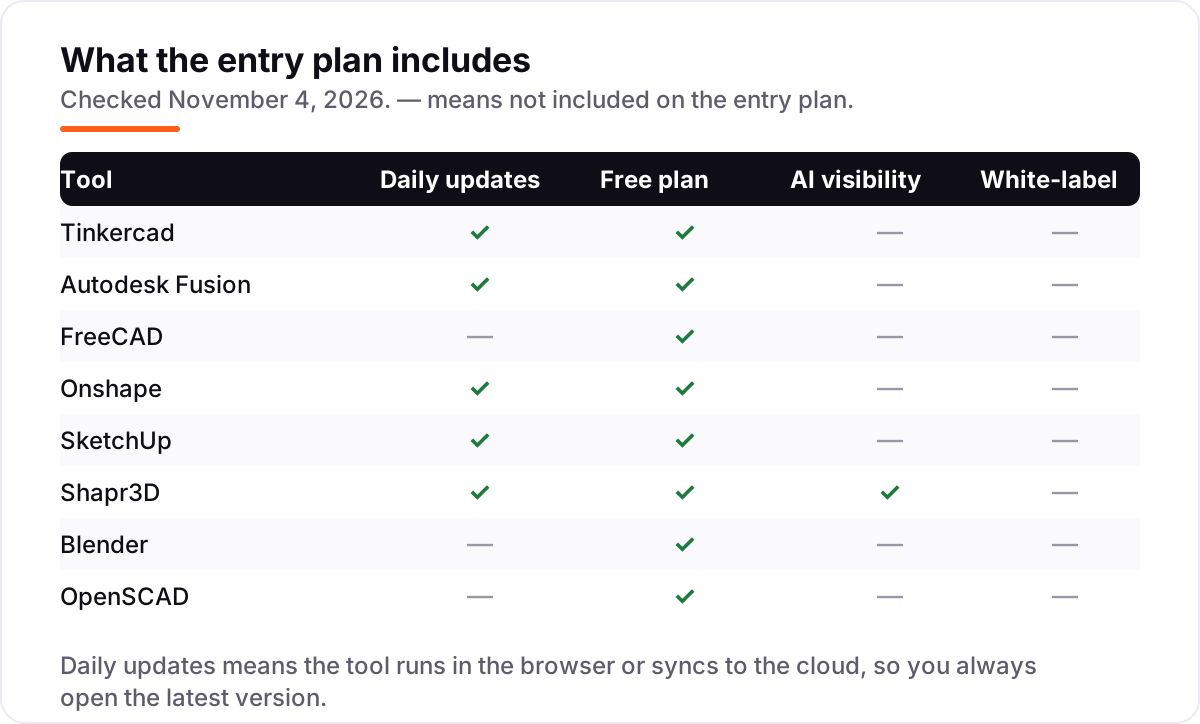
The biggest confusion in this category is the word "free," which means two different things. A free plan is a tier of a paid product: Fusion personal use, Onshape Free, SketchUp Free and Shapr3D Basic all cost $0, but each carries license limits — no commercial use, public documents, capped exports or a project limit — and the vendor can change the terms. Free software is a different promise: FreeCAD, Blender and OpenSCAD are open source with no paid tier at all, so there is no upgrade to be pushed into and no revenue limit on what you sell. Tinkercad sits in between: free with no paid plan, but owned by Autodesk rather than a community.
The practical test is one question: might you sell a print one day? If the answer is yes, even as a maybe, start with FreeCAD, Blender or OpenSCAD, or budget for the paid plan of a freemium tool from the start. Learning a tool for six months and then discovering its free license bans the sale is the most expensive mistake in this list, because the cost is paid in evenings, not dollars.
A second distinction matters once you start modeling: parametric CAD versus mesh modeling. Parametric tools (Fusion, FreeCAD, Onshape, OpenSCAD) build solids from sketches and numbers, so every dimension stays editable and parts fit together to the millimeter. Mesh tools (Blender, and Tinkercad at its simplest) push faces and vertices around, which is ideal for organic shapes but hopeless for a bracket that must meet a bolt. Neither is better in general — they solve different shapes — so the right question is always which shape you are making.
Quick comparison: tool type by need
| Buyer | Best pick | Why |
|---|---|---|
| First print tonight | Tinkercad | Free, browser-based, no install, first model in under an hour |
| Precise parts on a hobby budget | Autodesk Fusion | Free for personal use, $680/year when you go commercial |
| Fully free, no strings attached | FreeCAD | Free forever, parametric, offline, no revenue limit |
| Any device, no install | Onshape | Free plan in a browser, built-in version control |
| Fast sketching | SketchUp | Free web plan, push-pull modeling, Go is $129/year |
| Designing on an iPad | Shapr3D | Basic is free, pencil sketching, Pro is $299/year |
| Figures and cosplay props | Blender | Free, the best sculpting tools here |
| Parts defined by code | OpenSCAD | Free, one variable resizes the whole model |
Mistakes to avoid
- Learning a tool whose free plan bans selling, then finding out after the first sale. Fusion personal use, Onshape Free, SketchUp Free and Shapr3D Basic are all non-commercial. Check the license before you invest evenings in a tool.
- Choosing a sculpting tool for a part that must fit something else. Blender makes beautiful figures and terrible brackets. If the part must meet a bolt to the millimeter, use parametric CAD.
- Ignoring the export limit. Shapr3D Basic exports STL at low resolution only, and Onshape Free makes every document public. Both limits bite after you have already done the work.
- Paying for Pro before the free tier runs out. Run one real month on the free plan first — a finished, printed model, not a tutorial — and only pay when a specific limit blocks you.
- Skipping the printability check. A beautiful model with zero wall thickness or non-manifold edges will not slice. Run the 3D Print Toolbox in Blender, or the mesh tools in Fusion, before you send anything to the printer.
How we chose
We checked each vendor's own pricing page on November 4, 2026 and recorded the starting price exactly as shown, including the annual figure where the page lists one, and we ranked the tools by fit for the most common buyer — a beginner with a new 3D printer and no CAD experience — not by brand size. Two exceptions: Autodesk's own pricing page blocked our automated check on November 4, so Fusion's $680 a year is the vendor-supplied price shown on G2, corroborated by current guides quoting Autodesk's page; and SketchUp's pricing page renders its prices in JavaScript, so the Go $129 and Pro $399 figures were confirmed against the price data embedded in SketchUp's own page and the vendor-supplied pricing on its G2 profile. Every rating comes from the tool's G2 page, opened on November 4, 2026, except Shapr3D, which carries no rating here because its G2 page returned a rate-limit error when we tried to open it. No vendor paid for a place in this list, and none of the links here are affiliate links.
What to do next
Start with Tinkercad tonight and print one small model — a name tag, a cable clip, a replacement knob — and hold the result in your hand before you learn anything else. If it fits and you want more, move to Fusion or FreeCAD for measured parts, or Blender for figures. If the prints start selling, check the license first and budget for the paid plan that fits: SketchUp Go at $129 a year is the cheapest commercial step. Many makers film their prints, and our guide to AI tools for video content creation covers the editing side. If the shop is sorted but new customers are not finding you, our monthly SEO service handles the visibility side. Once your tools are in place, find out what's holding your rankings back.
Your stack only works if people find you
SerpAstra fixes what keeps your site off page one and makes it easy for AI assistants to recommend.
Get a free audit→Sources we checked (15)
- Tinkercad — tinkercad.com (free; no paid plan; checked November 4, 2026)
- Tinkercad reviews — g2.com/products/tinkercad/reviews (checked November 4, 2026)
- Autodesk Fusion pricing — autodesk.com/products/fusion-360/pricing (checked November 4, 2026; vendor page blocked, price confirmed via vendor-supplied G2 pricing)
- Autodesk Fusion reviews — g2.com/products/autodesk-fusion/reviews (checked November 4, 2026)
- FreeCAD — freecad.org (free and open source; checked November 4, 2026)
- FreeCAD reviews — g2.com/products/freecad/reviews (checked November 4, 2026)
- Onshape pricing — onshape.com/en/pricing (checked November 4, 2026)
- Onshape reviews — g2.com/products/onshape/reviews (checked November 4, 2026)
- SketchUp pricing — sketchup.com/plans-and-pricing (checked November 4, 2026)
- SketchUp reviews — g2.com/products/sketchup/reviews (checked November 4, 2026)
- Shapr3D pricing — shapr3d.com/pricing (checked November 4, 2026)
- Blender — blender.org/download (free and open source; checked November 4, 2026)
- Blender reviews — g2.com/products/blender/reviews (checked November 4, 2026)
- OpenSCAD — openscad.org (free and open source; checked November 4, 2026)
- OpenSCAD reviews — g2.com/products/openscad/reviews (checked November 4, 2026)
Shamim
Founder of SerpAstra
A full-stack SEO and digital marketer who spends most days on Local SEO for dental practices, AI search visibility and lead generation.
Frequently asked questions
What is the best beginner CAD software for 3D printing?
Tinkercad is the best first step: free, browser-based and easy enough to print a first model in under an hour. For measured functional parts, Autodesk Fusion is the stronger pick, with a free personal-use license, and FreeCAD is the best fully free option with no license limits.
Is there really free CAD software for 3D printing?
Yes. Tinkercad, FreeCAD, Blender and OpenSCAD cost nothing at all and have no paid plan. Autodesk Fusion, Onshape, SketchUp and Shapr3D also start free, but their free tiers carry limits on commercial use, public documents, or capped export quality, so read the license before you commit.
Can I sell 3D prints made with free CAD software?
It depends on the license. FreeCAD, Blender and OpenSCAD are open source, so you can sell what you make with no fee or revenue limit. Fusion personal use, Onshape Free and SketchUp Free ban commercial work, and Shapr3D Basic is non-commercial too — selling needs a paid plan.
What is the difference between CAD software and Blender for 3D printing?
Parametric CAD tools like Fusion and FreeCAD build precise solids from sketches and dimensions, so parts fit together to the millimeter. Blender is a mesh modeler: it sculpts organic shapes brilliantly but has no dimensions or constraints, so exact fits are hard work.
Do I need a powerful computer to run CAD software?
Not to start. Tinkercad, Onshape and SketchUp Free run in a browser and work on a Chromebook, since the heavy work happens on the vendor's servers. Fusion and Blender run on your own machine and want a real desktop, while Shapr3D works best on an iPad with a pencil.
Which CAD software is easiest to learn?
Tinkercad is the easiest by a wide margin: drag-and-drop shapes and built-in lessons, with a first print in under an hour. SketchUp comes next for its push-pull sketching, then Shapr3D on an iPad. Fusion and FreeCAD are the most capable — and the slowest to learn.
Can I use CAD software on an iPad?
Yes. Shapr3D is the best iPad CAD tool, built around the Apple Pencil with a precise Parasolid kernel. Onshape and SketchUp Go also run in the iPad browser, and Fusion has a mobile app, but Shapr3D is the only one here designed for touch first.
Free SEO and AI visibility audit
Find out what is holding your rankings back
Send us your site. Within 2 business days you get a written audit, an AI visibility check and a short fix list ranked by impact. Free, with no contract attached.
Request my free audit→Related guides
 AI, Data & Analytics12 Best AI Tools for Video Content Creation in 2026, Compared12 best AI tools for video content creation compared with real prices, free plans and G2 ratings, so you can pick the right video maker without overpaying.Read guide →
 SEO & AI SearchBest Video Analytics Software for 2026: 9 Options Compared by Use Case9 best video analytics software tools compared on price, engagement analytics and free plans. Prices checked on the vendor pricing page, November 2, 2026.Read guide →
 ContentVideo SEO: how to rank videos on Google and YouTubeVideo SEO explained: how to rank videos on Google and YouTube with titles, thumbnails, chapters, transcripts and the signals each platform actually rewards.Read guide →