12 Best Cross-Platform Calendar for 2026 (Pros, Cons and Pricing)
Compare the 12 best cross-platform calendar apps for 2026, with real starting prices, free plans and sync across iOS, Android and the web checked.
 Shamim Mia, Founder, SerpAstraLast verified November 10, 202614 min read
We compare pricing pages, documentation and public reviews. We never accept payment for rankings.

Key takeaways
- Google Calendar leads for most people at $0, with Outlook Calendar free too and Fantastical the best paid upgrade at $6.99 a month.
- The single most important buying factor is which calendars it syncs natively — Google, Outlook and iCloud — because a calendar that cannot see all your accounts cannot keep work and personal time apart.
- Paid planners cost $5 to $49 a month per person, and the bill grows with every seat, so price the team you will have next year, not just yourself today.
On this page
Quick comparison
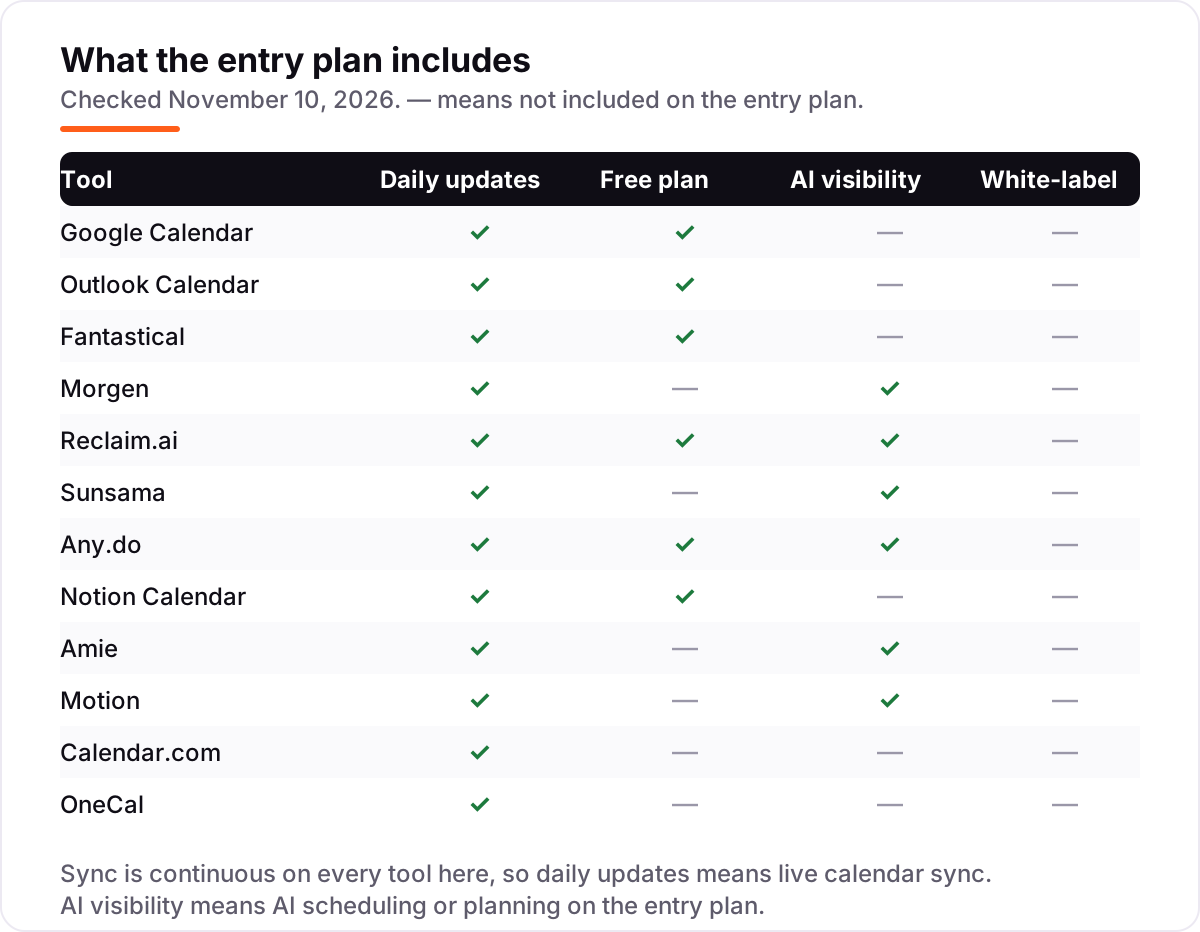
| Tool | Best for | Starting price | Free plan |
|---|---|---|---|
| Google Calendar | Anyone who wants a free calendar that syncs across iPhone, Android and the web | Free | Yes (free plan) |
| Outlook Calendar | People and teams already on Microsoft 365 who live in Outlook email | Free | Yes (free plan) |
| Fantastical | Apple and Windows users who want typed events and scheduling links in one polished app | $6.99/mo | Yes (free plan) |
| Morgen | People juggling several work and personal calendars who want tasks planned onto the day | $30/mo | No (14-day trial) |
| Reclaim.ai | Busy professionals who want focus time and habits defended automatically | $12/mo | Yes (free Lite plan) |
| Sunsama | People who plan each morning with a guided ritual and want the day time-boxed | $22/mo | No (14-day trial) |
| Any.do | People who want tasks, lists and the calendar in one simple app on every device | $7.99/mo | Yes (free plan) |
| Notion Calendar | Notion users who want their docs, tasks and calendar dates in one workspace | Free; Plus $12/mo | Yes (free plan) |
| Amie | People who want calendar, tasks, email and AI meeting notes in one beautiful app | $25/mo | No (7-day trial) |
| Motion | People who want AI to build the day for them and will pay for full automation | $49/mo | No (7-day trial) |
| Calendar.com | Small teams that need booking pages, payments and a shared team calendar | $20/mo | No (14-day trial) |
| OneCal | People with work and personal calendars on different providers who need them kept in step | $5/mo | No (14-day trial) |
Make one of these tools?
We re-check this list every quarter. Send a correction, request a review, or ask about a clearly labeled sponsored spot.
Request a listingThe best cross-platform calendar

Google Calendar
Best for: Anyone who wants a free calendar that syncs across iPhone, Android and the web
Google Calendar is the default answer for a reason: it costs nothing, runs on every device you own, and shows the same events on your phone, your computer and the web within seconds of a change. Shared calendars, booking pages and room booking are all included free, and because nearly every calendar app connects to Google, it also works as the base layer underneath a paid planner such as Morgen or Reclaim.
What it does not do is plan the day for you. There is no time-blocking, no focus-time defence and no AI that moves tasks when a meeting runs over, so people who want the calendar to organise their work still need a second tool. If your life already runs on Gmail and Google accounts, start here and spend nothing — most people never need to leave.
What we like
- Free on iOS, Android, web and desktop, with the same events everywhere
- Connects to almost every calendar app, so it works as the shared base layer
- Booking pages, shared calendars and room booking cost nothing extra
- Search, time-zone support and recurring events all work on the free plan
Watch out for
- No built-in time-blocking or AI scheduling, so planning work still needs a second tool
- Sharing controls are basic next to paid team planners
- Google account required, which some workplaces do not allow

Outlook Calendar
Best for: People and teams already on Microsoft 365 who live in Outlook email
Outlook Calendar is the free calendar for the Microsoft half of the world. Any Outlook.com account gets a full calendar on iOS, Android, web and desktop, and because email and calendar share one app, an invite becomes an event with one tap instead of a copy-and-paste job. Inside a Microsoft 365 organisation, shared calendars, groups and room booking work smoothly, and Exchange is still the calendar most large employers standardise on.
The free plan has edges. The desktop Outlook app, an ad-free inbox and the full Office suite wait behind Microsoft 365 Personal at $9.99 a month, and sharing calendars with people outside your organisation takes more steps than on Google. Buy nothing if your work email is already Outlook — the calendar you need is already there.
What we like
- Free with any Outlook.com account on iOS, Android, web and desktop
- Email and calendar sit in one app, so invites become events in one tap
- Shared calendars, groups and room booking work well inside Microsoft 365
- Strongest choice where work already runs on Exchange or Microsoft 365
Watch out for
- The desktop app and ad-free inbox need Microsoft 365 Personal at $9.99 a month
- Shared-calendar setup is fiddly outside a Microsoft 365 organisation
- No AI time-blocking; focus time needs Viva Insights or a second tool

Fantastical
Best for: Apple and Windows users who want typed events and scheduling links in one polished app
Fantastical is the paid upgrade for people who live on Apple devices and want the calendar to feel fast. Type 'Lunch with John at 123 Main Street on Tuesday' and the event appears with the right time, place and invitee, no form-filling involved. Calendar sets let you flip between work and personal views with one tap, or automatically when you arrive at the office, and Premium adds Openings scheduling links and meeting polls.
The gap is Android: Flexibits lists an Android app for 2027, so anyone with an Android phone should not buy Fantastical as their main calendar yet, and there is no web version either. At $6.99 a month, or $56.99 a year, it is the cheapest polished upgrade here — pick it if your devices are Apple and Windows, and skip it if Android is in the mix.
What we like
- Type an event in plain English and it lands on the calendar with the right time
- Calendar sets switch work and personal views with one tap or location trigger
- Openings scheduling links and meeting polls are built into Premium
- Runs on Mac, iPhone, iPad, Apple Watch and Windows with real-time push sync
Watch out for
- No Android app until 2027, so Android users cannot use it as their main calendar
- No web version; everything runs through the desktop or mobile apps
- Scheduling links and calendar sets need Premium, not the free plan

Morgen
Best for: People juggling several work and personal calendars who want tasks planned onto the day
Morgen is built for the person this list is for: someone with a work calendar, a personal calendar and a family calendar on different providers, plus tasks scattered across other apps. It layers Google, Outlook, iCloud, Fastmail and Zoho calendars into one view, pulls tasks in from Notion, Todoist, ClickUp and Linear, and lets you drag them onto the day as time blocks. Its AI planner suggests a plan each morning and re-plans when meetings move.
The price is the catch. At $30 a month, or $15 a month billed annually, Morgen is the dearest solo planner here on monthly billing, and there is no free plan to fall back on after the 14-day trial. Pay it if you genuinely live across five calendars every day; if you live on one, Google Calendar does the job for free.
What we like
- Layers Google, Outlook, iCloud, Fastmail and Zoho calendars into one view
- Tasks from Notion, Todoist, ClickUp and Linear can be dragged onto the calendar
- Runs on Mac, Windows, Linux, iOS, Android and the web
- AI planner suggests a daily plan and re-plans when meetings move
Watch out for
- No free plan at all, only a 14-day trial before the $30 a month bill starts
- The most expensive solo planner here on monthly billing
- Team plans need at least two seats, so a solo user cannot split the cost

Reclaim.ai
Best for: Busy professionals who want focus time and habits defended automatically
Reclaim.ai sits on top of Google Calendar or Outlook and defends the time you meant to keep. Tell it your focus-time goal, your habits and your lunch break, and it books them around your meetings, then moves them automatically when the day changes. The free Lite plan does this for real — it is not a trial — and Starter at $12 a month adds more AI agents, a longer scheduling range and calendar syncs between accounts.
Two limits matter. There is still no native mobile app, so phone use runs through the web, and iCloud calendars are not supported directly. Reclaim is also the tool Clockwise pointed its users to when it shut down in March 2026, which says something about where the smart-scheduling crown now sits.
What we like
- A real free Lite plan that defends focus time, habits and breaks
- Auto-schedules tasks and habits around meetings, then moves them when plans change
- Syncs events between Google and Outlook calendars to protect availability
- The tool Clockwise itself recommended when it shut down in March 2026
Watch out for
- No native mobile app yet, so phone use runs through the web or the calendar itself
- Lite caps at 5 AI agents and a 1-week scheduling range, so real use needs Starter
- Works only on Google Calendar and Outlook, not iCloud directly

Sunsama
Best for: People who plan each morning with a guided ritual and want the day time-boxed
Sunsama is a daily planner first and a calendar second. Each morning it walks you through a short ritual: pull in tasks from Asana, Trello, Todoist, Gmail and Slack, drag the ones that matter onto the calendar as time blocks, and close the day with a shutdown review. Focus mode keeps you on the current task, and there is one plan with everything in it, so there are no tiers to compare or features held back.
It costs $22 a month, or $17 a month billed annually, and there is no free plan — only a 14-day trial. Note the vendor's own pricing page still shows older $25 and $20 figures in its FAQ; the $22 and $17 figures come from the page's main pricing panel. Pick Sunsama if a calm daily ritual is what you actually need.
What we like
- A guided morning ritual turns the task list into a realistic, time-boxed day
- Pulls tasks from Asana, Trello, Todoist, Gmail and Slack into one plan
- Focus mode and an end-of-day shutdown ritual keep the plan honest
- One plan with everything included, so there are no tiers to compare
Watch out for
- No free plan, only a 14-day trial, and cancellation gives account credit, not a refund
- The vendor's own pricing page still shows older $25 and $20 figures in its FAQ
- Manual daily planning suits routine days better than fast-changing ones

Any.do
Best for: People who want tasks, lists and the calendar in one simple app on every device
Any.do comes at the calendar from the task side: your to-dos and your events live on one timeline, so 'finish the proposal' and 'proposal meeting' sit next to each other instead of in two apps. The free Personal plan covers tasks, lists, reminders, the calendar and sync across devices, and the app runs on iOS, Android, Mac, Windows, the web and watches — the widest device spread in this list.
Premium is $7.99 a month, or $4.99 a month billed annually, and adds recurring tasks, WhatsApp reminders, AI features and location reminders. One warning: Any.do's own pages have shown different Premium prices, so read the total at checkout before you pay. Choose Any.do when simple lists plus a calendar beat a clever planner.
What we like
- Free Personal plan covers tasks, lists, reminders, calendar and sync across devices
- Runs on iOS, Android, Mac, Windows, web and watches, so the list is always to hand
- A daily planner view puts tasks and events on one timeline
- WhatsApp and location reminders arrive with Premium for people who miss alerts
Watch out for
- The vendor's own pages have shown different Premium prices, so check the checkout total
- Calendar sync and some views sit behind Premium, not the free plan
- No AI scheduling of the day; it organises tasks rather than planning them for you

Notion Calendar
Best for: Notion users who want their docs, tasks and calendar dates in one workspace
Notion Calendar is the calendar for people whose work already lives in Notion. The app itself is free on iOS, Android, Mac, Windows and the web, connects to Google Calendar, and shows Notion pages and deadlines beside your events, so a project due date and the meeting about it sit in one view. One-tap meeting notes link the calendar straight into a Notion doc.
Be clear about what it is: a view over Google Calendar, not a standalone calendar service, with thinner scheduling links and time-zone handling than the dedicated apps here. Plus costs $12 a member a month for collaboration. Pick it if Notion is already your workspace; otherwise Google Calendar is the simpler free choice.
What we like
- Free app on iOS, Android, Mac, Windows and the web
- Connects Google Calendar and shows Notion pages and deadlines beside events
- One-tap meeting notes link the calendar straight into Notion docs
- Plus at $12 a month adds collaboration, unlimited file uploads and longer history
Watch out for
- It is a view over Google Calendar, not a standalone calendar service
- Advanced Notion AI needs Business at $20 a member a month, not the free plan
- Scheduling links and time-zone handling are thinner than dedicated calendar apps

Amie
Best for: People who want calendar, tasks, email and AI meeting notes in one beautiful app
Amie is the prettiest all-in-one in this list: calendar, todos, email and contacts share one timeline, and its meeting notes stand out because recordings happen without inviting a bot into the call. AI scheduling drafts replies and suggests times from your real availability, and the app runs on iOS, Android, Mac, Windows and the web. Pro is $25 a user a month, or $20 a month billed annually.
The price is the hard part. At $25 a month with no free plan — only a 7-day trial — Amie costs more than Fantastical, Morgen and Sunsama for a job Google Calendar does free. Buy it for the design and the bot-free notes, not for the calendar alone.
What we like
- Calendar, todos, email and contacts share one clean timeline
- Bot-free meeting recordings turn calls into notes without inviting a bot
- AI scheduling drafts emails and suggests times from your real availability
- Runs on iOS, Android, Mac, Windows and the web
Watch out for
- No free plan on the current pricing page, only a 7-day trial
- Pro at $25 a month is dear for a calendar when Google Calendar is free
- Apple Calendar integration has been slow to arrive, per user reviews

Motion
Best for: People who want AI to build the day for them and will pay for full automation
Motion is the most automated planner here. Its AI builds your day from your tasks and meetings, re-plans it when a meeting runs over, and keeps calendar, tasks, projects, docs and meeting notes in one workspace. Booking links and a meeting notetaker come with the AI features, and there is no free plan — only a 7-day trial that asks for a card.
Read the price carefully. The pricing page opens on the Teams tab showing $19 a seat, but one person pays $49 a month, or $29 a month billed annually — the $19 rate is the team annual rate. AI credits also cap at 7,500 a month on Pro. Motion earns its price only if the AI replanning saves you real hours every week.
What we like
- AI auto-schedules tasks around meetings and re-plans the day when things slip
- Calendar, tasks, projects, docs and meeting notes live in one workspace
- Booking links and a meeting notetaker come with the AI features
- Team Pro drops to $19 a seat a month billed annually, so teams pay far less per head
Watch out for
- One person pays $49 a month, not the $19 team rate the pricing page shows first
- No free plan, only a 7-day trial, and purchases are non-refundable
- AI credits cap at 7,500 a month on Pro, with extra credits charged on top

Calendar.com
Best for: Small teams that need booking pages, payments and a shared team calendar
Calendar.com is a scheduling platform with a calendar at its core, built for small teams rather than solo users. It unifies Google, Outlook and other calendars into one team view, adds booking pages, meeting polls and round-robin scheduling, and takes payment for events with custom branding on Standard. Individual and team analytics show who is booked and when.
The price needs reading twice: $20 is per user per month, so five people cost $100 a month, and annual billing brings it to $192 per user per year. Standard also caps at 10 users and 6 connected calendars. Pick Calendar.com when the team books meetings with outsiders all day; for personal use, the free tools above do more for less.
What we like
- Unifies Google, Outlook and other calendars into one team view
- Booking pages, meeting polls and round-robin scheduling are built in
- Takes payment for events and adds custom branding on Standard
- Individual and team analytics show who is booked and when
Watch out for
- The $20 headline is per user, so five people cost $100 a month, not $20
- SSO is a paid add-on on Pro and included only on Enterprise
- Standard caps at 10 users and 6 connected calendars per workspace

OneCal
Best for: People with work and personal calendars on different providers who need them kept in step
OneCal does one job and does it well: it keeps calendars on different providers in step. Most tools copy events one way; OneCal syncs Google, Outlook, iCloud and CalDAV calendars in several directions at once, so a meeting on your work Outlook calendar blocks time on your personal Google calendar automatically. Privacy controls decide which details cross over, and every plan includes unlimited booking links and a unified calendar view.
Starter is $5 a user a month billed annually, or $60 a year, for up to 2 connected calendars — but the month-to-month rate is not published, so check before buying if you will not commit to a year. OneCal is a specialist add-on, not a calendar on its own: you still need Google or Outlook underneath it.
What we like
- Multi-way sync keeps Google, Outlook, iCloud and CalDAV calendars mutually current
- Privacy controls choose which event details cross from one calendar to another
- Unlimited booking links and a unified calendar view come with every plan
- iOS, Android, macOS and web apps, with real-time sync
Watch out for
- It syncs calendars rather than replacing them, so you still need Google or Outlook underneath
- No free plan, only a 14-day trial, and the price rises with every extra calendar
- The monthly rate is not published, so month-to-month buyers cannot see the cost up front
The best cross-platform calendar is the one that shows every part of your life in one place — work meetings, personal plans and family events — and keeps them in step on your phone, your computer and the web. The twelve tools below are ranked by fit for the most common buyer, a person juggling work and personal calendars across iOS, Android and the web, and every price was checked against the vendor's own pricing page on November 10, 2026.
How to choose the best cross-platform calendar
- Check the providers it syncs first. The calendar must connect to Google, Outlook and iCloud natively, because a tool that only sees one account cannot stop a work meeting clashing with a family event.
- Count the devices you actually use. An app that skips Android or has no web version is not cross-platform for you, no matter how good it looks on a Mac.
- Decide whether you need planning or just a calendar. Google Calendar shows your day; Morgen, Sunsama and Motion plan it for you, and that planning is what the $15 to $49 a month buys.
- Read the pricing unit before the headline. Most paid tools charge per user per month, so a $20 tool costs $100 a month for a team of five.
- Test the sync with real accounts. Connect work and personal calendars during the trial and check that an event added on your phone appears on your computer within seconds, and that a private event stays private.
A calendar only helps if people can find you when it matters. Our local SEO service covers the visibility side for local businesses, and the free Google review link generator makes a one-tap review link for the front desk. Before you pay for any tool here, run its trial with your real calendars connected — the free plans and trials in this list are long enough to prove the sync works.
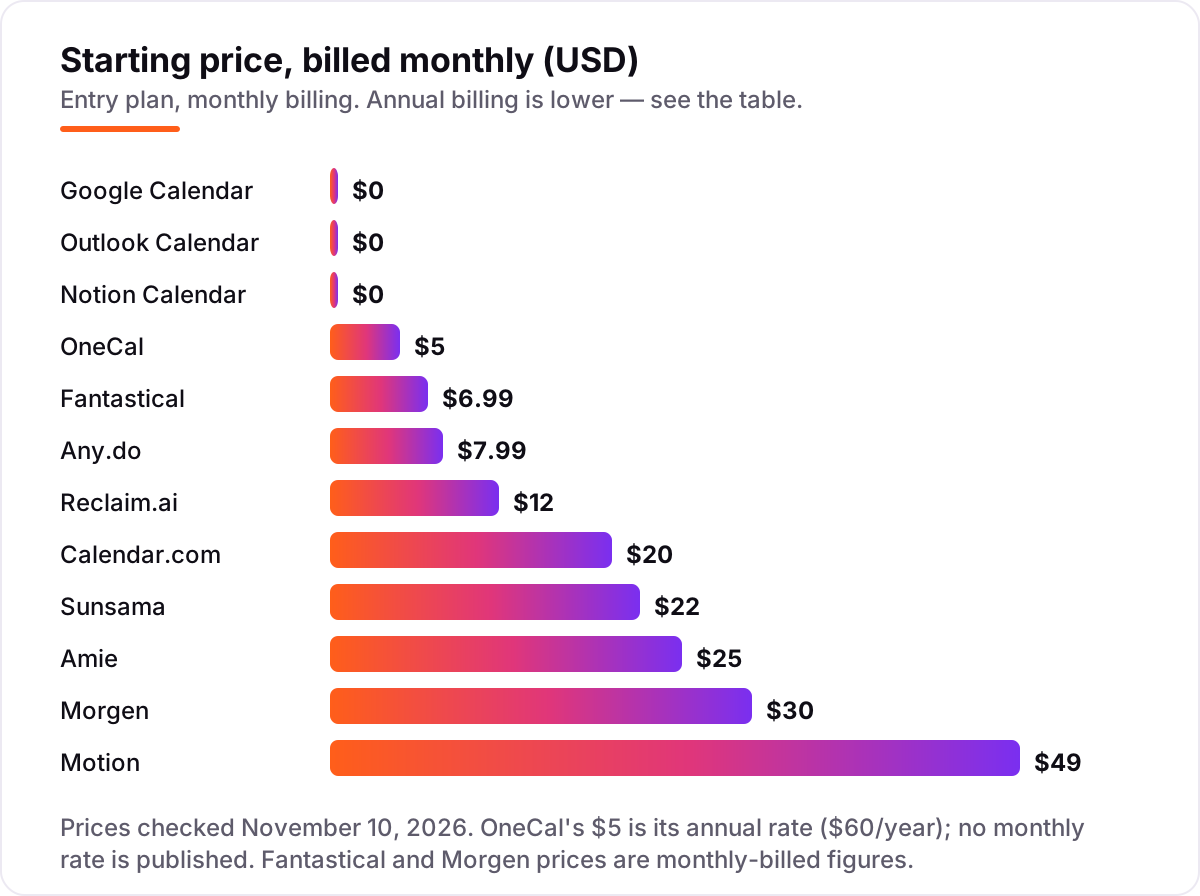
Cross-platform calendar pricing: what you will actually pay
Take one person paying month to month. The bill is $0 on Google Calendar, Outlook Calendar and Notion Calendar, $5 a user a month on OneCal billed annually, $6.99 on Fantastical, $7.99 on Any.do, $12 on Reclaim.ai, $20 on Calendar.com, $22 on Sunsama, $25 on Amie, $30 on Morgen and $49 on Motion. Over a year that is $0 on the three free tools, $60 on OneCal, $83.88 on Fantastical, $95.88 on Any.do, $144 on Reclaim.ai, $240 on Calendar.com, $264 on Sunsama, $300 on Amie, $360 on Morgen and $588 on Motion.
Paying annually cuts most of those figures. Fantastical falls to $56.99 a year, Any.do to $59.88, Reclaim.ai to $120, Sunsama to $204, Amie to $240, Morgen to $180 and Motion to $348. The annual discount is worth real money on the dearer tools: Motion drops by $240 a year and Morgen by $180, so never judge a planner by its monthly price alone.
A team of five paying month to month shows the per-user trap. Five seats cost $34.95 on Fantastical Team, $39.95 on Any.do Premium, $60 on Reclaim.ai Starter, $100 on Calendar.com Standard, $110 on Sunsama, $125 on Morgen Team, $145 on Motion Team Pro and $125 on Amie Pro. The same five people cost nothing on Google Calendar and $145 a month on Motion Team Pro — and the gap comes from the pricing unit, not from the calendar itself.
Know the difference: a calendar app vs a scheduling tool vs a time-blocking app
The confusion in this category is the job each tool does, not the feature list. A calendar app, such as Google Calendar or Fantastical, shows your events and keeps them synced across devices. A scheduling tool, such as Calendar.com, adds booking pages so other people can pick a time with you without the back-and-forth. A time-blocking app, such as Morgen, Sunsama or Motion, goes further: it plans your tasks onto the calendar as blocks of time and moves them when meetings change.
Buy the wrong type and you pay for a job you did not need. A person who only wants to see work and personal events in one place needs Google Calendar at $0, not Motion at $49 a month. A person whose day falls apart every time a meeting moves needs the time-blocking, not a prettier calendar. And a team that books meetings with outsiders all day needs the booking pages of Calendar.com, which a plain calendar does not offer.
There is a second confusion: syncing is not the same as planning. OneCal keeps several calendars in step, but it does not plan your day; Reclaim.ai plans your day, but it only works on Google and Outlook. Check which job you are buying before you compare prices, because the cheapest tool for one job is often the wrong tool for the other.
Quick comparison: tool type by need
| Buyer | Best pick | Why |
|---|---|---|
| Most people, free | Google Calendar | Full sync across every device for $0 |
| Microsoft 365 households and teams | Outlook Calendar | Email and calendar in one app, free with an Outlook.com account |
| Apple and Windows users who want a nicer calendar | Fantastical | Typed events and calendar sets from $6.99/month |
| Several calendars plus tasks in one view | Morgen | Unifies five providers with AI planning, $15/month billed annually |
| Focus time that defends itself | Reclaim.ai | Free Lite plan, Starter is $12/month |
| A calm daily planning ritual | Sunsama | Guided time-boxing, Pro is $22/month |
Mistakes to avoid
- Buying a planner when you need a calendar. Google Calendar shows your day for $0. Morgen, Sunsama and Motion charge $22 to $49 a month to plan it, and that money is wasted if you only check times.
- Ignoring the missing platform. Fantastical has no Android app until 2027 and no web version; Calendars by Readdle is Apple-only. Check your own devices before you pay, not the app's marketing page.
- Budgeting on the headline, not the seat count. Calendar.com at $20 a user costs $100 a month for five people, and Motion's $19 team rate is not the $49 a solo user pays.
- Assuming sync means planning. OneCal keeps calendars in step but does not plan your day; Reclaim.ai plans your day but only on Google and Outlook. Buy the job, not the word "sync".
- Paying for a dead tool. Clockwise shut down on March 27, 2026 and Timepage is discontinued. Check that any calendar app you find in an old roundup is still sold before you build your week around it.
How we chose
We checked each vendor's own pricing page on November 10, 2026 and recorded the starting price exactly as shown, including the annual-billing figure where the page lists one, and we ranked the tools by fit for the most common buyer — a person juggling work and personal calendars across iOS, Android and the web — not by brand size. Some vendor pages render prices in scripts, so the text crawl omits them: Fantastical's $6.99 a month and $56.99 a year, Morgen's $30 a month and $15 a month billed annually, Motion's $49 a month and $29 a month billed annually for one person, and Amie's $25 a month and $20 a month billed annually are confirmed by fresh October 2026 reads of those vendors' own pricing pages, and OneCal's $5 is its published annual rate because no monthly rate is published. Sunsama's $22 and $17 figures come from the main pricing panel on its own page; its FAQ still shows older $25 and $20 figures. Two familiar names are left out on purpose: Clockwise shut down on March 27, 2026 and Timepage is discontinued, so neither is sold in 2026. No ratings are shown because no G2 or Capterra page was opened today, and no vendor paid for a place in this list.
What to do next
Start with the free calendar that matches your accounts — Google Calendar for most people, Outlook Calendar if your work runs on Microsoft 365 — and connect every account you own. Run it for a week and watch whether work and personal events stay in step on every device. If the day still falls apart, trial the planner that matches the gap: Reclaim.ai for focus time, Morgen for several calendars, Sunsama for a daily ritual. Once your tools are in place, find out what's holding your rankings back.
Your stack only works if people find you
SerpAstra fixes what keeps your site off page one and makes it easy for AI assistants to recommend.
Get a free audit→Sources we checked (13)
- Google Calendar — calendar.google.com (checked November 10, 2026)
- Outlook Calendar / Microsoft 365 pricing — microsoft.com/en-us/microsoft-365/buy/compare-all-microsoft-365-products (checked November 10, 2026)
- Fantastical pricing — flexibits.com/pricing (checked November 10, 2026)
- Morgen pricing — morgen.so/pricing (checked November 10, 2026)
- Reclaim.ai pricing — reclaim.ai/pricing (checked November 10, 2026)
- Sunsama pricing — sunsama.com/pricing (checked November 10, 2026)
- Any.do pricing — any.do/pricing (checked November 10, 2026)
- Notion pricing — notion.com/pricing (checked November 10, 2026)
- Amie pricing — amie.so/pricing (checked November 10, 2026)
- Motion pricing — usemotion.com/pricing (checked November 10, 2026)
- Calendar.com pricing — calendar.com/pricing (checked November 10, 2026)
- OneCal pricing — onecal.io/pricing (checked November 10, 2026)
- Clockwise shutdown — reclaim.ai/blog/clockwise-shutdown-news (checked November 10, 2026)
Shamim
Founder of SerpAstra
A full-stack SEO and digital marketer who spends most days on Local SEO for dental practices, AI search visibility and lead generation.
Frequently asked questions
What is the best cross-platform calendar?
Google Calendar is the best fit for most people because it is free, syncs across iOS, Android and the web, and connects to almost every other app. Outlook Calendar is the best free choice inside Microsoft 365, and Fantastical at $6.99 a month is the best paid upgrade for Apple and Windows users.
How much does a cross-platform calendar cost per month?
From $0 to $49 a month per person. Google Calendar, Outlook Calendar and Notion Calendar are free, Fantastical costs $6.99, Any.do $7.99 and Reclaim.ai $12 on monthly billing. The dearest solo plans are Motion at $49, Morgen at $30 and Amie at $25 a month.
Is there a free cross-platform calendar?
Yes, several. Google Calendar, Outlook Calendar and Notion Calendar are free on iOS, Android and the web, and Fantastical and Any.do have free plans too. Reclaim.ai has a free Lite plan that defends focus time. Paid features such as AI scheduling and booking links are what the free plans hold back.
What is the difference between a calendar app and a scheduling tool?
A calendar app shows your events and keeps them synced across devices. A scheduling tool, such as Calendar.com, adds booking pages so other people can pick a time with you. A time-blocking app, such as Morgen or Sunsama, goes further and plans your tasks onto the calendar as blocks of time.
Can I sync Google Calendar with Outlook and iCloud?
Yes, with the right tool. Morgen, Reclaim.ai and OneCal all connect Google and Outlook calendars, and OneCal adds iCloud and CalDAV with multi-way sync. Google Calendar and Outlook Calendar alone do not sync with each other, so pick a tool that lists all three providers before you pay.
What happened to Clockwise?
Clockwise shut down on March 27, 2026, when its team joined Salesforce, and its scheduling links and focus-time holds stopped working. Clockwise itself recommended Reclaim.ai as the replacement, which is why Reclaim.ai sits in this list. If you used Clockwise, move your focus-time setup to Reclaim.ai.
Can I switch cross-platform calendars later?
Yes, and switching is easier than with most software because your events live on Google, Outlook or iCloud, not in the app itself. Connect the new app to the same accounts, check that every calendar appears, and keep the old app installed for a week until the new one has proven it syncs both ways.
Free SEO and AI visibility audit
Find out what is holding your rankings back
Send us your site. Within 2 business days you get a written audit, an AI visibility check and a short fix list ranked by impact. Free, with no contract attached.
Request my free audit→Related guides
 Digital Marketing & Ads11 Best Marketing Calendar Software in 2026, ComparedCompare the 11 best marketing calendar software tools in 2026 on price, calendar views and free plans, with prices checked November 4, 2026 for US teams.Read guide →
 Local Business & Vertical Software10 Best Scheduling Software for Cleaning Business in 2026, ComparedCompare the 10 best scheduling software for cleaning business options on price, recurring bookings and crew tools, with prices checked November 8, 2026.Read guide →
 Local Business & Vertical Software9 Best Medical Appointment Scheduling Software in 2026, ComparedCompare the 9 best medical appointment scheduling software options on price, HIPAA readiness, reminders and free plans, with prices checked November 8, 2026.Read guide →