Best Image Cropper Apps (2026): 10 Apps Worth Downloading
Compare the 10 best image cropper app picks for social and web images, with real starting prices, free plans and crop presets, checked November 4, 2026.
 Shamim Mia, Founder, SerpAstraLast verified November 4, 202613 min read
We compare pricing pages, documentation and public reviews. We never accept payment for rankings.

Key takeaways
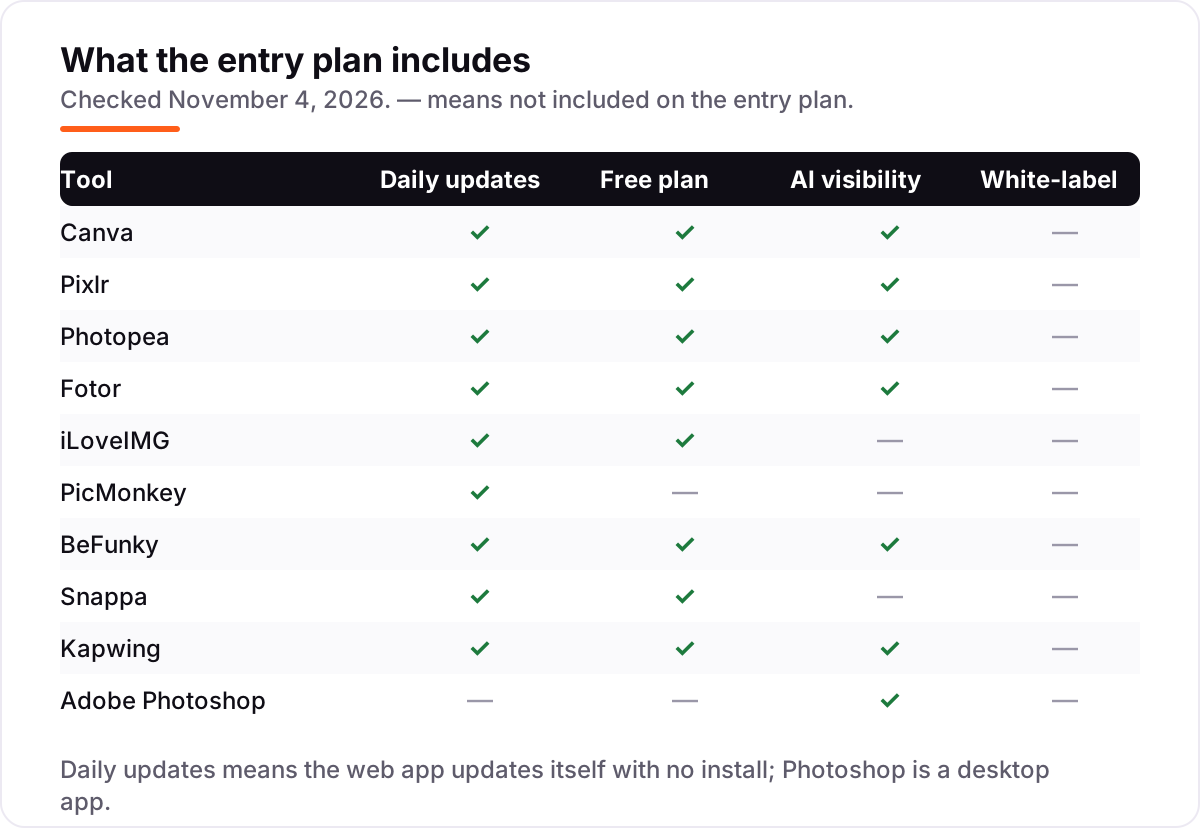
- Canva leads at $18/month, Pixlr follows at $2.49/month, and Photopea is free with a $5/month ad-free upgrade — the three best starting points for most people.
- The single most important buying factor is the export limit on the free plan: download caps, watermarks and file-size limits decide what you actually pay, not the headline price.
- Seven of the ten apps offer a free plan, and three of them — Pixlr, Photopea and iLoveIMG — let you crop without creating an account first.
- Batch cropping is the paid feature that matters most: Fotor, iLoveIMG and BeFunky all charge for cropping many images at once, so check the batch limit before you buy.
On this page
Quick comparison
| Tool | Best for | Starting price | Free plan |
|---|---|---|---|
| Canva | Small businesses and creators who crop photos as part of making social graphics, not as a standalone job | $18/mo | Yes (free plan) |
| Pixlr | Anyone who wants a free, no-account crop tool in the browser with a real editor behind it | $2.49/mo | Yes (free plan) |
| Photopea | Designers and marketers who receive PSD files and need Photoshop-style cropping without a subscription | Free; Premium $5/mo | Yes (free) |
| Fotor | Social creators who want one-click AI enhancement alongside cropping, with batch editing for photo sets | $8.99/mo | Yes (free plan) |
| iLoveIMG | Anyone who crops, resizes and compresses images in batches and wants the whole job done in one tab | $9/mo | Yes (free plan) |
| PicMonkey | Small businesses that crop and retouch product photos and want ready-made social templates in the same tool | $7.99/mo | No (7-day trial) |
| BeFunky | Creators who want collages, batch resizing and quick AI touch-ups in one browser tab | $14.99/mo | Yes (free plan) |
| Snappa | Solo marketers who need correctly sized social graphics fast and want no learning curve at all | $15/mo | Yes (3 downloads/mo) |
| Kapwing | Video-first creators who also need to crop still images and resize content across platforms | $24/mo | Yes (free plan) |
| Adobe Photoshop | Professional designers and photographers who need pixel-exact crops, layers and print-ready output | $22.99/mo | No (7-day trial) |
Make one of these tools?
We re-check this list every quarter. Send a correction, request a review, or ask about a clearly labeled sponsored spot.
Request a listingThe best image cropper apps

Canva
Best for: Small businesses and creators who crop photos as part of making social graphics, not as a standalone job
Canva is the fastest way from a photo to a social post. Open the editor, drop in the image, and crop to any preset for Instagram, Pinterest or YouTube, then keep designing in the same file. The free plan covers cropping, resizing and most templates, while Pro adds Magic Resize, which re-crops one design into every format at once, and a Brand Kit for your fonts and colors.
The catch is the paywall around the best features. Magic Resize, the background remover and most premium templates need Pro at $18 a month, or $144 a year, and free storage stops at 5GB. Canva has no true layer masking or CMYK export, so print work still needs a desktop editor. Pick Canva when cropping is part of making social graphics; pick Pixlr or Photopea when cropping is the whole job.
What we like
- One-click crop presets for every social format, from Instagram posts to Pinterest pins and YouTube thumbnails
- Magic Resize on Pro re-crops one design into every format at once, instead of cropping each size by hand
- Brand Kit on Pro locks in fonts, colors and logos so every cropped image stays on brand
- Real-time collaboration and a huge template library make it the fastest route from photo to finished post
Watch out for
- Magic Resize, the background remover and most premium templates need Pro at $18/month
- No true layer masking or CMYK export, so print work still needs a desktop editor
- Free plan caps storage at 5GB, and popular templates get used so often that designs can look alike

Pixlr
Best for: Anyone who wants a free, no-account crop tool in the browser with a real editor behind it
Pixlr is the closest thing to a free Photoshop in a browser tab, and its crop tool is the reason it ranks this high. Open Pixlr Express or the full editor, drag in a photo, and crop to a preset ratio or exact pixel size — no account, no install. The free plan covers the whole editor, and Plus at $2.49 a month removes the ads and unlocks unlimited saves.
The trade-offs are familiar ones. The free plan shows ads and limits AI credits to 80 a month, and large files can slow the editor down. Premium at $9.99 a month adds the full AI toolkit and a large font and template library, but most croppers will never need it. Pick Pixlr when you want the cheapest crop tool that works anywhere; pick Photopea when you need layered PSD files.
What we like
- Cropping works without an account, and the free plan covers the full editor, not a demo
- Cheapest paid plan in this list at $2.49 a month, with an ad-free workspace and unlimited saves
- Preset aspect ratios for social platforms plus a manual crop with exact pixel dimensions
- Runs on web, desktop and mobile with the same account, so edits carry across devices
Watch out for
- Free plan shows ads and caps AI credits at 80 a month, which interrupts frequent editing
- Browser performance lags on large files and layered projects, with no shared team library
- Premium assets and some AI tools stay locked behind Premium at $9.99 a month

Photopea
Best for: Designers and marketers who receive PSD files and need Photoshop-style cropping without a subscription
Photopea is the closest thing to opening Photoshop in a browser tab. The layout feels familiar to Adobe users, it opens PSD files with layers intact, and the crop tool works exactly the way Photoshop users expect — fixed ratios, exact dimensions, straightening and content-aware fill. Every editing feature is free; Premium at $5 a month only removes the ads.
The free plan is the real product here, not a trial, which is why it ranks above tools that charge more for less. The cost is attention: video ads run down the side of the workspace, and large files can slow the editor on older machines. There is no mobile app and no team library. Pick Photopea for layered files or Photoshop-level control for $0; pick Pixlr when you want a simpler interface and a phone app.
What we like
- The full editor is free, including layers, masks and PSD support, with nothing paywalled
- Opens and saves PSD, AI, Figma and RAW files, so designer files survive the trip intact
- Runs locally in the browser with no uploads, so files never leave your device
- Premium is a flat $5 a month and only removes ads — it unlocks no features
Watch out for
- Video ads run down the side of the free editor and distract during long sessions
- No mobile app and no cloud sync beyond 5GB of PeaDrive storage on Premium
- A one-person project, so support is a help page and a community, not a support team
Fotor
Best for: Social creators who want one-click AI enhancement alongside cropping, with batch editing for photo sets
Fotor pairs a straightforward crop tool with the batch editing most creators actually need. Crop one photo to a social preset, then run the same crop across a whole set in the batch editor, add a watermark, and export — all without opening a desktop app. The one-click AI enhancer fixes lighting before you crop, and Pro adds background removal and batch background replacement for product photos.
The pricing takes a minute to understand. Pro is $8.99 a month billed monthly, or $3.33 a month billed annually, and AI features run on monthly credits — 100 a month on Pro — so heavy AI use can eat the allowance. Free exports carry watermarks on some outputs. Pick Fotor when you crop photo sets for social or a store; pick iLoveIMG when you want batch cropping with no credits to track.
What we like
- Batch editor crops, resizes and watermarks whole photo sets in one pass
- One-click AI enhancer fixes lighting and sharpness before you crop, which saves a second tool
- More than 100,000 templates and 300 filters cover social posts, collages and cards
- Pro costs $3.33 a month on annual billing, one of the cheapest annual rates here
Watch out for
- Free exports carry watermarks on some outputs and AI tools are rationed by credits
- Pricing is credit-based, so heavy AI use can run through the monthly allowance
- Browser performance lags on high-resolution files, and there is no offline mode

iLoveIMG
Best for: Anyone who crops, resizes and compresses images in batches and wants the whole job done in one tab
iLoveIMG is the only tool in this list built as a batch utility first. Its Crop IMAGE tool takes one photo or a whole folder and crops each to the same ratio — no account needed on the free tier, no editor to learn. The same tab also resizes, compresses and converts, so a photo goes from camera file to web-ready in three steps.
The limits are size and volume. Free crop tasks cap files at 90MB and process one image at a time; Premium at $9 a month billed monthly, or $5 a month billed annually, lifts the cap to 4GB per task and 120 images per batch, and adds 2,000 AI credits. There are no templates or social presets beyond standard ratios. Pick iLoveIMG for bulk processing; pick Canva when each image also needs a design around it.
What we like
- Dedicated Crop IMAGE tool with batch processing — crop up to 120 images in one task on Premium
- Free tier needs no login and covers crop, resize, compress and convert in one place
- Premium lifts file limits to 4GB per task and adds 2,000 AI credits a month
- One Premium subscription also covers iLovePDF, which suits people who handle both formats
Watch out for
- Free crop tasks cap files at 90MB and one image at a time, so large batches need Premium
- Monthly $9 price is not shown on the pricing page today — the page shows the $5 a month annual rate
- No design templates or social presets beyond standard ratios, so it is a utility, not a design tool

PicMonkey
Best for: Small businesses that crop and retouch product photos and want ready-made social templates in the same tool
PicMonkey is the small-business pick: a browser editor with a crop tool, retouching and a template library aimed at retail and social graphics. Crop a product photo, drop it into a sale template, adjust brightness and shadows, and export for Instagram, Facebook or Pinterest in-app. Basic costs $7.99 a month, or $72 a year, and covers everyday jobs.
The limit is the lack of a free plan. You can create and save work without paying, but downloading or sharing it needs a subscription, so the 7-day trial is the only test. Batch editing is also limited — multi-size sets are resized one at a time on Basic — and Pro at $12.99 a month adds Smart Resize and the background remover. Pick PicMonkey when templates matter as much as cropping; pick Canva when you also need team collaboration.
What we like
- Smart Resize reformats one design into multiple sizes in a single click on Pro
- Strong template library for retail and social graphics, with touch-up tools built in
- Cloud storage (Hub) keeps projects editable from desktop and phone in one account
- Basic at $7.99 a month undercuts Canva Pro while covering the same everyday jobs
Watch out for
- No free plan — you must subscribe to download or share anything you make
- Batch editing is limited, so multi-size product sets are resized one at a time on Basic
- Some features that were once included have moved to higher tiers over time
BeFunky
Best for: Creators who want collages, batch resizing and quick AI touch-ups in one browser tab
BeFunky is an all-in-one browser editor that treats cropping as one step in a wider job: crop a photo, build it into a collage, add text and effects, and export — or run the same resize across hundreds of images in the batch editor. The interface is simple enough to use within minutes, and Plus adds 1,000 AI credits a month for the image generator and one-click enhancer.
The price is the thing to weigh. Plus costs $14.99 a month billed monthly, or $83.88 a year, which is the highest entry price among the free-first editors in this list, and the free version shows ads and watermarks AI outputs. BeFunky also cannot open RAW files. Pick BeFunky when collages and batch resizing matter; pick Pixlr or Fotor when you want the same core job for less.
What we like
- Batch editor resizes and crops hundreds of images at once, which suits web and client-proof work
- Collage Wizard and a large template library cover cards, invites and social posts
- Plus includes 1,000 AI credits a month for the image generator and one-click enhancer
- No install and no learning curve — the editor is usable within minutes of opening it
Watch out for
- Free version shows ads and watermarks AI outputs, and the best tools need Plus
- Plus at $14.99 a month is the priciest entry plan among the free-first editors here
- Cannot open RAW camera files, and large high-resolution files load slowly

Snappa
Best for: Solo marketers who need correctly sized social graphics fast and want no learning curve at all
Snappa takes a different approach to cropping: it mostly removes the need for it. Every template is pre-sized for its platform — Facebook post, Twitter header, YouTube thumbnail — so you pick the size first and the image fits, then adjust the crop with a drag. The editor is the simplest in this list, and most people finish their first graphic within minutes of signing up.
The free plan is the constraint. Starter allows only 3 downloads a month, so anyone posting weekly needs Pro at $15 a month, or $120 a year, which unlocks unlimited downloads, background removal and custom fonts. Exports are JPG and PNG only, and there is no mobile app. Pick Snappa when you want the fastest route to a correctly sized graphic; pick Canva when you need a bigger template library and team features.
What we like
- Every template is pre-sized for its platform, so cropping is mostly a non-issue
- One-click resizing and background removal on Pro, with Buffer and social integrations
- The simplest editor in this list — most people finish their first graphic in minutes
- Pro has held at $15 a month for years, with no price rises to budget around
Watch out for
- Free plan allows only 3 downloads a month, so regular use needs Pro
- Exports are JPG and PNG only, with no vector or print-ready formats
- No mobile app and a smaller template library than Canva or PicMonkey

Kapwing
Best for: Video-first creators who also need to crop still images and resize content across platforms
Kapwing is a video editor first, but its image tools earn it a place here: the Smart Resizer converts one image to every platform size in a single pass, and the crop tool works on stills inside the same timeline editor used for video. That suits creators who publish mixed content — a video one day, a cropped thumbnail the next — and want one workspace for both.
The price is hard to justify for images alone. Pro costs $24 a month billed monthly, or $16 a month billed annually, and the free plan watermarks exports and caps video at 720p. G2 reviewers also report slow support and occasional export failures on large projects. Pick Kapwing when video is half the job; pick Snappa or Canva when still images are the whole job.
What we like
- Smart Resizer converts one image or video to every platform size in a single pass
- Watermark-free 4K exports on Pro, with a shared workspace and Brand Kit for teams
- Auto-subtitling, dubbing and clean-audio tools sit beside the image tools for mixed content
- Free plan covers the full editor, so the crop and resize tools can be tested before paying
Watch out for
- Pro at $24 a month is the most expensive plan here for what is mostly a video editor
- Free exports carry a Kapwing watermark and cap video at 720p and four minutes
- G2 reviewers report slow support and occasional export failures on large projects

Adobe Photoshop
Best for: Professional designers and photographers who need pixel-exact crops, layers and print-ready output
Photoshop is the standard every other crop tool is measured against, and its crop tool shows why. Perspective crop, straightening, content-aware fill and Generative Fill — which extends a cropped image beyond its edges instead of leaving empty space — give a control no browser editor matches. It opens every professional format and exports print-ready CMYK files the rest of this list cannot produce.
The cost is money and commitment. The Single App plan is $22.99 a month on an annual plan billed monthly, or $263.88 a year prepaid, with a cancellation fee of 50% of the remaining contract value if you leave early. There is no free plan, only a 7-day trial. Pick Photoshop when precision and print output are the job; pick Photopea when you need the same layered control for free.
What we like
- The most precise crop tool in this list, with perspective crop, straightening and content-aware fill
- Generative Fill extends a cropped image beyond its edges instead of leaving empty space
- Opens every professional format and exports print-ready CMYK files other tools cannot
- Deep integration with Lightroom, Illustrator and Adobe Express keeps files moving between apps
Watch out for
- No free plan and the steepest price here at $22.99 a month on an annual plan
- A 12-month commitment with a cancellation fee of 50% of the remaining contract value
- Overkill for quick crops — opening Photoshop for one image is slower than any browser tool here
The best image cropper app for most people is the one that gets a photo to the right size in under a minute, with no install and no surprise paywall at export. We ranked the ten tools below by fit for that buyer — someone cropping photos for social posts, a blog or a store listing — starting with the free browser editors and ending with the desktop pro option, and every price was checked on November 4, 2026.
How to choose the best image cropper app
- Start with the free plan and check the export. Download caps, watermarks and file-size limits decide what you actually pay — Snappa allows only 3 free downloads a month, and Fotor watermarks some free exports.
- Match the crop to the platform. Canva and Snappa pre-size templates for each network, so the crop is mostly done for you; Pixlr, Photopea and iLoveIMG take exact pixel dimensions when a platform needs a precise size.
- Decide whether you crop one image or a hundred. Batch cropping is a paid feature on Fotor, iLoveIMG and BeFunky, so a creator with photo sets should check the batch limit before buying.
- Check the file formats you work with. Photopea opens PSD, AI, Figma and RAW files, BeFunky cannot open RAW files at all, and iLoveIMG caps free crop files at 90MB.
- Think about what happens after the crop. If the image also needs a design, templates or a resize for other platforms, Canva or PicMonkey covers the whole job; if it only needs compressing, iLoveIMG does that in the same tab.
Cropping is one step in getting images found, not the whole job. Before you publish the cropped images, run your page titles through the free SERP snippet preview tool — it shows exactly how the title and description will look in Google. And whatever you shortlist, try it with real photos before you pay: crop ten images at the sizes you actually use, export them, and check that they open cleanly with no watermark. That ten-minute test tells you more than any review can.
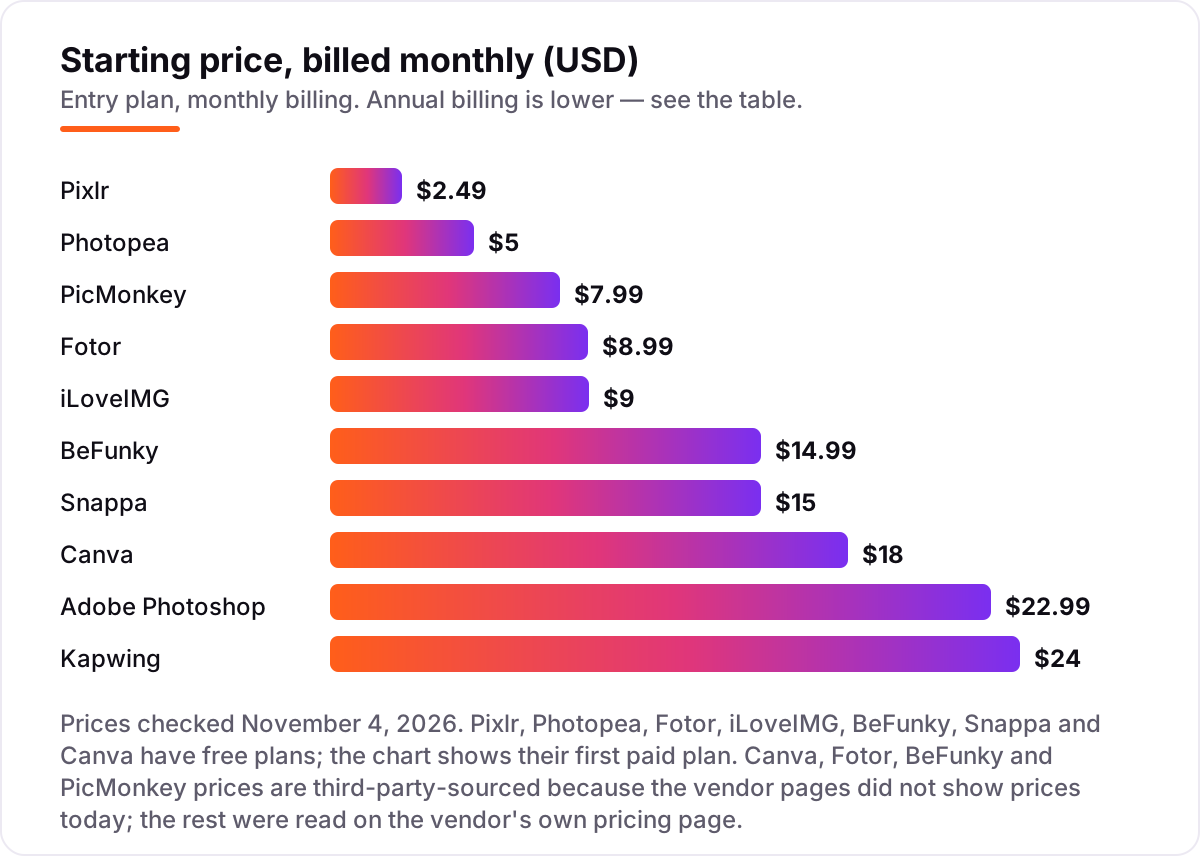
Image cropper app pricing: what you will actually pay
Take one person cropping about 40 images a month for a store and social feeds. Staying on free plans costs $0 on Pixlr, Photopea, iLoveIMG, Canva, Fotor, BeFunky or Snappa — with download caps and watermarks to work around. Paying for the first tier costs $23.88 a year on Pixlr Plus billed annually, $39.96 on Fotor Pro, $60 on Photopea Premium or iLoveIMG Premium, $72 on PicMonkey Basic, $83.88 on BeFunky Plus, $144 on Canva Pro or $120 on Snappa Pro, $192 on Kapwing Pro and $275.88 on Photoshop.
Paying month to month instead costs $29.88 a year on Pixlr Plus, $107.88 on Fotor Pro, $108 on iLoveIMG Premium, $95.88 on PicMonkey Basic, $179.88 on BeFunky Plus, $216 on Canva Pro or $180 on Snappa Pro, and $288 on Kapwing Pro. The annual discount is worth real money here: Fotor Pro drops from $107.88 to $39.96 a year, and BeFunky Plus drops from $179.88 to $83.88. The same person and the same 40 images cost $0 on a free plan and $275.88 a year on Photoshop — and the middle of the list, $60 to $120 a year, covers the paid plans most people actually need.
Two costs sit outside every number above. First, seats: Kapwing Pro is priced per member, Canva Pro covers one person, Snappa Pro covers one user, and iLoveIMG Premium covers up to 25 users — so a team of three pays three times the Kapwing price but once for iLoveIMG. Second, credits: Fotor, BeFunky and Pixlr all ration AI features by monthly credits, so heavy AI use can mean a higher tier or a top-up. If you run a business that also needs its cropped images to be found, compare providers in our guide to the best AI tools for video content creation — the visibility side matters as much as the image itself.
Know the difference: cropping vs resizing vs compressing
The confusion in this category is between three jobs that sound alike. Cropping cuts part of the image away, so the composition changes and the pixel count drops — a square crop of a landscape photo throws away the sides. Resizing scales the whole image up or down without cutting anything, so the composition stays the same and only the dimensions change. Compressing shrinks the file size, usually by lowering quality, without changing the dimensions at all.
People usually crop when they actually need one of the other two. Cropping a photo to make its file smaller barely helps: cutting away half the image only halves the file, while compressing the same image can cut it to a third of its size with no visible change. And resizing a wide photo to fit a square slot does not crop it — it squashes it, which is why faces look stretched in badly resized posts. Every tool in this list does all three jobs, but they lead with different ones: iLoveIMG, Pixlr and Fotor put crop, resize and compress side by side, while Canva and Snappa hide the crop inside a platform preset.
A second distinction worth knowing is preset ratios versus exact dimensions. A preset such as 1:1 or 16:9 fits a platform but rounds the pixel count, which is fine for social posts and wrong for a store listing that demands exactly 2000 by 2000 pixels. Pixlr, Photopea and iLoveIMG all accept exact dimensions; Canva and Snappa work from presets and need a manual drag for anything exact.
Quick comparison: tool type by need
| Buyer | Best pick | Why |
|---|---|---|
| Quick crop, no account | Pixlr | Free in the browser, Plus is $2.49/month when you want no ads |
| Design and social graphics | Canva | Presets for every platform, Pro is $18/month |
| Layered PSD files | Photopea | Full editor free, Premium is $5/month to remove ads |
| Batch cropping | iLoveIMG | Free for single images, Premium is $9/month for 120-image batches |
| Product photos and templates | PicMonkey | Basic is $7.99/month, Pro adds Smart Resize |
| Pro precision and print | Adobe Photoshop | $22.99/month on an annual plan, the deepest crop tool here |
Mistakes to avoid
- Cropping the only copy of a photo. Always keep the original file. A crop throws pixels away, and you cannot un-crop an exported image — keep the original so you can re-crop for a different platform later.
- Cropping to the wrong aspect ratio for the platform. A square crop looks fine on Instagram and wrong as a Pinterest pin, which wants a tall 2:3 image. Pick the platform first, then the ratio.
- Judging a tool by its free plan, then hitting the watermark at export. Snappa allows only 3 free downloads a month and Fotor watermarks some free exports. Export ten real images on the free plan before you commit to a tool.
- Paying monthly when annual billing saves a third or more. Fotor Pro drops from $107.88 to $39.96 a year on annual billing, and BeFunky Plus drops from $179.88 to $83.88. Pay monthly for the first month, then switch to annual once you know the tool fits.
- Cropping a small image and expecting it to stay sharp at a larger size. A 1080-pixel crop blown up to a 2000-pixel listing will look soft, and no tool in this list can put the missing detail back. Start from the highest-resolution original you have.
How we chose
We opened each vendor's pricing page on November 4, 2026 and recorded the starting price exactly as shown, including the annual-billing figure where the page lists one, and we ranked the tools by fit for the most common buyer — someone cropping photos for social posts, a blog or a store listing — not by brand size. Four prices are third-party-sourced, not read directly today: Canva's page refused to load in our browser, and the Fotor, BeFunky and PicMonkey pages rendered without prices, so their figures come from independent checks of those pages, cross-checked against G2's vendor-supplied pricing where available. iLoveIMG's $9 a month monthly figure likewise comes from a third-party check of its pricing page, while the $5 a month annual figure was read on the vendor's own page today. Photopea has no pricing page — its $5 Premium is shown inside the app. Ratings come from G2 pages opened today; iLoveIMG has no usable G2 page, so it carries no rating rather than an estimated one. No vendor paid for a place in this list, and none of the links here are affiliate links.
What to do next
Start with the free plan or trial of your top pick and crop ten real images through it — your photos, your sizes, your export settings. Check that the exports open cleanly at the size you need and that no watermark appears before you commit to a year. If the images are sorted but new customers are not finding the site they land on, our monthly SEO service handles the visibility side — or compare providers in our guide to SEO companies for small business. Once your tools are in place, find out what's holding your rankings back.
Your stack only works if people find you
SerpAstra fixes what keeps your site off page one and makes it easy for AI assistants to recommend.
Get a free audit→Sources we checked (19)
- Canva pricing — canva.com/pricing (checked November 4, 2026; page did not load, price from independent checks of the vendor page)
- Pixlr pricing — pixlr.com/pricing (checked November 4, 2026)
- Photopea — photopea.com (checked November 4, 2026; Premium $5/month shown inside the app, no pricing page)
- Fotor pricing — fotor.com/pricing (checked November 4, 2026; page rendered without prices, figures from G2 vendor pricing and independent checks)
- iLoveIMG pricing — iloveimg.com/pricing (checked November 4, 2026)
- PicMonkey pricing — picmonkey.com/pricing (checked November 4, 2026; page rendered without prices, figures from G2 vendor pricing and independent checks)
- BeFunky pricing — befunky.com/pricing (checked November 4, 2026; page rendered without prices, figures from an independent check of the vendor page)
- Snappa pricing — snappa.com/pricing (checked November 4, 2026; figures from independent checks of the vendor page)
- Kapwing pricing — kapwing.com/pricing (checked November 4, 2026)
- Adobe Photoshop pricing — adobe.com/products/photoshop.html (checked November 4, 2026; figures from independent checks of the vendor page)
- Canva on G2 — g2.com/products/canva/reviews (checked November 4, 2026)
- Pixlr on G2 — g2.com/products/pixlr/reviews (checked November 4, 2026)
- Photopea on G2 — g2.com/products/photopea/reviews (checked November 4, 2026)
- Fotor on G2 — g2.com/products/fotor-photo-editor/reviews (checked November 4, 2026)
- PicMonkey on G2 — g2.com/products/picmonkey/reviews (checked November 4, 2026)
- BeFunky on G2 — g2.com/products/befunky/reviews (checked November 4, 2026)
- Snappa on G2 — g2.com/products/snappa/reviews (checked November 4, 2026)
- Kapwing on G2 — g2.com/products/kapwing/reviews (checked November 4, 2026)
- Adobe Photoshop on G2 — g2.com/products/adobe-photoshop/reviews (checked November 4, 2026)
Shamim
Founder of SerpAstra
A full-stack SEO and digital marketer who spends most days on Local SEO for dental practices, AI search visibility and lead generation.
Frequently asked questions
What is the best image cropper app?
Canva is the best image cropper app for most people: one-click presets for every social format, a free plan that covers cropping, and Pro at $18/month for Magic Resize. Pixlr is the best free option at $2.49/month for Plus, and Photopea is the best free pro-grade option with full PSD support.
Is there a free image cropper app?
Yes — seven of the ten apps here offer a free plan. Pixlr, Photopea and iLoveIMG all crop for free without an account, Canva and Fotor offer free plans with basic cropping, and BeFunky and Snappa have free tiers with download limits. Only PicMonkey and Adobe Photoshop have no free plan.
How do I crop an image to a specific size?
Open the image in any tool in this list, choose the crop tool, and either pick a preset ratio such as 1:1 or 16:9 or type exact pixel dimensions. Pixlr, Photopea and iLoveIMG all accept exact dimensions, while Canva and Snappa let you pick a platform preset and adjust the crop by dragging.
What is the difference between cropping and resizing?
Cropping cuts part of the image away, so the composition changes and the pixel count drops. Resizing scales the whole image up or down without cutting anything, so the composition stays the same. Compressing is a third job: it shrinks the file size, usually by lowering quality, without changing the dimensions at all.
Can I crop images in bulk?
Yes, with the right tool. Fotor, iLoveIMG and BeFunky all offer batch cropping on paid plans: iLoveIMG Premium crops up to 120 images in one task, Fotor Pro runs the same crop across a photo set, and BeFunky Plus resizes hundreds of images at once. Free plans usually limit batch work to one image at a time.
Does cropping reduce file size?
Only a little. Cropping removes pixels, so the file gets smaller in proportion to what you cut away — a 50% crop roughly halves the file. To shrink a file properly, compress it after cropping: iLoveIMG, Pixlr and Fotor all include compression, which cuts file size far more than cropping alone.
Which image cropper app is best for social media?
Canva is the best image cropper app for social media because every template is pre-sized for its platform and Magic Resize re-crops one design for all of them. Snappa is the simpler alternative with the same pre-sized approach, and PicMonkey suits small businesses that want retail templates alongside the crop tool.
Free SEO and AI visibility audit
Find out what is holding your rankings back
Send us your site. Within 2 business days you get a written audit, an AI visibility check and a short fix list ranked by impact. Free, with no contract attached.
Request my free audit→Related guides
 AI, Data & Analytics12 Best AI Tools for Video Content Creation in 2026, Compared12 best AI tools for video content creation compared with real prices, free plans and G2 ratings, so you can pick the right video maker without overpaying.Read guide →
 AI, Data & Analytics8 Best AI Tools for Content Creators in 2026 (Free and Paid, Compared)The 8 best ai tools for content creators, compared on price, free plans and strengths — writing, design, video. Prices checked on vendor sites, Nov 2, 2026.Read guide →
 AI, Data & Analytics11 Best AI Headshot Generator Apps in 2026: Free and Paid Apps Ranked11 best ai headshot generator apps ranked on price, headshots, speed and refunds. One-time packs from $17 to $59. Prices checked November 2, 2026.Read guide →