7 Best Free CAD Software for Beginners in 2026, Compared
Compare the 7 best free CAD software for beginners on ease of use, 3D vs 2D tools and real costs, with every price checked November 4, 2026.
 Shamim Mia, Founder, SerpAstraLast verified November 4, 202612 min read
We compare pricing pages, documentation and public reviews. We never accept payment for rankings.

Key takeaways
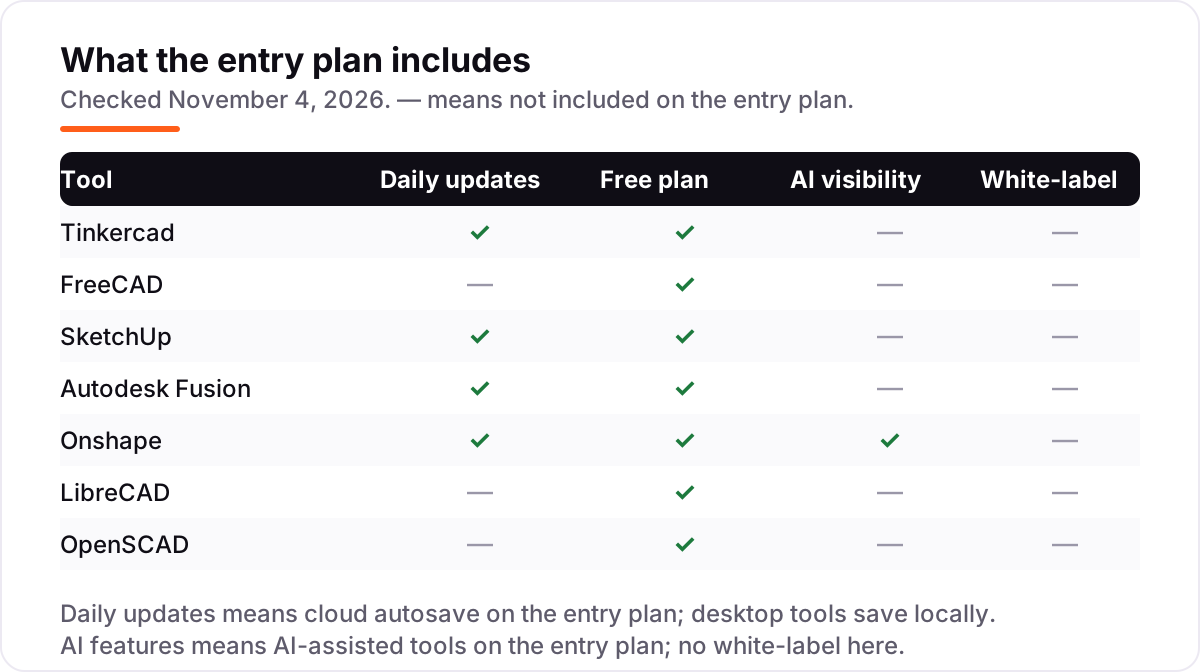
- Tinkercad is the easiest start at $0, FreeCAD is the strongest free engineering tool at $0, and SketchUp Free is the fastest sketcher — Go costs $129/year when you need commercial use.
- Four of the seven tools are free forever with no paid plan at all; the other three charge only when you go commercial — $129, $680 or $1,500 a year.
- The single most important buying factor is what 'free' actually covers: open-source tools are free for any use, while free tiers limit you to personal projects, public files or 10 documents.
- Pick 2D or 3D before you pick a tool: LibreCAD only draws flat plans, and every other tool here models in 3D.
On this page
Quick comparison
| Tool | Best for | Starting price | Free plan |
|---|---|---|---|
| Tinkercad | Complete beginners, kids and teachers who want a first 3D model in one session, with no install | Free | Yes (free) |
| FreeCAD | Beginners who want real parametric engineering CAD free forever and are willing to learn the interface | Free | Yes (free) |
| SketchUp | Beginners who think in shapes and spaces and want fast 3D sketching for rooms, furniture and buildings | Free; Go $129/yr | Yes (Free plan) |
| Autodesk Fusion | Hobbyists and makers who want professional parametric CAD and CAM and may go commercial later | Free; $680/yr paid | Yes (personal use) |
| Onshape | Beginners who want professional cloud CAD with version control and can accept public documents | Free; Standard $1,500/yr | Yes (Free plan) |
| LibreCAD | Beginners who need 2D technical drawings and floor plans, not 3D models | Free | Yes (free) |
| OpenSCAD | Beginners comfortable with code who want precise parametric parts for 3D printing | Free | Yes (free) |
Make one of these tools?
We re-check this list every quarter. Send a correction, request a review, or ask about a clearly labeled sponsored spot.
Request a listingThe best free CAD software for beginners
Tinkercad
Best for: Complete beginners, kids and teachers who want a first 3D model in one session, with no install
Tinkercad is where most beginners should start, because it removes every barrier between an idea and a first model. It runs in a browser, so there is nothing to install and no powerful computer to worry about, and you build by dragging simple shapes onto a workplane and combining them. Autodesk says more than 100 million people have used it, and the same account also opens circuit design and block-based coding, a natural fit for classrooms.
The trade-off is a low ceiling. There are no sketches, constraints or dimensions, so a bracket that must fit a bolt exactly is hard to build, and organic curves are out of reach. It lives online, so a lost connection means no modeling. Start here when you want to learn 3D thinking fast; move to FreeCAD or Fusion when your parts need real measurements.
What we like
- Runs entirely in a browser — nothing to install, and it works on Chromebooks and tablets
- Shape-based building means a first printable model in one session, with no sketching or constraints to learn
- Free for everyone with no paid tier, and it includes Circuits and Codeblocks for electronics and coding
- Classroom-ready: teacher accounts, lesson plans and kidSAFE certification for school use
Watch out for
- No parametric sketches or constraints, so precise engineering parts are hard to build
- Simple shapes only — organic curves and complex assemblies are out of reach
- Needs an internet connection; there is no offline desktop version

FreeCAD
Best for: Beginners who want real parametric engineering CAD free forever and are willing to learn the interface
FreeCAD is the only tool here that gives you full parametric engineering CAD without charging anything, ever. You sketch 2D profiles, constrain them with dimensions, and extrude them into parts whose history you can edit at any point, and separate workbenches add assemblies, BIM, CAM toolpaths and finite element analysis. It runs on Windows, Mac and Linux, reads STEP, IGES, STL and DXF files, and costs nothing because it is open source.
The price is paid in patience instead of money. The interface packs in a decade of community features with little of the polish of a commercial product, and G2 reviewers repeatedly call the learning curve steep. Assemblies still lean on add-ons, and large models can feel slow. Choose FreeCAD when you want professional-grade parts for free and are willing to spend a few evenings learning the interface.
What we like
- Full parametric 3D modeling with sketches, constraints and a history tree, free forever
- Workbenches cover part design, assemblies, BIM, CAM paths and finite element analysis
- Runs on Windows, Mac and Linux and reads STEP, IGES, STL, DXF and many other formats
- Python scripting and a large add-on library let you extend it as your skills grow
Watch out for
- The interface is the least intuitive here — G2 reviewers repeatedly call the learning curve steep
- Assemblies still rely on add-ons, and large models can run slowly
- Community support only; there is no vendor help desk to call

SketchUp
Best for: Beginners who think in shapes and spaces and want fast 3D sketching for rooms, furniture and buildings
SketchUp is the fastest way to turn an idea into a 3D shape you can walk around. Its push-pull tool turns a flat face into a solid in one drag, which brings rooms, furniture and buildings together in minutes, and the 3D Warehouse supplies millions of ready-made models to drop into a scene. The free web version includes 10 GB of cloud storage, and Go adds commercial use and iPad modeling for $129 a year.
The free version is personal use only, so anything you sell needs the Go plan, and the desktop app with LayOut documentation waits for Pro at $399 a year. Curves and organic forms are weak without extensions, and heavy models slow down. Pick SketchUp when you design spaces and objects rather than machine parts, and when speed of sketching matters more than engineering precision.
What we like
- The push-pull tool makes 3D shapes from flat faces in seconds — the fastest first model here after Tinkercad
- 3D Warehouse offers millions of ready-made models to drop into a design
- Free web version with 10 GB of cloud storage; Go adds commercial use and iPad modeling for $129/year
- Huge library of extensions and tutorials from a large user community
Watch out for
- Free version is for personal, non-commercial use only — client work needs Go at $129/year
- No desktop app or LayOut documentation tools until Pro at $399/year
- Weak at curves and organic shapes without paid extensions, and large models can slow down

Autodesk Fusion
Best for: Hobbyists and makers who want professional parametric CAD and CAM and may go commercial later
Autodesk Fusion is the professional tool in this list that still lets a beginner in for free. The personal-use license covers hobbyists whose designs earn under $1,000 a year, and it includes the same parametric modeling, assemblies and drawings as the paid plan, with CAM, simulation and PCB design in the same cloud workspace. Version history is automatic, so every change can be undone, and the skills transfer directly to the $680-a-year commercial plan.
The free license has firm limits: 10 active editable documents, single-page drawings and restricted CAM and export options. It also needs an internet connection for sign-in and cloud saves, and the full interface can overwhelm a first-timer. Choose Fusion when you can see yourself selling parts one day — it is the only free start here that grows into a commercial workshop without switching tools.
What we like
- Parametric modeling, CAM, simulation and PCB design in one cloud workspace
- Free personal-use license for hobbyists earning under $1,000 a year from their designs
- Cloud version history and collaboration are built in, with no files to manage
- The clearest upgrade path here: the same skills carry into the $680/year commercial plan
Watch out for
- Personal use is limited: 10 active editable documents, single-page drawings and restricted CAM
- Needs an internet connection for sign-in and cloud saves; offline work is limited
- The full interface can overwhelm a first-time user, and paid extensions add cost

Onshape
Best for: Beginners who want professional cloud CAD with version control and can accept public documents
Onshape is professional CAD that runs entirely in a browser, which means any laptop or tablet can handle it. The free plan includes the full parametric modeler plus version control, branching and real-time collaboration — the same tools teams pay for — and updates arrive automatically every few weeks. There is nothing to install, nothing to save manually, and the free learning center walks a beginner through the first parts.
The catch is visibility: the free plan is for non-commercial use only, and every document you make is public, so private or client work is impossible. The first paid step is Standard at $1,500 per user per year, the steepest in this list. Pick Onshape when you want professional habits — versions, branches and shared editing — from day one and are comfortable learning in public.
What we like
- Professional parametric CAD in a browser — no install and no powerful computer needed
- Free plan includes version control, branching and real-time collaboration
- Updates arrive every few weeks automatically, and the learning center is free
- FeatureScript lets you build custom tools, and the mobile apps work on phones and tablets
Watch out for
- Free plan is non-commercial only, and every document is public — no private projects
- Private storage and commercial use start at $1,500/user/year, the steepest paid step here
- Runs entirely in the cloud, so a slow connection slows the whole workspace

LibreCAD
Best for: Beginners who need 2D technical drawings and floor plans, not 3D models
LibreCAD is the only 2D-only tool here, and for flat technical drawings that is a strength, not a gap. It is free and open source, with AutoCAD-style commands, layers and dimensioning, and it reads DWG and DXF files and exports to PDF, which covers floor plans, schematics and laser-cutting patterns. It is light enough to run on almost any computer, and it is available in more than 30 languages.
The limit is absolute: there is no 3D modeling at all, so anything that needs a solid model belongs in another tool. G2 reviewers also report slow performance on drawings with many vectors and the occasional crash, and development moves at community pace. Choose LibreCAD when your work is flat — plans, diagrams and cut files — and you want a free AutoCAD-style drafting table.
What we like
- Completely free 2D CAD with no trials, subscriptions or license costs
- AutoCAD-style commands and layers make it familiar if you have used DWG tools
- Lightweight and fast, with DXF and DWG reading and PDF export
- Available in more than 30 languages on Windows, Mac and Linux
Watch out for
- 2D only — it cannot model 3D parts at all
- G2 reviewers note slow performance on drawings with many vectors and occasional crashes
- Community support only, and development moves slowly

OpenSCAD
Best for: Beginners comfortable with code who want precise parametric parts for 3D printing
OpenSCAD takes a different approach from every other tool here: you do not draw a model, you write it. A few lines of code describe a box, a cylinder or a hole, and changing one number resizes the whole part — ideal for parametric pieces such as brackets, enclosures and gears. It is free and open source, exports STL files directly for 3D printing, and designs stored as text version-control cleanly with Git.
That power comes with a condition: you need to be comfortable with code, with no visual modeling to fall back on. Rendering complex designs can be slow on a single CPU core, and there is no assembly system in the usual sense. Pick OpenSCAD when you already think in code and want precise, repeatable parts — for everyone else, Tinkercad or FreeCAD is the kinder first step.
What we like
- Models are code, so any dimension can change with one number — ideal for parametric parts
- Free and open source, with reusable part libraries shared by the 3D printing community
- Designs live in plain text, so they version-control cleanly with Git
- Exports STL directly for 3D printing, and the preview updates as you type
Watch out for
- No visual modeling — you write code, so non-programmers face a steep start
- Rendering complex designs can be slow, since it runs on a single CPU core
- No assemblies in the usual sense, and the built-in editor lacks modern code assistance
The best free CAD software for beginners lets you build a real 3D model in your first session without paying for a license or installing heavy software. We ranked the seven tools below by how quickly a complete beginner can make something useful, starting with the easiest browser tools and ending with the code-based option, and every price was checked on the vendor's own site on November 4, 2026.
How to choose the best free CAD software for beginners
- Start in the browser if you can. Tinkercad, SketchUp Free and Onshape need no install and no powerful computer, so you can try them in minutes on any laptop or Chromebook.
- Decide 2D or 3D first. LibreCAD draws flat plans only. Every other tool here builds solid 3D models, which you can also turn into drawings and printable files.
- Read what "free" actually covers. FreeCAD, LibreCAD and OpenSCAD are open source and free for any use. SketchUp Free, Fusion for personal use and Onshape Free are personal or non-commercial only, with paid plans for selling work.
- Match the tool to your first project. A first 3D print suits Tinkercad, a precise bracket suits FreeCAD, a room layout suits SketchUp, and a coded part suits OpenSCAD.
- Check the export before you commit. Your printer or workshop needs STL, STEP or DXF files — confirm the tool exports the format you need on the free plan.
CAD is one skill in a creative stack, not the whole stack. If your models become videos or tutorials, our guide to AI tools for video content creation covers that side. And before you publish a portfolio page for your designs, run your titles through the free SERP snippet preview tool — it shows exactly how the title and description will look in Google.
Whatever you shortlist, try it with a real project before you settle. The free plans in this list are long enough to build one genuine model — a bracket, a room, a printed part — and that project tells you more than any review can. Check two things in the trial: that you can finish a model without hitting a paywall, and that the export opens in your printer software or viewer. Every tool here lets you test that for free, so there is no reason to pay before you have built something.
Free CAD software for beginners pricing: what you will actually pay
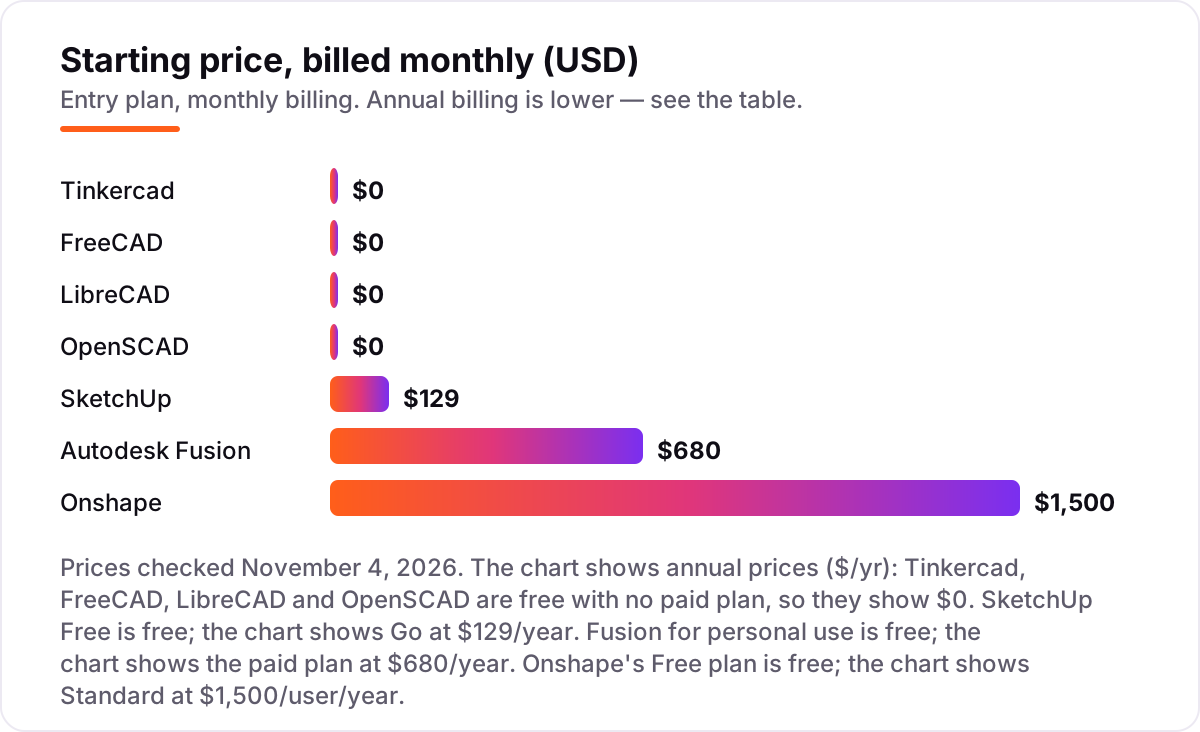
Take a beginner who starts as a hobbyist and then sells a few printed parts. On the free plans, the first year costs $0 on Tinkercad, FreeCAD, LibreCAD and OpenSCAD, because those tools have no paid plan or no commercial limit to trip over. The same beginner pays $129 a year on SketchUp Go, $680 a year on Autodesk Fusion, or $1,500 a year per user on Onshape Standard once the work becomes commercial — and those are the full annual bills, not monthly rates dressed up as yearly ones.
Two of those numbers need adjusting before they are real. Fusion also sells a monthly plan at $85 a month, which comes to $1,020 over a year, so paying annually saves $340. Onshape Professional, the team plan with release management and simulation, costs $2,500 per user per year, so a beginner who outgrows Standard faces another jump. SketchUp Pro, with the desktop app and LayOut, costs $399 a year.
The cheapest honest route for a hobbyist is $0: Tinkercad for the first model, then FreeCAD when parts need real dimensions. The cheapest honest route for someone who plans to sell is also $0 at first — learn on the free tier, and pay only when a sale makes the license necessary. If you want the 3D printing angle specifically, see our guide to beginner CAD software for 3D printing, which ranks these tools by how well they feed a printer.
One more cost to check before you commit: none of these tools charges per model or per export on the free plans, so your bill stays $0 until you choose a paid tier. The cost that does appear is hardware — a 3D printer, filament or a better mouse — and that cost is the same whichever free tool you pick.
Know the difference: 2D drafting vs 3D modeling
The confusion in this category is between drawing flat and building solid. 2D drafting produces flat views: floor plans, schematics and laser-cutting patterns, with lines, layers and dimensions on a page. 3D modeling builds a solid object you can rotate, measure, section and send to a printer. A 3D model can produce 2D drawings and printable files; a 2D drawing can never become a solid on its own, which is why beginners usually want 3D.
There is a second, quieter confusion: "free" means three different things here. Open-source tools — FreeCAD, LibreCAD and OpenSCAD — are free for any use, including commercial work, with no account or license to manage. Free tiers — SketchUp Free, Fusion for personal use and Onshape Free — cost $0 but carry conditions: personal use only, public documents, or a 10-document limit. Tinkercad is the odd one out: free for everyone, with no paid tier at all.
A third distinction worth knowing is parametric versus direct modeling. Parametric tools — FreeCAD, Fusion, Onshape and OpenSCAD — remember how a model was built, so changing one dimension updates the whole part. Direct tools — Tinkercad and SketchUp — let you push, pull and reshape freely, which is faster to learn but harder to revise precisely. Beginners should start direct, then learn parametric when a part needs exact measurements.
Quick comparison: tool type by need
| Buyer | Best pick | Why |
|---|---|---|
| Complete beginner, first model today | Tinkercad | Free, in the browser, shapes snap together |
| Wants real engineering CAD free | FreeCAD | Full parametric modeling at $0, steeper learning curve |
| Designs rooms and furniture | SketchUp | Fast push-pull sketching, free web version |
| May sell parts one day | Autodesk Fusion | Free personal use, $680/year when you go commercial |
| Wants pro cloud CAD with versions | Onshape | Free with version control, Standard is $1,500/user/year |
| Needs 2D plans only | LibreCAD | Free 2D drafting, no 3D at all |
| Comfortable with code | OpenSCAD | Parametric parts as code, free forever |
Mistakes to avoid
- Paying before checking what the free tier allows. SketchUp Free, Fusion personal use and Onshape Free all stop at commercial work — read the limit before you build a business on a free plan.
- Learning 2D when you need 3D. LibreCAD is a fine drafting table, but it cannot model a solid part, so a 3D printing project started there has to be rebuilt elsewhere.
- Choosing on price alone. Four tools here cost $0, but a free tool with a steep learning curve can cost weeks of evenings — FreeCAD and OpenSCAD reward patience, Tinkercad does not demand it.
- Ignoring the export format. A model you cannot export is a model you cannot print or share. Confirm STL, STEP or DXF export works on the free plan before you invest hours in a tool.
- Starting with the professional tool on day one. Fusion and Onshape are powerful, but their full interfaces can overwhelm a first-timer. Learn the ideas in Tinkercad first, then carry them into the pro tool.
How we chose
We checked each vendor's own site on November 4, 2026 and recorded the starting price exactly as shown, including the annual figure where the page lists one, and we ranked the tools by fit for the most common buyer — a complete beginner making a first model — not by brand size. This list's price bars show annual prices ($/yr), not monthly equivalents, because four tools are free and the other three sell annual plans. This list carries no rating for Tinkercad because its G2 review page returned a rate-limit error when we tried to open it on November 4, 2026, and we would rather show no rating than a stale or estimated one. No vendor paid for a place in this list, and none of the links here are affiliate links.
What to do next
Start with Tinkercad and build one small model today — a bracket, a sign or a phone stand — then export it as an STL and open it in your printer software. If the model needs real dimensions, move the same project to FreeCAD and rebuild it with sketches and constraints. If your designs start selling, check the paid step for your tool before the first invoice goes out. If the models are sorted but new customers are not finding you, our monthly SEO service handles the visibility side. Once your tools are in place, find out what's holding your rankings back.
Your stack only works if people find you
SerpAstra fixes what keeps your site off page one and makes it easy for AI assistants to recommend.
Get a free audit→Sources we checked (14)
- Tinkercad — tinkercad.com (checked November 4, 2026)
- FreeCAD — freecad.org (checked November 4, 2026)
- SketchUp plans and pricing — sketchup.com/plans-and-pricing (checked November 4, 2026)
- Autodesk Fusion pricing — autodesk.com/products/fusion-360/pricing (checked November 4, 2026)
- Autodesk Fusion subscription types — autodesk.com/products/fusion-360/blog/fusion-subscription-types (checked November 4, 2026)
- Onshape plans and pricing — onshape.com/en/pricing (checked November 4, 2026)
- LibreCAD — librecad.org (checked November 4, 2026)
- OpenSCAD — openscad.org (checked November 4, 2026)
- FreeCAD reviews — g2.com/products/freecad/reviews (checked November 4, 2026)
- SketchUp reviews — g2.com/products/sketchup/reviews (checked November 4, 2026)
- Autodesk Fusion reviews — g2.com/products/autodesk-fusion/reviews (checked November 4, 2026)
- Onshape reviews — g2.com/products/onshape/reviews (checked November 4, 2026)
- LibreCAD reviews — g2.com/products/librecad/reviews (checked November 4, 2026)
- OpenSCAD reviews — g2.com/products/openscad/reviews (checked November 4, 2026)
Shamim
Founder of SerpAstra
A full-stack SEO and digital marketer who spends most days on Local SEO for dental practices, AI search visibility and lead generation.
Frequently asked questions
What is the best free CAD software for beginners?
Tinkercad is the best first step for most beginners: free, in the browser, and a first model in one session. FreeCAD is the better pick when you want real parametric engineering CAD for free. SketchUp Free suits people who design rooms and furniture. Your choice depends on whether you want the easiest start, the most capable free tool, or the fastest sketcher.
Is FreeCAD really free?
Yes. FreeCAD is open-source software, and there is no paid version, trial or subscription. You can download it for Windows, Mac and Linux, use it for commercial work, and keep it forever without paying. The project is funded by donations and sponsors, not by license fees, so the price will not change later.
Can I use free CAD software for commercial work?
It depends on the license. FreeCAD, LibreCAD and OpenSCAD are open source, so commercial use is allowed. Tinkercad is free for everyone with no stated commercial limit. SketchUp Free, Fusion for personal use and Onshape Free are personal or non-commercial only — selling your designs needs Go at $129/year, Fusion at $680/year or Onshape Standard at $1,500/user/year.
What is the difference between 2D and 3D CAD?
2D CAD draws flat views: floor plans, schematics and cutting patterns, which is all LibreCAD does. 3D CAD builds solid models you can rotate, measure and 3D print, which is what the other six tools do. Beginners usually want 3D, since a solid model can produce 2D drawings and printable files, while a 2D drawing can never become a solid on its own.
Do I need a powerful computer to learn CAD?
No, not for the tools in this list. Tinkercad, SketchUp Free and Onshape run in a browser, so a basic laptop or Chromebook is enough. FreeCAD, LibreCAD and OpenSCAD are light desktop programs that run on modest hardware. Only large assemblies and complex renders demand a strong machine, and a beginner will not reach those for months.
Which free CAD software is best for 3D printing?
FreeCAD is the strongest free choice for functional printed parts, because parametric sketches and real dimensions keep parts accurate. OpenSCAD suits coders who want repeatable parametric parts. Tinkercad is the easiest way to print a first object. All three export STL files, the format most 3D printers and slicers expect, so any of them can feed a printer.
Can I switch CAD software later?
Yes, but expect some rework. Most tools here export STEP, STL or DXF files, so a finished model can move to another program, but the editable history — sketches, constraints and features — does not transfer. Treat your first tool as a learning step: pick the easiest one now, and move when a project outgrows it rather than before.
Free SEO and AI visibility audit
Find out what is holding your rankings back
Send us your site. Within 2 business days you get a written audit, an AI visibility check and a short fix list ranked by impact. Free, with no contract attached.
Request my free audit→Related guides
 Design, Video & Creative8 Best Beginner CAD Software for 3D Printing in 2026, ComparedCompare the 8 best beginner cad software for 3d printing on price, free plans and learning curve, with every price checked November 4, 2026.Read guide →
 AI, Data & Analytics12 Best AI Tools for Video Content Creation in 2026, Compared12 best AI tools for video content creation compared with real prices, free plans and G2 ratings, so you can pick the right video maker without overpaying.Read guide →
 SEO & AI SearchBest Video Analytics Software for 2026: 9 Options Compared by Use Case9 best video analytics software tools compared on price, engagement analytics and free plans. Prices checked on the vendor pricing page, November 2, 2026.Read guide →