7 Best Screen Recording Software Tools in 2026, Compared
Compare the 7 best screen recording software tools for tutorials, demos and training, from free OBS Studio and ShareX to Camtasia, Loom and Screen Studio.
 Shamim Mia, Founder, SerpAstraLast verified November 10, 20266 min read
We compare pricing pages, documentation and public reviews. We never accept payment for rankings.
Key takeaways
- Camtasia is the most complete choice for tutorials and training videos, recording screen, webcam, mic and system audio on separate tracks with text-based editing.
- OBS Studio and ShareX are free and open source: OBS for scene-based recording and streaming on Windows, Mac and Linux, ShareX for quick captures and GIFs on Windows.
- Loom and ScreenPal suit quick shareable videos, with cloud hosting and links; ScreenPal also runs on iOS, Android and Chromebook.
- Screen Studio makes the most polished product demos on Mac, with automatic zooms and smooth cursor motion; Snagit is best for step-by-step guides that mix screenshots and short clips.
On this page
Quick comparison
| Tool | Best for | Starting price | Free plan |
|---|---|---|---|
 Camtasia | Trainers and educators who record tutorials and need a full editor in the same app | Check website | Check website |
 OBS Studio | Creators who want free, unlimited recording with scenes, multiple sources and streaming | Check website | Check website |
 Snagit | Support and training teams that create step-by-step guides with screenshots and short clips | Check website | Check website |
 ShareX | Windows power users who want free screen recording, GIFs and screenshots in one light app | Check website | Check website |
 ScreenPal | Teachers and teams who want easy recording, editing and hosting on almost any device | Check website | Check website |
 Loom | Teams that replace meetings with quick screen-and-camera videos shared by link | Check website | Check website |
 Screen Studio | Mac users who make product demos and tutorials that need to look polished with little editing | Check website | Check website |
Make one of these tools?
We re-check this list every quarter. Send a correction, request a review, or ask about a clearly labeled sponsored spot.
Request a listingThe best screen recording software
Camtasia
Best for: Trainers and educators who record tutorials and need a full editor in the same app
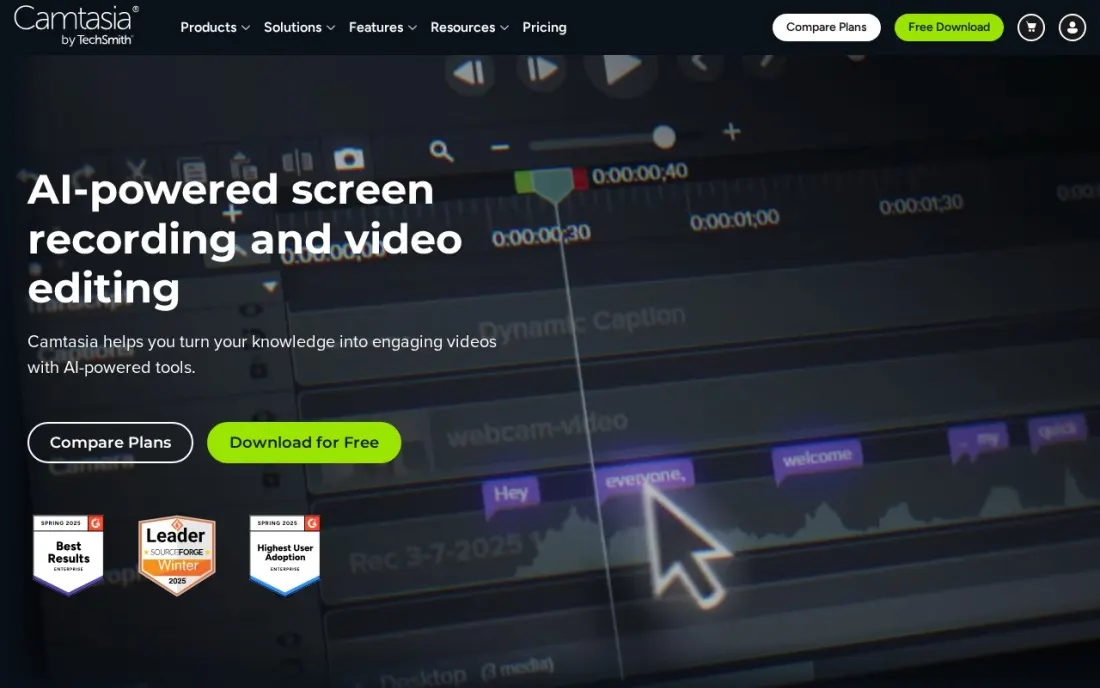
Camtasia is built for screen-first video such as tutorials, software training and customer education. It records your screen, camera, system audio and microphone as independent layers, and captures cursor data so you can smooth or restyle the pointer after recording. Text-based editing lets you cut a mistake by deleting the word in the transcript.
Drag-and-drop zooms and callouts, themes, captions, AI voices, background removal and filler-word removal turn a raw capture into a finished lesson. It runs offline on Windows and macOS, and each license covers two devices. The full editor is free to try, but exports carry a watermark until you buy a plan.
What we like
- Records screen, webcam, system audio and mic on separate tracks
- Text-based editing, captions, translations and cursor effects
- AI background removal plus a chroma key effect
- Windows and macOS, with a free editor that watermarks exports
Watch out for
- Free version watermarks exported videos
- Heavier system requirements than lightweight recorders
OBS Studio
Best for: Creators who want free, unlimited recording with scenes, multiple sources and streaming
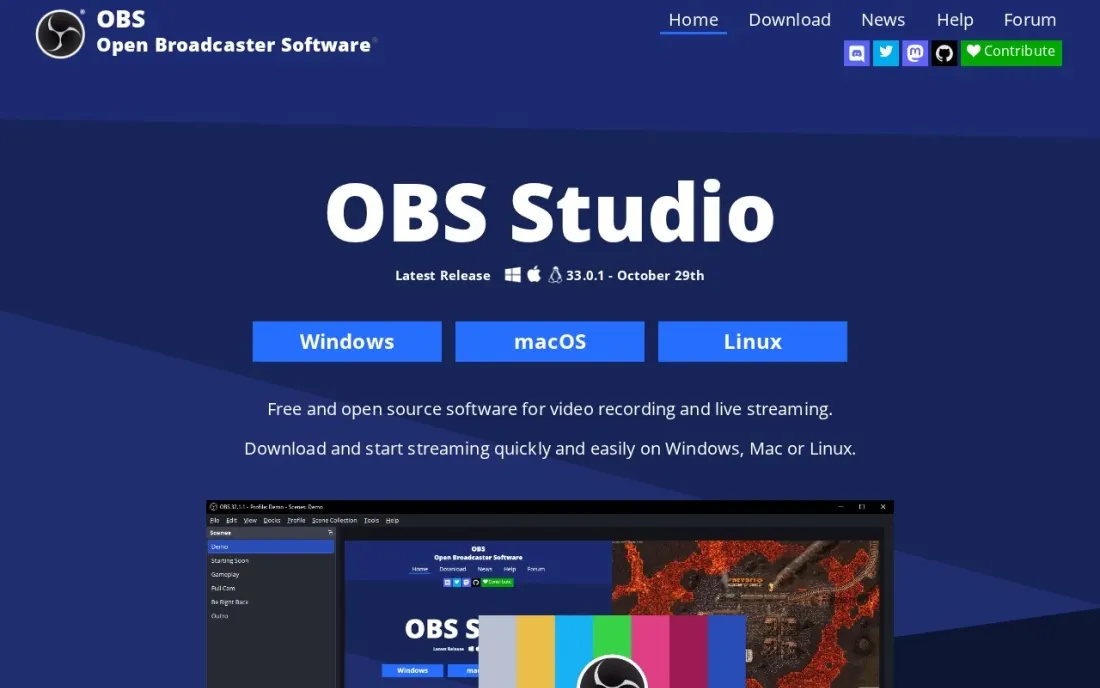
OBS Studio is free, open-source software for video recording and live streaming on Windows 10 and 11, macOS 13 or newer and Linux. You build scenes from sources such as window captures, webcams, capture cards, browser windows, images and text, and switch between unlimited scenes with custom transitions.
The audio mixer adds per-source noise suppression, noise gate and gain, with VST plugin support, and hotkeys cover almost every action. Studio Mode previews a scene before it goes live. The trade-off is that OBS records but does not edit, so tutorial makers usually pair it with a separate editor.
What we like
- Free and open source for Windows, macOS and Linux
- Scenes combine windows, webcams, capture cards, images and text
- Audio mixer with noise suppression, noise gate and VST plugins
- Hotkeys, Studio Mode and plugins or Lua and Python scripts
Watch out for
- No built-in video editor
- Settings take time to learn for first-time users
Snagit
Best for: Support and training teams that create step-by-step guides with screenshots and short clips
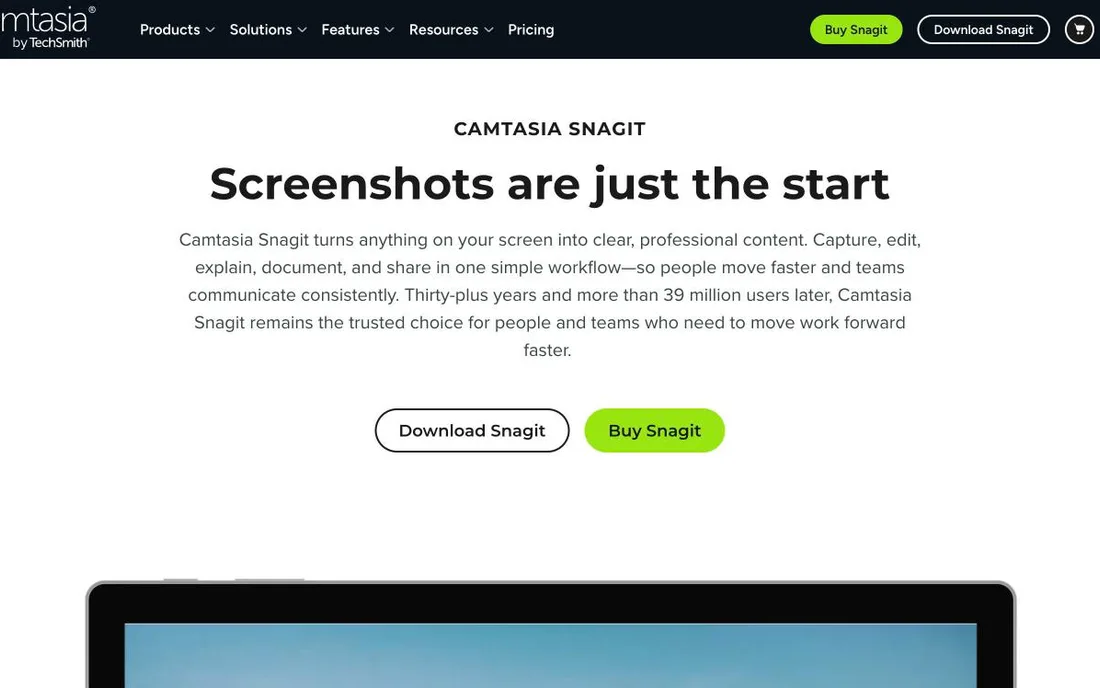
Snagit, now branded Camtasia Snagit, starts with screenshots and grows into documentation. Step Capture records each click as you walk through a process and builds a numbered guide automatically, and scrolling capture grabs whole web pages, spreadsheets or chats in one image. Smart Redact blurs emails, phone numbers and card details before you share.
It also records the screen, microphone, system audio and webcam for short walkthrough videos, with trimming, combining and noise reduction. Themes keep every capture on brand. A capture can be opened in Camtasia Editor to become a full training video. It runs on Windows and macOS.
What we like
- Step Capture turns your clicks into a shareable guide
- Records screen, mic, system audio and webcam for quick videos
- Scrolling capture and Smart Redact for sensitive data
- Windows and macOS, with volume licensing for teams
Watch out for
- Lighter video editing than Camtasia
- Better suited to quick clips than long courses
ShareX
Best for: Windows power users who want free screen recording, GIFs and screenshots in one light app
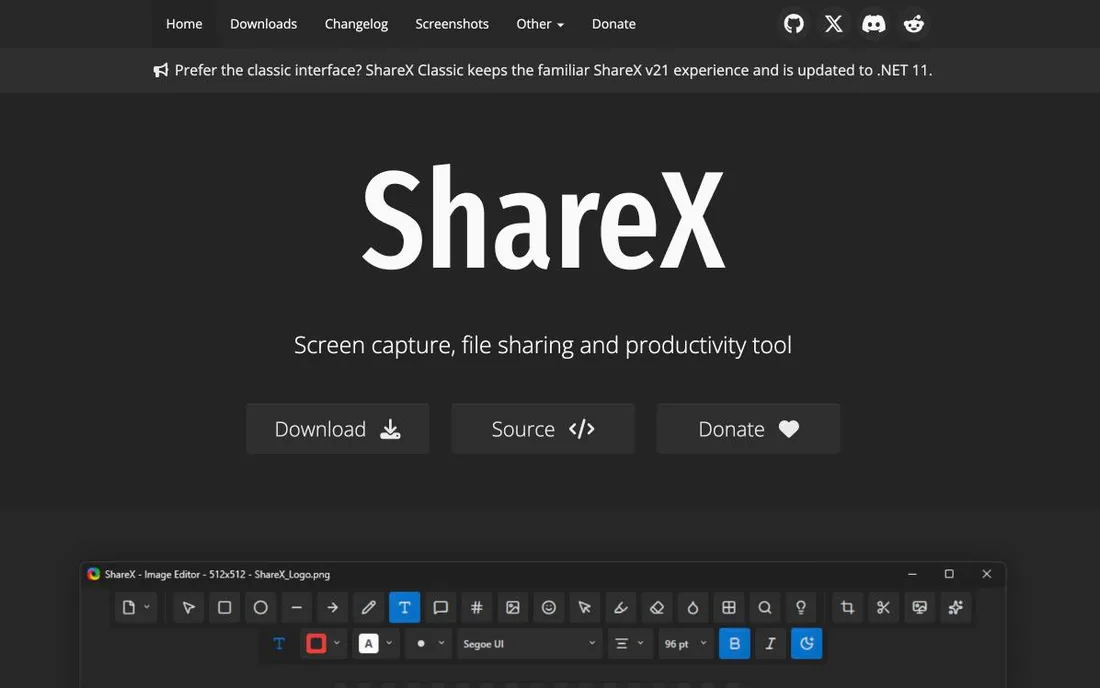
ShareX is a free and open-source screenshot and screen recording tool for Windows, developed for more than 18 years with no ads. It captures full screens, windows, regions and scrolling pages, records video or animated GIFs, and runs automatic after-capture tasks such as saving, annotating, copying or uploading.
The editor adds arrows, steps, blur, pixelate and highlights, and extra tools cover OCR, a video trimmer, a GIF maker and a video converter. Results can upload to a wide range of destinations and return a link. It suits developers and support staff who need quick clips, not polished courses.
What we like
- Free, open source, with no ads and no account
- Screen recording, GIF recording and scrolling capture
- Annotation, OCR, blur and automated after-capture tasks
- Uploads to many destinations with custom uploaders
Watch out for
- Windows only
- Dense menus built for power users
ScreenPal
Best for: Teachers and teams who want easy recording, editing and hosting on almost any device

ScreenPal records any part of your screen, your webcam or both, with annotations, and runs on Windows, Mac, iOS, Android and Chromebook, with no account required to start. A simple editor trims and cuts, adds text, overlays and music, and AI generates transcripts, captions, chapters and summaries you can edit.
It goes beyond recording with cloud hosting, embeds, searchable team libraries, analytics and interactive buttons and quizzes, which is why it is popular in classrooms. AI voiceovers and captions translate videos into more than 100 languages. ScreenPal reports use in 98 of 100 US universities.
What we like
- Windows, Mac, iOS, Android and Chromebook
- Screen and webcam recording with annotations
- AI captions, transcripts, chapters, summaries and translation into 100+ languages
- Cloud hosting, interactive quizzes and video analytics
Watch out for
- Hosting, sharing and team libraries rely on a ScreenPal cloud account
- Less control over scenes and sources than OBS
Loom
Best for: Teams that replace meetings with quick screen-and-camera videos shared by link
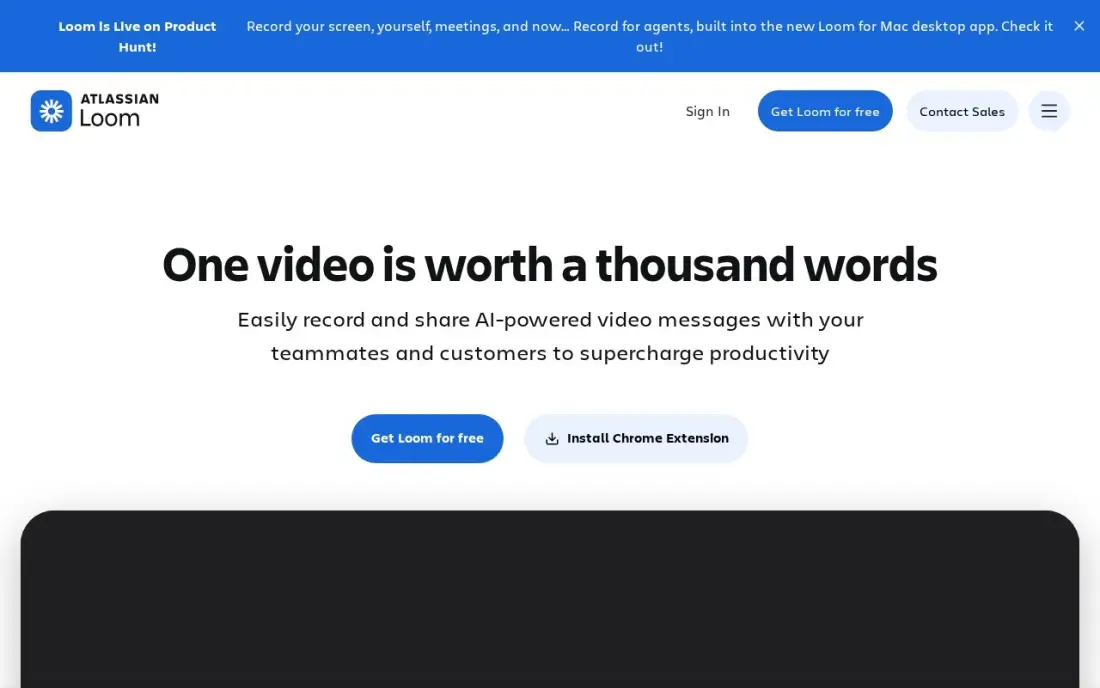
Loom is built for async communication rather than polished tutorials. You record your screen and camera, and the video uploads as you go, so a link is ready to paste into chat or email the moment you stop. Viewers watch, comment and react for free, and only the people who record need paid seats.
Business adds unlimited videos and length, 4K recording, branding, trim and stitch editing, engagement insights and password protection, while AI summaries and chapters need Business + AI. The free Starter plan caps recordings at five minutes and 25 videos per person, which suits quick updates rather than full courses.
What we like
- Recordings upload automatically and share by link
- Viewers watch, comment and react without a paid seat
- Branding, trim and stitch editing and engagement insights on Business
- Free Starter plan to begin
Watch out for
- Free Starter plan caps recordings at 5 minutes and 25 videos per person
- Full AI features need the Business + AI plan
Screen Studio
Best for: Mac users who make product demos and tutorials that need to look polished with little editing
Screen Studio records your screen without the cursor, logs mouse movement separately and adds the cursor back afterwards, so it can smooth motion, resize the pointer and zoom automatically where you clicked. Camera layouts switch between full screen, split screen and overlay, and a cutout removes the background behind you.
Editing works from the transcript, filler words and pauses can be cleared in one pass, and captions and noise reduction run on your Mac. Exports reach 4K at 60 fps, with GIFs, shareable links and vertical formats for social posts. It is Mac-only and has no free plan.
What we like
- Automatic animated zooms and smooth cursor motion
- Camera layouts, background cutout and transcript-based editing
- Exports MP4 up to 4K at 60 fps, GIFs and shareable links
- Offline-first, with captions and voice cleanup on your Mac
Watch out for
- macOS only, with no Windows version planned
- No free plan
The best screen recording software captures exactly what you do on screen, with clear audio, and makes it easy to turn that capture into a tutorial, demo or quick update people actually watch. We compared seven tools on capture options, webcam and audio handling, editing, sharing, platforms and what is free, covering screen recording for tutorials, training and team updates. We checked each vendor's site in November 2026.
How to choose the best screen recording software
- Decide what you are making. Full tutorials need an editor; quick updates need instant links; documentation needs screenshots and steps.
- Check separate tracks. Recording screen, webcam and audio separately lets you fix mistakes without re-recording.
- Look for editing aids. Text-based editing, automatic zooms and cursor effects save hours on tutorials.
- Match your platforms. ShareX is Windows-only, Screen Studio Mac-only, and ScreenPal covers phones and Chromebooks.
- Plan how videos will be shared. Cloud links, embeds and analytics matter for teams; local MP4 files matter for courses.
- Watch for watermarks and limits. Free tiers may watermark exports or cap length.
Tutorials also work as search content when they sit on your own site. Our AI search optimization service helps how-to videos and guides show up in AI answers, and our video SEO guide covers getting recordings found on Google and YouTube.
Know the difference: recorders vs recorder-editors
Pure recorders such as OBS Studio and ShareX capture the screen and stop there. They are free, flexible and light, and they suit streamers, developers and anyone who already edits in another tool. OBS adds scenes and live streaming; ShareX adds screenshots, GIFs and automatic uploads.
Recorder-editors such as Camtasia, ScreenPal and Screen Studio combine capture with editing, captions and export, and Loom and Snagit add instant sharing. They cost more but save time because the zooms, cuts and captions happen in the same app. For regular tutorial production, a recorder-editor usually pays for itself in editing time.
Quick comparison: tool type by need
| Buyer | Best pick | Why |
|---|---|---|
| Tutorials and training videos | Camtasia | Multitrack recording with a full editor |
| Free recording and streaming | OBS Studio | Open-source scenes on Windows, Mac and Linux |
| Step-by-step guides | Snagit | Step Capture, scrolling capture and quick clips |
| Free quick captures on Windows | ShareX | Recording, GIFs and screenshots with no ads |
| Classrooms and any device | ScreenPal | Records on Chromebook and phones, with quizzes |
| Async team updates | Loom | Instant links with free viewer comments |
| Polished Mac product demos | Screen Studio | Automatic zooms and smooth cursor motion |
Mistakes to avoid
- Recording at the wrong resolution. Set your screen or window size before recording so text stays readable after export.
- Skipping a mic check. Poor audio loses viewers faster than poor video; test levels and use noise suppression.
- Leaving private data on screen. Close email and chat, or use redaction and masks before sharing.
- Recording one long take. Short sections are easier to fix and easier for viewers to follow.
- Forgetting captions. Captions help accessibility and people watching without sound.
How we chose
We read each vendor's own website in November 2026 and compared capture modes, webcam and audio handling, editing tools, sharing, platforms and free options. Pricing is not listed because it changes often and depends on plan and team size, so check each vendor's site. We did not add third-party ratings. No vendor paid for a place in this list, and none of the links here are affiliate links.
What to do next
Record the same two-minute tutorial in two tools from this list, then compare how long editing took and how clear the result looks. If you want your tutorials and guides to bring in customers from search, book a free call.
Frequently asked questions
What is the best screen recording software?
Camtasia is the best all-round choice for tutorials and training. OBS Studio is the best free option for flexible recording, ShareX for quick free captures on Windows, Loom for shareable team videos and Screen Studio for polished demos on Mac.
What is the best screen recording software for tutorials?
Camtasia suits full tutorials because it records screen, webcam and audio on separate tracks and adds zooms, callouts and captions. Snagit suits short step-by-step guides, and Screen Studio adds automatic zooms on Mac.
Is there free screen recording software with no watermark?
OBS Studio and ShareX are free and open source with no watermark. Camtasia's free editor adds a watermark to exports, and Loom's free plan limits video length and count.
Which screen recorder works on Chromebook or phones?
ScreenPal runs on Windows, Mac, iOS, Android and Chromebook. OBS Studio covers Windows, macOS and Linux, ShareX is Windows-only and Screen Studio is Mac-only.
How much does screen recording software cost?
Pricing varies by product, plan and number of users, and it changes often, so check each vendor's current pricing page.
Can I record my webcam and screen at the same time?
Yes. Camtasia, OBS Studio, Snagit, ScreenPal, Loom and Screen Studio all record a webcam alongside the screen; Camtasia keeps them on separate tracks for editing.
Sources we checked (7)
- Camtasia — www.techsmith.com/camtasia (checked November 27, 2026)
- OBS Studio — obsproject.com (checked November 27, 2026)
- Snagit — www.techsmith.com/snagit (checked November 27, 2026)
- ShareX — getsharex.com (checked November 27, 2026)
- ScreenPal — screenpal.com (checked November 27, 2026)
- Loom — www.loom.com (checked November 10, 2026)
- Screen Studio — screen.studio (checked November 27, 2026)
Make one of these tools?
We re-check this list every quarter. Send a correction, request a review, or ask about a clearly labeled sponsored spot.
Request a listingShamim
Founder of SerpAstra
A full-stack digital marketer and SEO strategist covering technical and local SEO, AI search visibility, paid ads and lead generation for local businesses, e-commerce brands and SaaS teams.
Free SEO and AI visibility audit
Find out what is holding your rankings back
Send us your site. Within 2 business days you get a written audit, an AI visibility check and a short fix list ranked by impact. Free, with no contract attached.
Request my free audit→Related buying guides
 Video Editing & Streaming7 Best Recording Software in 2026, ComparedCompare the 7 best recording software tools for screen, video and audio, from free OBS Studio to Camtasia, on features, limits and cost, checked November 2026.Read guide →
 Video Editing & Streaming8 Best Desktop Video Editing Software in 2026, ComparedCompare the 8 best desktop video editing software for Windows, Mac and Linux on free versions, buy-once vs subscription cost and learning curve, checked 2026.Read guide →
 Video Editing & Streaming9 Best AI Video Editing Software in 2026, ComparedCompare the 9 best AI video editing software on text editing, auto-captions, clipping and real cost, with every price checked on vendor pages in November 2026.Read guide →