10 Best Video Editing Software for YouTube Beginners in 2026, Compared
Compare the 10 best video editing software for youtube beginners on price, free plans, 4K export and AI tools, with every price checked November 6, 2026.
 Shamim Mia, Founder, SerpAstraLast verified November 6, 202613 min read
We compare pricing pages, documentation and public reviews. We never accept payment for rankings.
Key takeaways
- CapCut is the best first editor for most new YouTubers at $19.99/month Pro, with Filmora at $49.99 a year and Clipchamp at $11.99/month close behind — and iMovie and DaVinci Resolve both cost $0 to start.
- The single most important buying factor is the export limit that forces your next upgrade: watermarks, 1080p caps and credit meters decide what you actually pay, not the headline price.
- Filmora sells a monthly plan at $19.99 a month alongside the $49.99-a-year Basic annual plan — and DaVinci Resolve Studio is $236 on sale until November 20, 2026, then $295.
- Nine of the ten editors have free plans, but only iMovie is free with no paid tier at all — every other free plan is a limited slice of a paid product.
On this page
Quick comparison
| Tool | Best for | Starting price | Free plan |
|---|---|---|---|
| CapCut | New YouTubers who want to cut their first videos fast on phone or desktop, with templates and auto-captions built in | $19.99/mo | Yes (free plan) |
| Filmora | Beginners who want a simple desktop timeline with effects, titles and AI tools on Windows or Mac | $19.99/mo | Yes (free plan) |
| Clipchamp | Windows creators who want a browser editor with free 1080p exports and no install | $11.99/mo | Yes (free plan) |
| iMovie | Mac and iPhone owners making their first YouTube videos who want the simplest possible editor | Free | Yes (free) |
| DaVinci Resolve | Ambitious beginners who want a free pro editor and are willing to climb the steepest learning curve here | $295 once | Yes (free version) |
| Descript | Talking-head YouTubers who want to edit video by deleting words from a transcript | $24/mo | Yes (free plan) |
| VEED | New YouTubers who publish captioned videos and need fast subtitles and translations | $24/mo | Yes (free plan) |
| Kapwing | Beginners who edit in the browser and want auto-captions, resizing and clips in one shared workspace | $24/mo | Yes (free plan) |
| Canva | Beginners who want one subscription for thumbnails, titles and simple video edits in the same place | $18/mo | Yes (free plan) |
| Adobe Premiere Pro | Beginners who plan to edit for clients one day and want the industry-standard timeline from the start | $22.99/mo | No (7-day trial) |
Make one of these tools?
We re-check this list every quarter. Send a correction, request a review, or ask about a clearly labeled sponsored spot.
Request a listingThe best video editing software for youtube beginners

CapCut
Best for: New YouTubers who want to cut their first videos fast on phone or desktop, with templates and auto-captions built in
CapCut is the fastest way for a new YouTuber to go from raw footage to a published video. It runs on your phone, in the browser and on the desktop, and the same project moves between them, so you can trim on the bus and finish on a laptop. Templates, trending effects and auto-captions do the fiddly work, and the free plan covers basic trimming, captions and 1080p export at $0.
The catch is the paywall creep. Pro costs $19.99 a month or $179.99 a year, and it holds 4K export, the full AI toolkit and premium templates, so the free plan starts to feel small once your channel grows. Buy CapCut Pro when you publish weekly and want 4K; stay free while you are still finding your format.
What we like
- Pro unlocks 4K export, the full AI toolkit and about 1 TB of cloud storage for $19.99 a month
- Auto-captions, background removal and trending templates are built for the video beginners actually make
- Desktop, web and mobile apps share projects, so edits started on a phone finish on a laptop
- The free plan covers basic trimming, captions and 1080p export at $0
Watch out for
- Pro rose to $19.99 a month in 2026 after the old $9.99 Pro tier became Standard
- The free plan watermarks premium templates and caps some exports at 1080p
- Commercial use of built-in music and stock assets carries limits to check before monetizing

Filmora
Best for: Beginners who want a simple desktop timeline with effects, titles and AI tools on Windows or Mac
Filmora is the classic beginner desktop editor: a proper timeline with drag-and-drop clips, titles, transitions and effects, without the pro-editor learning curve. The free plan includes the full editor, so you can learn it properly before paying, and the Basic annual plan at $49.99 a year is the cheapest yearly route to watermark-free 4K export in this list.
Watch the billing page closely. There is no monthly plan for the editor itself — the $19.99 a month figure on the shop page buys the Creative Assets add-on, not the software — and AI tools beyond the free allowance cost extra credits. Pick Filmora when you want a real desktop editor at the lowest yearly price.
What we like
- The Basic annual plan costs $49.99 a year, the cheapest yearly route to watermark-free 4K export here
- A perpetual license costs $79.99 once, for buyers who refuse another subscription
- Effects, titles, transitions and stock assets are built in, with AI Mate on every plan
- The free plan includes the full editor, so you can learn it properly before paying
Watch out for
- There is no monthly plan for the editor — the $19.99 a month figure on the shop page is the Creative Assets add-on, not the software
- AI features beyond the free allowance cost extra credits, and the stock library is a $19.99 a month add-on
- The perpetual license covers one platform and one version — the next major version is a new purchase

Clipchamp
Best for: Windows creators who want a browser editor with free 1080p exports and no install
Clipchamp is the easiest free start on Windows: it runs in the browser, so there is nothing to install, and the free plan exports at 1080p with no watermark — a combination no other free editor here offers. Auto-captions, text-to-speech and noise suppression are free on every plan, and the timeline is simple enough for a first video in an evening.
Premium costs $11.99 a month or $119.99 a year and adds 4K export, the full stock library and a brand kit — but Microsoft 365 Personal at $9.99 a month includes the same Premium features plus Office and 1 TB of storage, so check that first. Pick Clipchamp when you edit on Windows and want free 1080p exports today.
What we like
- The free plan exports at 1080p with no watermark, which is rare among free video editors
- Premium adds 4K export, the full stock library and a brand kit for $11.99 a month
- Auto-captions, text-to-speech and noise suppression are free on every plan
- Premium comes free with Microsoft 365 Personal at $9.99 a month, which also adds Office and 1 TB of storage
Watch out for
- Premium is the most expensive route at $11.99 a month — the Microsoft 365 bundle costs less
- It runs in the browser, so large 4K projects depend on your connection and machine
- No desktop app with offline editing, and the stock library is smaller than the desktop editors here

iMovie
Best for: Mac and iPhone owners making their first YouTube videos who want the simplest possible editor
iMovie is the editor most new Mac YouTubers already own: it comes pre-installed on Macs and is free on the App Store for iPhone and iPad, with no watermark, no time limit and no paid tier waiting to charge you. Trailer templates, themes, filters and soundtracks make a first video look finished, and editing runs up to 4K.
The limits are scope, not price. You get two video tracks and basic audio tools, so multi-layer edits and advanced color work are out, and there is no Windows version at all. Pick iMovie when you shoot on Apple devices and want your first videos out this weekend; move to Final Cut Pro at $299.99 once when you outgrow it.
What we like
- Completely free with no watermark, no time limit and no paid tier to grow into
- Pre-installed on Macs and free on the App Store for iPhone and iPad, so there is nothing to buy or install
- Trailer templates, themes and soundtracks make a first video look finished with almost no effort
- Projects send straight to Final Cut Pro when you outgrow it
Watch out for
- Mac, iPhone and iPad only — there is no Windows version
- Two video tracks and basic audio tools run out fast once videos get ambitious
- No AI captions, no auto-reframe and no stock library

DaVinci Resolve
Best for: Ambitious beginners who want a free pro editor and are willing to climb the steepest learning curve here
DaVinci Resolve is the only free editor here that professionals actually use for paid work: the free version is a full editor with 4K export, no watermark and no time limit, plus pro color grading, Fusion effects and Fairlight audio in one app. If you are willing to learn it, no other $0 tool gives you this much room to grow.
The price of all that power is the learning curve — the interface assumes pro editing knowledge, and it wants a strong GPU and plenty of memory. Studio costs $295 once, or $236 on a 20% sale until November 20, 2026, and adds the AI tools, noise reduction and resolutions past 4K. Pick Resolve when you want the free editor you never outgrow.
What we like
- The free version is a full professional editor with 4K export and no watermark — nothing else free comes close
- Studio costs $295 once, with free lifetime updates, and never asks for another payment
- Color grading, Fusion effects and Fairlight audio sit in one app instead of three subscriptions
- Studio unlocks the DaVinci Neural Engine AI tools, noise reduction and multi-user collaboration
Watch out for
- The learning curve is the steepest here — the interface assumes pro editing knowledge
- It wants a strong GPU and plenty of memory, especially for Fusion and noise reduction
- The free version caps at one GPU and Ultra HD, and some AI tools wait for Studio

Descript
Best for: Talking-head YouTubers who want to edit video by deleting words from a transcript
Descript edits video the way you already think about it: delete a word from the transcript and the clip disappears with it, so cutting ums, pauses and dead air takes minutes instead of hours. Studio Sound cleans up echo and background noise, automatic transcription and captions are included, and the free plan gives you 1 media hour a month to learn on.
The meter is the catch. Hobbyist costs $24 a month, or $16 billed annually, and every plan rations media hours and AI credits, so a busy month of long videos can force an upgrade or top-ups. Free exports are watermarked and capped at 720p. Pick Descript when your channel is mostly you talking to camera.
What we like
- Editing the transcript edits the video, so cutting filler words takes minutes, not hours
- Studio Sound cleans up echo and background noise without a separate audio tool
- Automatic transcription and captions are included, with Overdub voice cloning on paid plans
- The free plan gives 1 media hour a month and 5 GB of storage at $0
Watch out for
- Every plan meters media hours and AI credits, so a busy month can force an upgrade or top-ups
- Hobbyist covers one editor only — a second editor means Creator at $35 a month
- Free exports are watermarked and capped at 720p, and the 100 AI credits never refill

VEED
Best for: New YouTubers who publish captioned videos and need fast subtitles and translations
VEED is the browser editor for creators who live on captions: automatic subtitles are its core strength, with 120 minutes a year on Lite and translation in 50-plus languages on Pro, and the timeline needs no install. Lite costs $12 a month billed annually and adds watermark-free 1080p export, stock audio and video, and 25-minute videos.
The cap to watch is the subtitling allowance: 120 minutes a year runs out fast for weekly publishers, and monthly billing doubles Lite to $24 a month. Free exports are watermarked at 720p, and 4K waits for Pro. Pick VEED when captions and translations are the job.
What we like
- Automatic subtitles are the core strength, with 120 minutes a year on Lite and translation in 50-plus languages on Pro
- Lite costs $12 a month billed annually, half the monthly-billing price
- The browser editor needs no install, and stock audio and video are included on paid plans
- Eye Contact AI and Clean Audio fix the two most common talking-head problems in one click
Watch out for
- Subtitling minutes are capped per year — 120 minutes on Lite runs out fast for weekly publishers
- Monthly billing doubles the price: Lite is $24 a month monthly against $12 billed annually
- Free exports are watermarked at 720p, and 4K export waits for the Pro plan

Kapwing
Best for: Beginners who edit in the browser and want auto-captions, resizing and clips in one shared workspace
Kapwing is a browser editor built around captions and clips: auto-subtitles in 100-plus languages, translation and dubbing in the same timeline, and Smart Cut and Repurpose tools that turn one long video into clips for Shorts. Workspaces let a team share projects and a brand kit, and the free plan includes the full editor with 10 AI credits to test it.
Pro costs $24 a member a month, or $16 billed annually, and the per-member billing means a second editor doubles the bill. The 1,000 monthly AI credits do not roll over and cannot be topped up on Pro, and free exports are watermarked at 720p and four minutes. Pick Kapwing when captions and clips are the workflow.
What we like
- Auto-captions in 100-plus languages with translation and dubbing built into the same timeline
- Smart Cut and Repurpose turn one long video into clips for Shorts with almost no manual work
- The browser editor runs anywhere, and workspaces let a team share projects and a brand kit
- The free plan includes 10 AI credits and the full editor, so you can test it properly before paying
Watch out for
- Pro is priced per member, so a second editor doubles the bill
- The 1,000 monthly AI credits do not roll over, and you cannot buy more on Pro
- Free exports are watermarked, capped at 720p and four minutes, and projects are stored for only three days

Canva
Best for: Beginners who want one subscription for thumbnails, titles and simple video edits in the same place
Canva is the all-in-one pick for beginners who make thumbnails as well as videos: one Pro subscription covers video, graphics, presentations and scheduling, with a real Brand Kit and thousands of video templates. Magic Studio AI tools — background remover, Magic Resize and text-to-video — sit inside the same editor, and the free plan includes 5 GB of storage and basic video editing at $0.
Pro costs $18 a month or $144 a year for one person, and a second editor means the Business plan at $250 a year per person. The timeline is simpler than a dedicated editor — no multicam, no pro color grading — and AI tools are metered by monthly uses. Pick Canva when thumbnails and video live in the same workflow.
What we like
- One Pro subscription covers video, thumbnails, graphics and scheduling, with a real Brand Kit
- Thousands of video templates mean a promo clip starts from a finished design, not a blank timeline
- Magic Studio AI tools — background remover, Magic Resize and text-to-video — sit inside the same editor
- The free plan includes 5 GB of storage and basic video editing at $0
Watch out for
- Pro is priced per person, so a second editor needs the Business plan at $250 a year per person
- The timeline is simpler than a dedicated editor — no multicam, no pro color grading
- AI tools are metered by monthly uses, so heavy AI work costs extra

Adobe Premiere Pro
Best for: Beginners who plan to edit for clients one day and want the industry-standard timeline from the start
Premiere Pro is the editor your future collaborators already use: the industry standard for client work, with text-based editing, AI object masking, multilingual captions and Frame.io review tools built in. The single-app plan includes Premiere on desktop and mobile, Adobe Express Premium and 100 GB of cloud storage, so one subscription covers the whole workflow.
For a beginner the price is the problem, not the features: $22.99 a month on the annual plan, $275.88 a year, with no free plan and no one-time purchase, and a learning curve no other tool here asks for. Pick Premiere Pro when you plan to edit for clients one day; start on CapCut or DaVinci Resolve until then.
What we like
- The industry-standard editor, so hiring freelance editors and swapping project files is easy
- Text-based editing, AI object masking and captions cut hours off long-form and interview edits
- The single-app plan includes Premiere on desktop and mobile, Adobe Express Premium and 100 GB of cloud storage
- Frame.io review tools are included, so clients can comment on cuts without extra software
Watch out for
- A year costs $275.88 on the annual plan, and $413.88 paying month-to-month
- There is no free plan and no one-time purchase — stop paying and access ends immediately
- It demands a strong machine and a learning curve no other tool here asks for
The best video editing software for youtube beginners is the one that gets your first video published tonight, not the one with the longest feature list. We ranked the ten editors below by fit for a new YouTuber — someone cutting their first videos on a laptop or phone, on a small budget, with no editing experience — starting with the free and easy picks and ending with the pro standard you grow into, and every price was checked on November 6, 2026.
How to choose the best video editing software for youtube beginners
- Start free, pay later. iMovie and DaVinci Resolve cost $0, and CapCut, Clipchamp, VEED, Kapwing and Canva all have useful free plans. Learn the timeline before you pay for it.
- Check the export limit first. Free plans watermark exports, cap them at 1080p or meter them with credits. The limit you hit first is your real starting price.
- Match the editor to your videos. Talking-head channels get the most from Descript's transcript editing; effects-heavy videos suit Filmora; phone-first creators suit CapCut.
- Count the machine you have. DaVinci Resolve and Premiere Pro want a strong GPU and plenty of memory. On an older laptop, start with CapCut, Clipchamp or iMovie.
- Think about where you will be in a year. iMovie projects move to Final Cut Pro, and DaVinci Resolve's free version never needs replacing. A dead-end editor means relearning everything later.
A YouTube channel is one system in your stack, not the whole stack. Before you publish, run your video titles through the free SERP snippet preview tool — it shows exactly how the title and description will look in Google, and the same title discipline works on YouTube. And if the channel grows into a business, our guide to AI tools for creating YouTube videos covers the automation side.
Whatever you shortlist, cut one real video in it before you pay. The free plans and trials in this list are long enough to edit, export and publish a genuine video — your footage, your voice, your thumbnail — and that video tells you more than any review can. Check two things in the trial: that exports come out clean at the resolution you need, and that the timeline feels fast on your machine.
Video editing software for YouTube beginners pricing: what you will actually pay
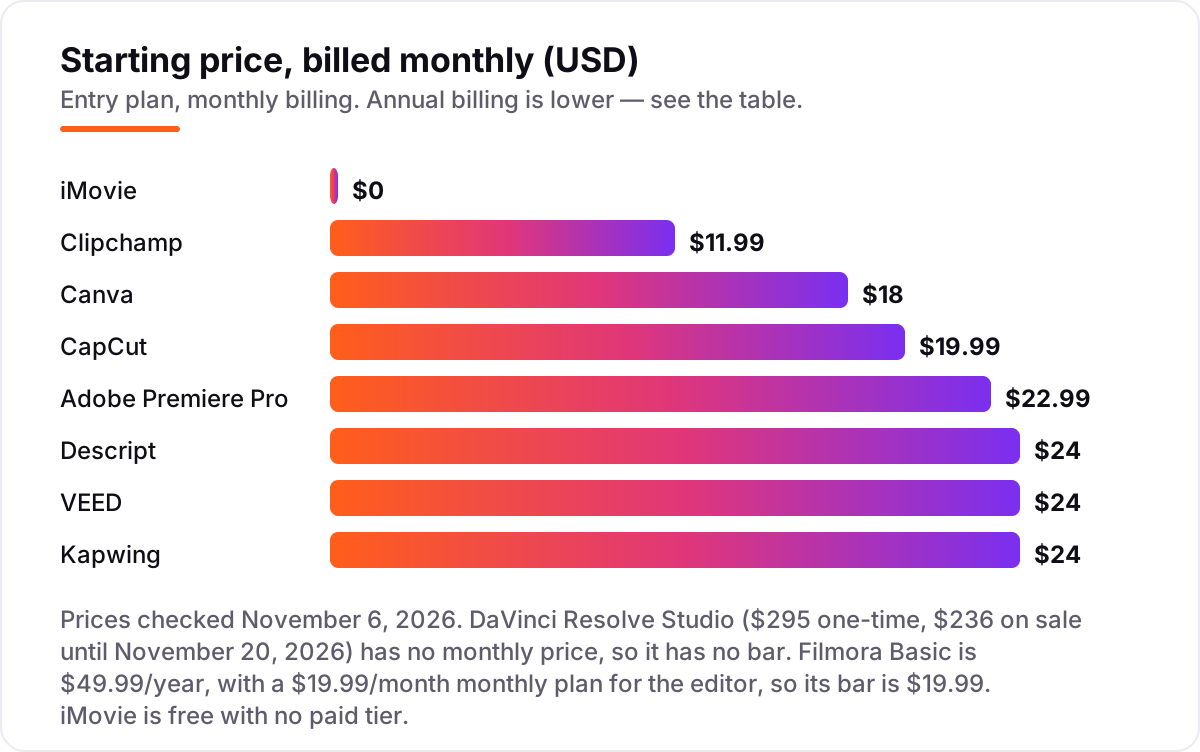
Take a beginner who publishes one video a week — about four videos a month. On list prices, the first year costs $0 on iMovie or the free version of DaVinci Resolve, $49.99 on Filmora Basic, $119.99 on Clipchamp Premium billed annually, $144 on Canva Pro billed annually, $144 on VEED Lite billed annually, $179.99 on CapCut Pro billed annually, $192 on Descript Hobbyist billed annually, $192 on Kapwing Pro billed annually and $275.88 on Premiere Pro billed monthly on the annual plan.
Paying month to month costs more on every subscription here: Canva Pro is $216 a year at $18 a month, CapCut Pro is $239.88 at $19.99, Clipchamp Premium is $143.88 at $11.99, and Kapwing Pro, Descript Hobbyist and VEED Lite are $288 each at $24, while Premiere Pro is $413.88 at $34.49. The gap between the cheapest paid route and the dearest is $226 a year — Filmora at $49.99 against Premiere Pro at $275.88 — for the same four videos a month.
Two costs sit outside every number above. First, DaVinci Resolve Studio is a one-time $295, currently $236 on a 20% sale until November 20, 2026 — cheaper than a year of Premiere Pro, and it never bills again. Second, AI credits: Filmora, Kapwing, Descript, VEED and CapCut Pro all ration AI features, so heavy AI use means buying credits on top of the subscription. If you want the cheapest honest start, publish on a free editor and pay only when a watermark or a resolution cap blocks a video you actually made.
Know the difference: free editors vs paid editors
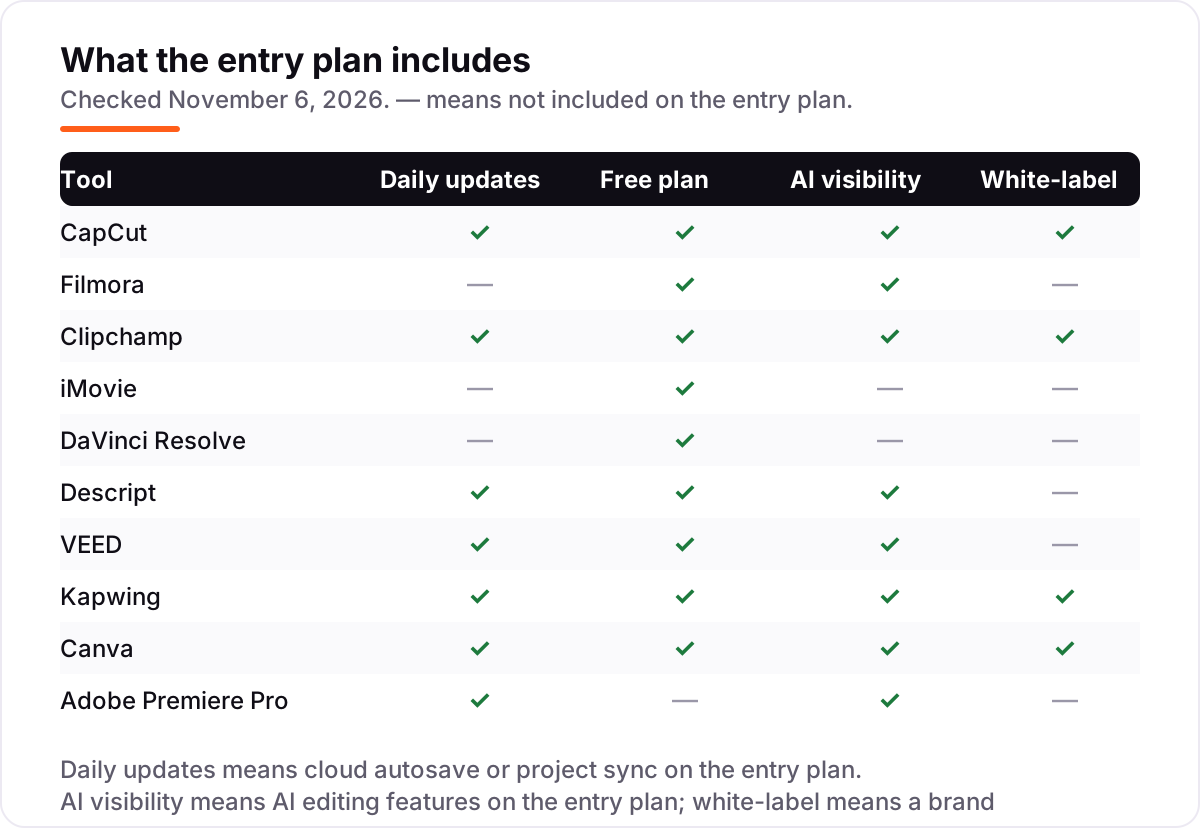
The confusion in this category is between free and free-to-start. A free editor — iMovie — costs $0 forever, with no paid tier behind it. A free plan — CapCut, Clipchamp, Filmora, Descript, VEED, Kapwing, Canva and the free version of DaVinci Resolve — is a limited slice of a paid product, and the limits are the point: watermarks, 1080p caps, credit meters and missing AI tools are what the subscription removes.
That distinction decides the real price. A free-plan editor can cost more than a paid one if its limits force the top tier: CapCut Pro at $19.99 a month is dearer than Filmora Basic at $49.99 a year, even though CapCut's free plan looks more generous on day one. Read the export limit before the feature list — it is the number that decides your bill.
There is a second confusion: a video editor and a video generator are not the same tool. Editors like the ten here cut footage you filmed; generators make footage from a prompt. If a tool promises a finished video with no timeline, it belongs in a different list — and for a YouTube channel, filmed footage edited well still beats generated footage.
Quick comparison: tool type by need
| Buyer | Best pick | Why |
|---|---|---|
| First video on a phone | CapCut | Templates and auto-captions, free to start, Pro is $19.99/month |
| Cheapest yearly desktop editor | Filmora | Basic is $49.99/year, full timeline and effects |
| Free 1080p with no watermark on Windows | Clipchamp | Free plan exports 1080p, Premium is $11.99/month |
| First video on a Mac | iMovie | Free, pre-installed, sends projects to Final Cut Pro |
| Free pro editor, willing to learn | DaVinci Resolve | Full editor at $0, Studio is $295 once |
| Talking-head videos | Descript | Edit by deleting words from the transcript, from $24/month |
Mistakes to avoid
- Paying before you publish. Every editor here has a free plan, a free version or a trial. Cut and publish one real video first — the editor that feels fast on your footage is the right one, and you may never need to pay.
- Buying on the monthly price. Annual billing cuts the bill on every subscription here: CapCut Pro drops from $239.88 to $179.99 a year, and Clipchamp Premium from $143.88 to $119.99. The monthly figure is the most expensive way to pay.
- Ignoring the watermark. Filmora's free plan watermarks every export, and CapCut watermarks premium templates. A watermark on a published video looks worse than a 1080p cap — check exports before you record a series in a free plan.
- Choosing the pro editor first. Premiere Pro and DaVinci Resolve are the best editors here and the worst first editors: both demand a strong machine and weeks of learning. Start simple, and move up when the simple editor blocks a video you want to make.
- Forgetting the credits. AI captions, background removal and generation run on credits in Filmora, Kapwing, Descript, VEED and CapCut Pro. A plan that looks cheap can cost double once you pay for credits every month.
How we chose
We checked each vendor's own pricing page and recorded the starting price exactly as shown, including the annual-billing figure where the page lists one, and we ranked the tools by fit for the most common buyer — a new YouTuber cutting their first videos — not by brand size. Two prices needed care: Filmora's $19.99 a month figure on its shop page is the editor's monthly plan, shown as the starting price alongside the $49.99-a-year Basic annual plan, and DaVinci Resolve Studio is $236 on a 20% sale until November 20, 2026, against a $295 list price. Ratings come from G2 pages crawled within the last three days; CapCut has no G2 listing and iMovie has none either, so those two show no rating rather than a stale one. Direct page reads were unavailable on November 6, 2026, so prices were verified from fresh search-index copies of the vendors' own pricing pages crawled November 3–6, 2026, cross-checked against our November 4 direct reads. No vendor paid for a place in this list, and none of the links here are affiliate links.
What to do next
Start with the free plan or trial of your top pick and cut one real video in it this week. Check that exports come out clean at the resolution you need and the timeline feels fast on your machine before you commit to a year. If the videos are sorted but new viewers are not finding you, our monthly SEO service handles the visibility side — or compare providers in our guide to SEO companies for small business. Once your tools are in place, find out what's holding your rankings back.
Your stack only works if people find you
SerpAstra fixes what keeps your site off page one and makes it easy for AI assistants to recommend.
Get a free audit→Sources we checked (18)
- CapCut pricing — capcut.com/pricing (checked November 6, 2026)
- Filmora pricing — filmora.wondershare.com/shop/buy/buy-video-editor.html (checked November 6, 2026)
- Clipchamp pricing — clipchamp.com/en/pricing (checked November 6, 2026)
- iMovie — apps.apple.com/us/app/imovie (checked November 6, 2026)
- DaVinci Resolve pricing — blackmagicdesign.com/products/davinciresolve (checked November 6, 2026)
- Descript pricing — descript.com/pricing (checked November 6, 2026)
- VEED pricing — veed.io/pricing (checked November 6, 2026)
- Kapwing pricing — kapwing.com/pricing (checked November 6, 2026)
- Canva pricing — canva.com/pricing (checked November 6, 2026)
- Adobe Premiere Pro pricing — adobe.com/creativecloud/plans.html (checked November 6, 2026)
- Filmora reviews — g2.com/products/wondershare-filmora/reviews (checked November 6, 2026)
- Clipchamp reviews — g2.com/products/clipchamp/reviews (checked November 6, 2026)
- DaVinci Resolve reviews — g2.com/products/davinci-resolve/reviews (checked November 6, 2026)
- Descript reviews — g2.com/products/descript/reviews (checked November 6, 2026)
- VEED reviews — g2.com/products/veed/reviews (checked November 6, 2026)
- Kapwing reviews — g2.com/compare/kapwing-vs-veed (checked November 6, 2026)
- Canva reviews — learn.g2.com/canva-pro-worth-it (checked November 6, 2026)
- Adobe Premiere Pro reviews — g2.com/products/adobe-premiere-pro/reviews (checked November 6, 2026)
Shamim
Founder of SerpAstra
A full-stack SEO and digital marketer who spends most days on Local SEO for dental practices, AI search visibility and lead generation.
Frequently asked questions
What is the best video editing software for YouTube beginners?
CapCut is the best first pick for most new YouTubers: it is free to start, the timeline is simple, and auto-captions and templates do the fiddly work. Filmora is the better desktop pick at $49.99 a year, and iMovie is the best free pick on a Mac. All three get a first video published in an evening.
How much does video editing software for YouTube beginners cost?
From $0 to $24 a month. iMovie and the free version of DaVinci Resolve cost nothing, and the first paid plans run $49.99 a year for Filmora, $119.99 a year for Clipchamp Premium, $144 a year for Canva Pro, $12 a month for VEED Lite and $19.99 a month for CapCut Pro. Premiere Pro is the dearest here at $22.99 a month.
Is there really free video editing software for YouTube beginners?
Yes, with limits. iMovie is free with no paid tier, and DaVinci Resolve's free version exports 4K with no watermark. CapCut, Clipchamp, VEED, Kapwing and Canva all have free plans, but CapCut watermarks premium templates, Clipchamp caps free exports at 1080p and VEED watermarks free exports at 720p. Filmora's free plan watermarks every export.
What is the difference between CapCut and Filmora for YouTube beginners?
CapCut is the faster start: it runs on phone, desktop and web, and templates and auto-captions do most of the work. Filmora is the deeper desktop editor, with a fuller timeline, more effects and a cheaper yearly price at $49.99. Pick CapCut when you edit on your phone; pick Filmora when you want a proper desktop editor.
Can I switch video editing software later?
Yes, but finished videos do not move between editors — only the raw clips do. Keep your original footage and audio in one folder, export finished videos as master files, and start the next video in the new editor. Switching mid-series means learning new shortcuts, so try the free plan or trial of your next editor first.
Do I need a powerful computer to edit YouTube videos?
Not for the beginner editors here. CapCut, Clipchamp and iMovie run on ordinary laptops, and Clipchamp, VEED and Kapwing run in the browser. DaVinci Resolve and Premiere Pro are the exceptions: both want a strong GPU and plenty of memory, especially for 4K footage and AI features. Start on a free editor and upgrade your machine only when exports slow down.
Free SEO and AI visibility audit
Find out what is holding your rankings back
Send us your site. Within 2 business days you get a written audit, an AI visibility check and a short fix list ranked by impact. Free, with no contract attached.
Request my free audit→Related guides
 Design, Video & Creative10 Best Video Editing Software for Small Business in 2026, ComparedCompare the 10 best video editing software for small business tools on price, free plans and AI features, with prices checked November 4, 2026.Read guide →
 Digital Marketing & Ads10 Best AI Tools for Creating YouTube Videos in 2026, ComparedCompare the 10 best ai tools for creating youtube videos in 2026 on price, free plans and AI features, with every price checked November 5, 2026.Read guide →
 SEO & AI Search7 Best YouTube SEO Tools in 2026 (Free and Paid, Compared)7 best YouTube SEO tools compared on price, keyword research and rank tracking, from free to $29 per month. Prices checked November 2, 2026.Read guide →