Best YouTube Editing Software Free in 2026: 8 Tools Compared
Compare the 8 best youtube editing software free options on price, export limits, watermarks and AI features, with every price checked November 6, 2026.
 Shamim Mia, Founder, SerpAstraLast verified November 6, 202612 min read
We compare pricing pages, documentation and public reviews. We never accept payment for rankings.
Key takeaways
- DaVinci Resolve is the best free YouTube editor overall at $0, with Studio at $295 one-time; CapCut is the fastest free start, with Pro at $179.99 a year; Shotcut, OpenShot and Kdenlive are fully free with no paid tier at all.
- Shotcut, OpenShot, Kdenlive and iMovie are free forever with no paid tier and no watermark, so they never ask you to pay.
- The single most important buying factor is the export limit on the free plan: 720p on Lightworks Free, 1080p on Clipchamp free, 4K on DaVinci Resolve and iMovie — check the export cap before you learn the tool.
- Free does not always mean watermark-free: CapCut watermarks premium templates on the free plan, while DaVinci Resolve, Shotcut, OpenShot, Kdenlive, Clipchamp and iMovie export clean video at no cost.
On this page
Quick comparison
| Tool | Best for | Starting price | Free plan |
|---|---|---|---|
| DaVinci Resolve | Creators who want professional-grade editing, color and audio at $0 and are willing to learn serious software | Free; Studio $295 | Yes (free) |
| CapCut | Phone-first creators who publish often and want templates, auto-captions and fast exports | Free; Pro $179.99/yr | Yes (free) |
| Shotcut | Technically comfortable creators who want a free editor with zero commercial strings attached | Free | Yes (free) |
| OpenShot | Beginners making their first YouTube videos who want the gentlest learning curve | Free | Yes (free) |
| Kdenlive | Linux editors and growing creators who want real timeline depth without paying | Free | Yes (free) |
| Lightworks | Editors who care about the craft of cutting and want professional trimming tools for free | Free; Create $139.99/yr | Yes (free, 720p) |
| Clipchamp | Windows creators who want zero setup and quick 1080p videos straight from the browser | Free; Premium $119.99/yr | Yes (free) |
| iMovie | Mac and iPhone owners who want the easiest free start with no learning curve | Free | Yes (free) |
Make one of these tools?
We re-check this list every quarter. Send a correction, request a review, or ask about a clearly labeled sponsored spot.
Request a listingThe best free YouTube editing software

DaVinci Resolve
Best for: Creators who want professional-grade editing, color and audio at $0 and are willing to learn serious software
DaVinci Resolve is the rare free product that competes with software costing hundreds of dollars. The free version includes the full editing timeline, respected color grading tools, visual effects in the Fusion page and Fairlight audio mixing, with no watermark, no export limit and no trial countdown. Version 21 is the current release, and it exports up to 4K.
The price you pay is in hardware and time. Resolve wants a discrete GPU, 16 GB of RAM as a practical minimum and fast storage, or playback stutters on 4K timelines. Studio costs $295 as a one-time purchase — $236 in Blackmagic's 20% sale until November 20, 2026 — and adds 10-bit video, 120 fps, resolutions beyond 4K and the full AI toolset. Choose Resolve when video quality matters more than speed.
What we like
- Full editing timeline plus professional color grading, Fusion effects and Fairlight audio in one free download
- Free version exports up to 4K with no watermark, no export limit and no trial countdown
- Used on real film and TV productions, so skills learned here transfer to paid work
- Studio is a $295 one-time purchase, not a subscription, and adds 10-bit video, 120 fps and the full AI toolset
Watch out for
- Steep learning curve: the interface assumes you know editing vocabulary like nodes and bins
- Needs a strong computer — a discrete GPU and 16 GB of RAM are the practical minimum for smooth 4K editing
- Large download and disk footprint, and the free download sits behind a registration form

CapCut
Best for: Phone-first creators who publish often and want templates, auto-captions and fast exports
CapCut is the editor most new YouTubers actually finish videos in. It is free, runs on phones, desktops and browsers with projects syncing between them, and its template library, auto-captions, background removal and one-click effects compress hours of fiddly work into minutes. Core exports carry no watermark.
The business model is freemium with teeth. Standard costs $9.99 a month and is aimed at mobile creators, while Pro costs $19.99 a month or $179.99 a year and adds 4K export, the full AI toolkit, about 1 TB of cloud storage and roughly 1,200 monthly AI credits. CapCut is owned by ByteDance, TikTok's parent, which gives some creators pause about data handling. Pick CapCut when speed matters more than fine control.
What we like
- Fastest route from phone footage to a finished YouTube video, with projects syncing across phone, desktop and browser
- Free auto-captions, background removal and a huge template and effect library
- Free core exports carry no watermark on your own footage
- Standard at $9.99 a month removes the watermark from premium assets for creators who do not need 4K
Watch out for
- Best AI features, 4K export and extra cloud storage sit behind Pro at $19.99 a month or $179.99 a year
- Features that were free keep moving behind the Pro subscription, so the free tier shrinks over time
- Free-tier music and some assets carry usage limits for monetized videos, so check the licence before you publish

Shotcut
Best for: Technically comfortable creators who want a free editor with zero commercial strings attached
Shotcut is an open-source editor that does exactly what it promises and nothing it does not. It is free forever, with no account, no watermark and no premium tier waiting to charge you. Format support is excellent because it is built on FFmpeg, so odd camera files and screen recordings usually just work, and it handles 4K timelines.
What it lacks is polish. The interface feels utilitarian next to CapCut or Premiere, the effects library is modest, and some workflows take more clicks than they should. Performance is decent on mid-range hardware but not remarkable, and projects live on your hard drive with no cloud sync. Choose Shotcut when you want a free editor with zero commercial strings attached.
What we like
- Completely free with no account, no watermark and no premium tier waiting to charge you
- Wide format support through FFmpeg, so odd camera files and screen recordings usually just work
- Handles 4K timelines and exports to every format YouTube accepts
- Runs on Windows, Mac and Linux from the same free download
Watch out for
- Interface looks dated next to CapCut or Premiere, and the effects library is modest
- Some workflows take more clicks than they should, and there is no phone app or cloud sync
- Documentation is thinner than the commercial rivals, so odd problems take more forum digging

OpenShot
Best for: Beginners making their first YouTube videos who want the gentlest learning curve
OpenShot targets the beginner who opens DaVinci Resolve, closes it in panic, and wants something friendlier. The timeline is drag-and-drop simple, the toolbar is small, and basic cuts, titles and transitions take minutes to learn. It is free and open source with no watermark, and it runs on all three desktop platforms.
The honest weakness is stability under load. OpenShot has a long-running reputation for crashes on long timelines, many layers or heavy effects, and rendering is slower than commercial editors. Some headline features like animated 3D titles require installing Blender separately. Pick OpenShot for your first month of editing, school projects or simple talking-head videos.
What we like
- Easiest learning curve of the open-source options: drag-and-drop timeline, small toolbar, minutes to learn
- Free with no watermark, and runs on Windows, Mac and Linux
- Basic cuts, titles and transitions take minutes, not hours, to learn
- Animated 3D titles are available for creators who want flashier intros
Watch out for
- Stability complaints on long timelines with many layers or heavy effects
- Rendering is slower than commercial editors, and animated 3D titles need Blender installed separately
- Fewer advanced tools than Shotcut or Kdenlive, so growing creators outgrow it

Kdenlive
Best for: Linux editors and growing creators who want real timeline depth without paying
Kdenlive is the open-source editor for people who want real timeline power without paying for it. Multi-track editing, keyframeable effects, proxies for smooth 4K playback and a customizable interface put it a tier above OpenShot in capability, while staying free forever with no account or upsell.
Its roots show. Kdenlive was built for Linux first, and while Windows and Mac versions exist, they carry more quirks than the Linux builds. The tutorial ecosystem is smaller than Resolve's, so solving odd problems takes more forum digging, and there is no phone companion or cloud workflow. Choose Kdenlive if you edit on Linux or want free depth and can troubleshoot.
What we like
- Powerful multi-track timeline with keyframeable effects, proxies for smooth 4K playback and nested sequences
- Highly customizable interface and shortcuts that adapt to the way you edit
- Free forever with no account, no watermark and no upsell
- Active development with regular releases and a large effects stack
Watch out for
- Linux-first: Windows and Mac builds exist but carry more quirks than the Linux builds
- Occasional stability quirks, and the tutorial ecosystem is smaller than Resolve's
- No phone companion or cloud workflow, so projects stay on one machine

Lightworks
Best for: Editors who care about the craft of cutting and want professional trimming tools for free
Lightworks has genuine film-industry pedigree: movies cut on it have won Oscars, and the free version includes the same editing engine as the paid tiers. The trimming tools are precise, multicam support is strong, and the workflow rewards editors who learn its keyboard-driven style. For cutting interviews and documentaries, it feels more professional than any other free option except Resolve.
The free tier's limit is specific and important: exports max out at 720p, so publishing from the free version means visibly softer video. Create costs $13.99 a month or $139.99 a year and lifts the cap to 4K, while Pro costs $27.99 a month. The free licence renews every 90 days. Pay for a tier the moment you publish regularly, because 720p is not a 2026 publishing resolution.
What we like
- Editing workflow used on real Hollywood films, with precise trimming tools and strong multicam support
- Free tier includes the full editing feature set, not a cut-down demo
- Create adds 4K export, advanced titles and motion graphics for $13.99 a month
- Runs on Windows, Mac and Linux with monthly, annual or perpetual licences
Watch out for
- Free exports are capped at 720p, which is too soft for publishing finished YouTube videos
- Unique keyboard-driven interface takes real adjustment for editors used to Premiere
- Some formats need the paid tier, and older directories still list the previous $9.99 Create price

Clipchamp
Best for: Windows creators who want zero setup and quick 1080p videos straight from the browser
Clipchamp is Microsoft's answer to casual video editing, and it ships with Windows. The free tier exports 1080p video without a watermark and includes templates, stock footage, text-to-speech and auto-captions. Because it runs in the browser, there is nothing to install and projects are reachable from any machine.
The constraints are structural. You need a Microsoft account and an internet connection, and long or complex timelines can feel sluggish in the browser compared with desktop editors. Premium costs $11.99 a month or $119.99 a year and adds 4K export, the full premium stock library and a brand kit — or it comes free with Microsoft 365 Personal and Family. Pick Clipchamp for short, straightforward videos with zero setup.
What we like
- Free watermark-free 1080p export with templates, stock footage, text-to-speech and auto-captions included
- Runs in the browser with nothing to install, and ships with Windows 11
- Premium features are included with Microsoft 365 Personal and Family at no extra cost
- Projects are reachable from any machine with a Microsoft account
Watch out for
- Needs a Microsoft account and an internet connection; there is no real offline mode
- Browser performance lags on long or complex timelines compared with desktop editors
- 4K export, premium stock and the brand kit need Premium at $11.99 a month

iMovie
Best for: Mac and iPhone owners who want the easiest free start with no learning curve
iMovie is the reason many YouTubers never install another editor. It is free on every Mac, iPhone and iPad, it opens in seconds, and its trailer templates and one-click themes produce polished results with almost no learning. Stability is excellent, 4K export works, and projects can move between iPhone and Mac.
The ceiling is low by design. Audio mixing is basic, effects and transitions are limited, color tools are minimal, and there is no Windows or Android version. For vlogs, family videos and simple talking-head content it is all most people need — but creators who want multi-track depth or advanced color will outgrow it within a year.
What we like
- Free on every Mac, iPhone and iPad, opens in seconds and exports up to 4K
- Trailer templates and one-click themes produce polished results with almost no learning
- Excellent stability, and projects move between iPhone and Mac
- No watermark, no account beyond your Apple ID and no upsell of any kind
Watch out for
- Only runs on Apple devices — there is no Windows or Android version
- Low ceiling by design: basic audio mixing, limited effects and minimal color tools
- No multi-track timeline depth, so growing creators outgrow it fast
Eight tools make the cut in this list of the best youtube editing software free in 2026, and every one of them exports real videos at $0. We ranked them by fit for the most common buyer — a new YouTuber editing on a laptop or phone — starting with the most capable free editor and ending with the easiest one, and every price was checked on November 6, 2026.
Free means different things here, so read the export limit before the feature list. DaVinci Resolve exports 4K with no watermark at $0, Lightworks Free stops at 720p, and CapCut's free tier watermarks premium templates. The tool that fits is the one whose free limits you can live with for a year, not the one with the longest feature list.
How to choose the best youtube editing software free
- Check the free export cap first. DaVinci Resolve and iMovie export 4K free, Clipchamp free stops at 1080p, and Lightworks Free stops at 720p. The cap decides whether the free plan is usable, not the feature list.
- Match the editor to your computer. DaVinci Resolve needs a discrete GPU and 16 GB of RAM for smooth 4K; Shotcut, OpenShot and Kdenlive run on modest hardware, and Clipchamp runs in the browser on any machine.
- Count the platforms you edit on. CapCut syncs phone, desktop and browser; iMovie only runs on Apple devices; Shotcut, OpenShot, Kdenlive and Lightworks run on Windows, Mac and Linux.
- Decide how much learning you will do. iMovie and OpenShot take an evening; DaVinci Resolve and Lightworks reward weeks of practice with professional results.
- Read the licence on music and stock. CapCut's free tier limits commercial use of some music and assets, so monetized channels should check the terms before publishing.
Editing is one system in your stack, not the whole stack. If the channel also needs to be found, our guide to YouTube SEO tools covers the visibility side. And before you publish, run your titles through the free SERP snippet preview tool — it shows exactly how the title and description will look in Google.
Whatever you shortlist, cut one real video in it before you commit. The free plans in this list are long enough — most are free forever — to edit a genuine upload, export it, and watch it back on your phone. Check two things in that test: that the export resolution matches what you promised your viewers, and that the timeline stays smooth on your computer. Every tool here costs $0 to try, so there is no reason to buy before you have edited in it.
Free YouTube editing software pricing: what you will actually pay
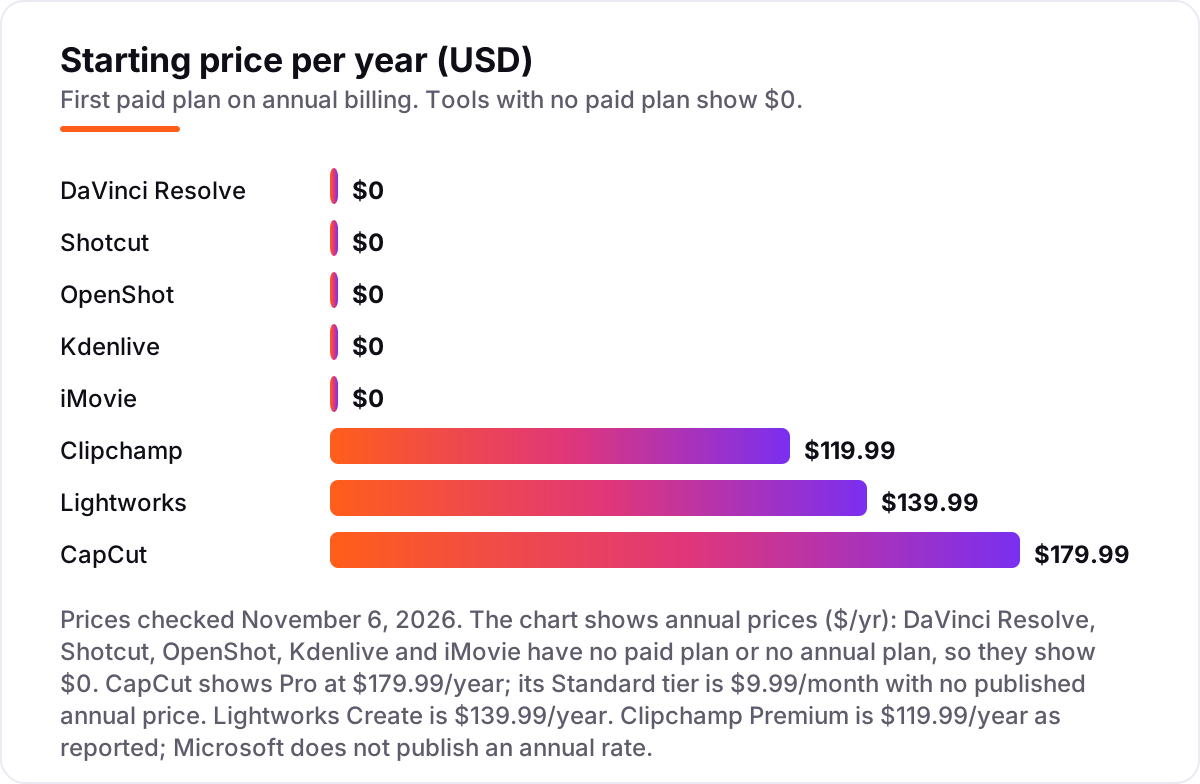
Take a creator who edits one video a week and wants 4K export. Staying free costs $0 on DaVinci Resolve, Shotcut, OpenShot, Kdenlive or iMovie — Resolve and iMovie already export 4K free. Upgrading costs $119.99 a year on Clipchamp Premium, $139.99 a year on Lightworks Create, or $179.99 a year on CapCut Pro. DaVinci Resolve Studio is different: $295 once, or $236 in Blackmagic's 20% sale until November 20, 2026, and then nothing ever again.
Over two years, that is $0 on the free tools, $239.98 on Clipchamp Premium, $279.98 on Lightworks Create, $359.98 on CapCut Pro, and $295 once on Studio — $236 if you buy before the sale ends on November 20. The gap between the cheapest paid route and the dearest is about $120 over two years, which is less than one month of most subscriptions in other categories. The real cost of a free editor is rarely money: it is the evening you spend learning it and the computer you may need to run it.
Three costs sit outside every number above. First, the sale price: Studio returns to $295 after November 20, 2026, so budget on the list price if you buy later. Second, hardware: Resolve's free 4K editing assumes a discrete GPU and 16 GB of RAM, and a laptop upgrade dwarfs any subscription here. Third, storage: CapCut Pro's roughly 1 TB of cloud storage is part of the $179.99, while the free tools store everything on your own drive. If you also want your videos found, not just edited, see our guide to the best video editing software for small business.
Know the difference: free editor vs free trial
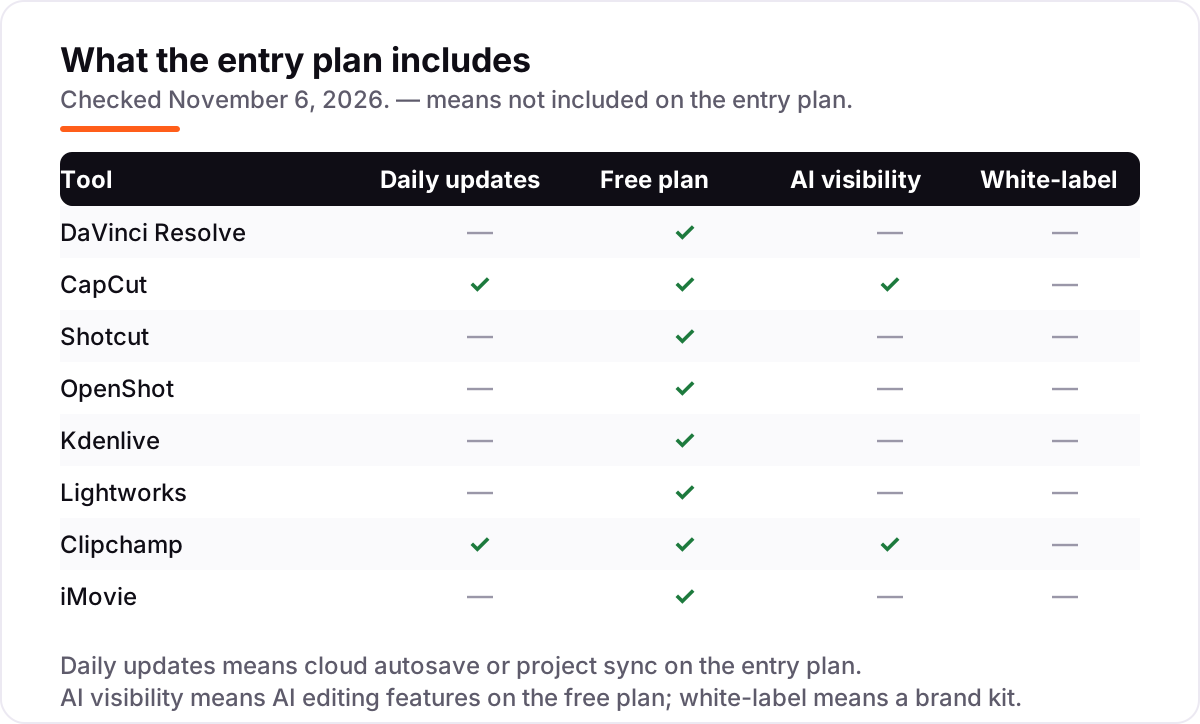
Free editor, free trial and freemium are three different deals, and vendors blur them. A free editor — Shotcut, OpenShot, Kdenlive and iMovie — costs $0 forever, with no paid tier at all. A free trial — the 7-day Pro trial CapCut offers — costs $0 for a week and then charges unless you cancel. Freemium — DaVinci Resolve, CapCut, Lightworks and Clipchamp — gives you a real free plan and sells an upgrade: Studio, Pro, Create or Premium.
The test is the export. A genuine free plan lets you export a finished video at a stated resolution with no countdown: Resolve at 4K, Clipchamp at 1080p, Lightworks at 720p. A trial or a watermarked "free" export is not a free plan — it is a demo with an ending. All eight tools in this list have genuine free plans, which is why they are here; the differences are the export cap, the watermark rules and what the paid tier adds.
There is a second confusion worth knowing: one-time purchase versus subscription. DaVinci Resolve Studio is a $295 one-time purchase — you pay once and own it — while CapCut Pro, Lightworks Create and Clipchamp Premium are subscriptions that stop working when you stop paying. Over five years, Studio costs $295 once; CapCut Pro costs about $900. That difference matters more than any single feature.
Quick comparison: tool type by need
| Buyer | Best pick | Why |
|---|---|---|
| New YouTuber on any computer | DaVinci Resolve | Most capable free editor, 4K export, no watermark |
| Phone-first creator | CapCut | Fastest phone-to-YouTube workflow, free core exports |
| Beginner who hates paywalls | Shotcut | Fully free open source, no account, no watermark |
| First-time editor | OpenShot | Gentlest learning curve, free on every desktop |
| Linux editor | Kdenlive | Real timeline depth, free forever |
| Windows creator, zero setup | Clipchamp | Browser editing, free 1080p export, no install |
Mistakes to avoid
- Learning a tool before checking its free export cap. Lightworks Free stops at 720p, so a creator who learns it for a month then discovers the cap has to start over or pay.
- Assuming free means watermark-free. CapCut watermarks premium templates on the free plan, so check a test export before you build a series around a template.
- Paying for Pro before testing the free tier. DaVinci Resolve exports 4K free, so many creators never need Studio; try the free version for a month first.
- Editing 4K on a weak laptop. Resolve needs a discrete GPU and 16 GB of RAM; on an old machine, Shotcut or OpenShot will finish the video faster.
- Ignoring the licence on music and assets. Free-tier music in CapCut carries usage limits for monetized videos, so check the terms before a video earns money.
How we chose
We checked each vendor's own pricing page on November 6, 2026 — browser.open was unavailable that day, so prices were verified from fresh search-index crawls of the vendors' own pages plus independent reads dated November 2026 — and recorded the starting price exactly as shown. We ranked the tools by fit for the most common buyer, a new YouTuber editing on a laptop or phone, not by brand size. Three prices needed a note: Lightworks Create is $13.99 a month in current vendor pricing data, though older directories still list $9.99; Clipchamp's $119.99 annual Premium price is reported by TechShark because Microsoft publishes no annual rate; and CapCut's chart figure is Pro at $179.99 a year because its Standard tier, $9.99 a month, has no published annual price.
Ratings come from G2 pages crawled within the last three days. CapCut has no G2 listing and no G2 rating could be found for Kdenlive, so no rating is shown for either — CapCut's Trustpilot score reflects billing complaints rather than editing quality, so we did not show that either. No vendor paid for a place in this list, and none of the links here are affiliate links.
What to do next
Start with the free version of your top pick and cut one real video in it. Check that the export resolution matches what your viewers expect and that the timeline stays smooth on your computer before you learn the tool properly. If the free cap blocks you — 720p on Lightworks, 1080p on Clipchamp — upgrade to the paid tier that lifts it, or switch to DaVinci Resolve, which exports 4K free. If the editing is sorted but new viewers are not finding the channel, our monthly SEO service handles the visibility side — or compare tools in our guide to YouTube SEO tools. Once your tools are in place, find out what's holding your rankings back.
Your stack only works if people find you
SerpAstra fixes what keeps your site off page one and makes it easy for AI assistants to recommend.
Get a free audit→Sources we checked (14)
- DaVinci Resolve — blackmagicdesign.com/products/davinciresolve (checked November 6, 2026)
- CapCut — capcut.com (checked November 6, 2026)
- Shotcut — shotcut.org (checked November 6, 2026)
- OpenShot — openshot.org (checked November 6, 2026)
- Kdenlive — kdenlive.org (checked November 6, 2026)
- Lightworks pricing — lwks.com/pricing (checked November 6, 2026)
- Clipchamp pricing — clipchamp.com/en/pricing (checked November 6, 2026)
- iMovie — apple.com/imovie (checked November 6, 2026)
- DaVinci Resolve reviews — g2.com/products/davinci-resolve/reviews (checked November 6, 2026)
- Shotcut reviews — g2.com/products/shotcut/reviews (checked November 6, 2026)
- OpenShot Video Editor reviews — g2.com/products/openshot-video-editor/reviews (checked November 6, 2026)
- Lightworks reviews — g2.com/compare/clipchamp-vs-lightworks (checked November 6, 2026)
- Clipchamp reviews — g2.com/products/clipchamp/reviews (checked November 6, 2026)
- iMovie reviews — g2.com/compare/clipchamp-vs-imovie (checked November 6, 2026)
Shamim
Founder of SerpAstra
A full-stack SEO and digital marketer who spends most days on Local SEO for dental practices, AI search visibility and lead generation.
Frequently asked questions
What is the best youtube editing software free?
DaVinci Resolve is the best free YouTube editor overall: professional editing, color grading and audio, 4K export with no watermark, all at $0. CapCut is the better pick for phone-first creators who publish often, and Shotcut is the best fully free open-source option with no paid tier at all.
Is there really free YouTube editing software with no watermark?
Yes. DaVinci Resolve, Shotcut, OpenShot, Kdenlive, Clipchamp and iMovie all export without a watermark on their free plans. CapCut is the exception: core exports are clean, but premium templates add a watermark unless you pay for Standard at $9.99 a month or Pro.
How much does CapCut Pro cost?
CapCut Pro costs $19.99 a month or $179.99 a year, and adds 4K export, the full AI toolkit, about 1 TB of cloud storage and roughly 1,200 monthly AI credits. A cheaper Standard tier costs $9.99 a month and is aimed at mobile creators, with exports capped at 1080p.
Can I edit YouTube videos in 4K for free?
Yes, with two tools here. DaVinci Resolve exports up to 4K free with no watermark, and iMovie exports 4K free on Mac, iPhone and iPad. Clipchamp free stops at 1080p and Lightworks Free at 720p, so 4K needs their paid tiers: Premium at $11.99 a month or Create at $13.99 a month.
What is the difference between DaVinci Resolve free and Studio?
The free version includes the full timeline, color grading, Fusion effects and Fairlight audio with 4K export. Studio costs $295 once — $236 in a 20% sale until November 20, 2026 — and adds 10-bit video, 120 fps, resolutions beyond 4K and the full AI toolset, including Magic Mask and SuperScale.
Which free video editor is best for beginners?
OpenShot is the easiest start: a drag-and-drop timeline, a small toolbar and no watermark, free on Windows, Mac and Linux. iMovie is easier still if you own Apple devices. Both cap out early, so move to Shotcut or DaVinci Resolve once your videos outgrow simple cuts and titles.
Free SEO and AI visibility audit
Find out what is holding your rankings back
Send us your site. Within 2 business days you get a written audit, an AI visibility check and a short fix list ranked by impact. Free, with no contract attached.
Request my free audit→Related guides
 Design, Video & Creative10 Best Video Editing Software for Small Business in 2026, ComparedCompare the 10 best video editing software for small business tools on price, free plans and AI features, with prices checked November 4, 2026.Read guide →
 Digital Marketing & Ads10 Best AI Tools for Creating YouTube Videos in 2026, ComparedCompare the 10 best ai tools for creating youtube videos in 2026 on price, free plans and AI features, with every price checked November 5, 2026.Read guide →
 SEO & AI Search7 Best YouTube SEO Tools in 2026 (Free and Paid, Compared)7 best YouTube SEO tools compared on price, keyword research and rank tracking, from free to $29 per month. Prices checked November 2, 2026.Read guide →