9 Best Editing Software for Social Media in 2026, Compared
Compare the 9 best editing software for social media on price, free plans, captions and AI tools, with every price checked November 5, 2026.
 Shamim Mia, Founder, SerpAstraLast verified November 5, 202614 min read
We compare pricing pages, documentation and public reviews. We never accept payment for rankings.

Key takeaways
- Canva is the best all-round pick at $18/month; CapCut follows at $19.99/month for short-form video, and Adobe Express is the cheapest paid plan at $9.99/month.
- Clipchamp and Canva both offer genuinely free plans — Clipchamp with watermark-free 1080p exports, Canva with 5 GB of storage and basic video tools.
- The single most important buying factor is the limit that forces your next upgrade: export caps, credit allowances and watermark rules decide what you actually pay, not the headline price.
- AI credits are the hidden meter in this list: InVideo, Descript and Kapwing all cap monthly AI use, so a heavy month costs more than the subscription alone.
On this page
Quick comparison
| Tool | Best for | Starting price | Free plan |
|---|---|---|---|
| Canva | Solo creators and small teams who want one tool for social graphics, short video and scheduling-ready templates | $18/mo | Yes (free plan) |
| CapCut | Short-form video creators who publish Reels, TikToks and Shorts daily and want AI captions and templates | $19.99/mo | Yes (free plan) |
| Adobe Express | Small businesses already in Adobe's world who want quick branded posts and short videos from templates | $9.99/mo | Yes (free plan) |
| Clipchamp | Windows creators and small teams who want a browser editor with watermark-free 1080p exports for free | $11.99/mo | Yes (free plan) |
| Kapwing | Teams that edit together in the browser and repurpose long videos into captioned short clips | $24/mo | Yes (free plan) |
| Descript | Creators who cut talking-head video and podcasts by editing the transcript instead of the timeline | $24/mo | Yes (free plan) |
| VEED | Marketers who publish captioned social video weekly and want subtitles, stock and AI tools in one browser tab | $19/mo | Yes (free plan) |
| InVideo | Marketers who want AI to draft a finished social video from a prompt, then polish it on a timeline | $20/mo | Yes (free plan) |
| Filmora | Beginners who want a friendly desktop editor with effects, templates and a one-time purchase option | $19.99/mo | Yes (free plan) |
Make one of these tools?
We re-check this list every quarter. Send a correction, request a review, or ask about a clearly labeled sponsored spot.
Request a listingThe best editing software for social media

Canva
Best for: Solo creators and small teams who want one tool for social graphics, short video and scheduling-ready templates
Canva is the broadest tool here: it covers the whole social post, not just the video — graphics, carousels, stories and short clips from one template library, with sizes preset for every feed. Pro costs $18 a month, or $144 a year, and adds the Brand Kit, 100 GB of storage, premium templates and stock, and the Magic Studio AI tools: background remover, Magic Write and auto-captions.
The trade-off is depth. Canva edits video through templates and simple trims, not a multi-track timeline, so a ten-minute talking-head video or a heavily cut vlog belongs in CapCut or Filmora. The free plan is a real starting point, with 5 GB of storage and basic video tools at $0. Buy Canva when one tool must cover graphics and video together; buy a dedicated editor when the timeline is the job.
What we like
- The biggest template library here, with sizes preset for every social feed and story format
- Magic Studio AI tools — background remover, Magic Write and auto-captions — are included on Pro
- Free plan is genuinely usable, with 5 GB of storage and basic video editing at $0
- Brand Kit, 100 GB of storage and premium stock come with Pro at $18/month
Watch out for
- Pro covers one person only — a second seat means Business at $25/month per person
- Video editing is template-led, not a full timeline editor, so long or complex cuts belong elsewhere
- Prices move often: the annual Pro price was $180/year in an August 2026 archived copy

CapCut
Best for: Short-form video creators who publish Reels, TikToks and Shorts daily and want AI captions and templates
CapCut is built for one job — turning a phone clip into a finished Reel, TikTok or Short — and it does that faster than anything else here. Auto-captions, trending templates and one-tap effects are the core, not add-ons, and projects move between phone, desktop and web. Pro costs $19.99 a month, or $179.99 a year, and adds 4K export at 60fps with HDR, about 1 TB of cloud storage and 1,200 AI credits a month.
The price history matters. Pro was $9.99 a month before the 2026 restructure; that old price now belongs to Standard at $9.99 a month — a mobile-focused plan without 4K export or the full AI toolkit. There is also no standalone pricing page, so confirm the figure at checkout. Buy CapCut when short-form video is the daily output; buy Canva when graphics matter too.
What we like
- The fastest short-form workflow here: auto-captions, templates and trending effects built for vertical video
- Pro exports in 4K at 60fps with HDR, plus about 1 TB of cloud storage and 1,200 AI credits a month
- Works on phone, desktop and web with projects that move between them
- Free tier covers the core editor, so you can learn it before paying
Watch out for
- Pro jumped to $19.99/month in 2026 — older guides quoting $9.99 are describing the new Standard tier
- Free exports are capped and some premium assets stay locked without a paid plan
- CapCut publishes no standalone pricing page, so the checkout screen is the only final price

Adobe Express
Best for: Small businesses already in Adobe's world who want quick branded posts and short videos from templates
Adobe Express is the cheapest paid plan here and the quickest route to branded social posts for anyone already using Adobe tools. Premium costs $9.99 a month, with a 30-day free trial, and adds brand kits, video background removal, 100 GB of storage, 250 Firefly credits a month and one-click resize for every format. The free plan covers 5 GB of storage and 100,000+ templates at $0.
The limits are scope, not price. Express edits short video and graphics from templates, with no multi-track timeline for long cuts, and the deeper Firefly Pro tier costs another $19.99 a month. There is no annual discount on the vendor page — the monthly price is the price. Pick Adobe Express when branded templates and Adobe Stock matter most; pick Canva for the bigger library and a yearly discount.
What we like
- Cheapest paid plan in this list at $9.99/month, with a 30-day free trial
- 250 Firefly generative credits a month and one-click resize for every social format
- Brand kits, video background removal and 100 GB of storage on Premium
- 200M+ Adobe Stock assets and 30,000+ Adobe Fonts included
Watch out for
- No annual-billing discount on the vendor page — Premium is $9.99/month, billed monthly
- Video editing is lighter than CapCut or Filmora: no multi-track timeline for long edits
- Firefly Pro, with 4,000 generative credits, is a separate $19.99/month tier

Clipchamp
Best for: Windows creators and small teams who want a browser editor with watermark-free 1080p exports for free
Clipchamp is the best free start here: its free plan exports at 1080p with no watermark, which no other tool offers at $0, and auto-captions, text-to-speech in 80+ languages and noise suppression are free on every tier. It runs in the browser and ships with Windows 11. Premium costs $11.99 a month, or $119.99 a year, and adds 4K export, the full premium stock library and a brand kit.
The catch is the annual price. Standalone Premium has no published yearly discount, so the cheaper route is Microsoft 365 Personal at $9.99 a month, which bundles Premium features with Office and 1 TB of OneDrive storage. Browser editing can lag on long projects. Start on Clipchamp when the budget is $0 and the videos are short; pay when 4K or premium stock becomes the bottleneck.
What we like
- The only free plan here with watermark-free 1080p exports — no payment needed to publish clean video
- Auto-captions, text-to-speech in 80+ languages and noise suppression are free on every tier
- Premium is bundled into Microsoft 365 Personal ($9.99/month), which many creators already pay for
- Brand kit, 4K export and the full premium stock library on Premium
Watch out for
- 4K export and the full premium stock library need Premium at $11.99/month
- No published annual discount for standalone Premium — Microsoft 365 Personal at $9.99/month is the cheaper route
- Browser-based editing can lag on long or heavy projects compared with desktop editors

Kapwing
Best for: Teams that edit together in the browser and repurpose long videos into captioned short clips
Kapwing is the team editor here: shared workspaces, commenting and review are built in, and the Repurpose tool turns a long video into captioned short clips with subtitles in 100+ languages. Pro costs $24 a month per member, or $16 a month per member billed annually, and includes 1,000 AI credits a month, 4K export for videos up to 120 minutes, a brand kit and 200 GB of storage.
The per-member price is the thing to budget for. A team of four pays $96 monthly, or $64 a month per member on annual billing — four times the headline price. The free plan is thin: 10 credits for the life of the account and 720p exports with a watermark. Pick Kapwing when several people edit together; pick Clipchamp or VEED when one person does the editing.
What we like
- Shared workspaces with commenting and review, built for teams passing drafts around
- Repurpose tool turns long videos into captioned clips, with subtitles in 100+ languages
- Pro exports 4K video up to 120 minutes, with 1,000 AI credits a month
- Brand kit, 200 GB of storage and 6 GB uploads on Pro
Watch out for
- Pro is priced per member, so a team of four pays $96/month on monthly billing
- Free plan gives only 10 credits for the life of the account and exports 720p with a watermark
- No free trial of the paid plans and no refunds, per Kapwing's own terms

Descript
Best for: Creators who cut talking-head video and podcasts by editing the transcript instead of the timeline
Descript edits video the way you edit a document: the transcript is the timeline, so deleting a sentence cuts the clip, and filler-word removal tidies a rambling take in one click. Studio Sound cleans up noisy audio, and Underlord AI drafts clips, titles and show notes from your footage. Hobbyist costs $24 a month, or $16 a month billed annually, and covers 10 media hours, 400 AI credits and watermark-free 1080p export.
The meters are the thing to watch. Media hours and AI credits are both capped, so long recordings can run out of both, and 4K export waits for Creator at $24 a month billed annually. Pricing is per person, so teams multiply the bill. Choose Descript when talking-head video or podcasts are the main output; choose CapCut when the video is visual-first and captions are the priority.
What we like
- Edit video by editing the transcript — delete a word and the clip is gone
- Studio Sound cleans up noisy audio and filler-word removal tidies rambling takes
- Underlord AI co-editor drafts clips, titles and show notes from your footage
- Hobbyist includes 400 AI credits a month and watermark-free 1080p export
Watch out for
- Hobbyist caps at 10 media hours a month and 1080p export — 4K needs Creator at $24/month billed annually
- Every plan meters two things at once: media hours and AI credits, so heavy months cost more
- Per-person pricing means a three-person team on Creator pays $72/month on annual billing

VEED
Best for: Marketers who publish captioned social video weekly and want subtitles, stock and AI tools in one browser tab
VEED is the caption-first editor here: auto-subtitles in 125+ languages land with one click, and the browser editor pairs them with stock media, templates and basic AI tools, with nothing to install. Lite costs $19 a month, or $9 a month billed annually, and removes the watermark, unlocks 1080p export and videos up to 25 minutes. It is the highest-rated browser editor here, at 4.6 out of 5 from 2,192 G2 reviews.
The limit to check is the subtitle allowance. Lite's subtitle minutes are small on some reads, so a weekly poster can run out and need Pro at $49 a month billed monthly. Recent reads disagree on the annual Lite rate, between $9 and $12 a month, so check the toggle before paying. Pick VEED when captions are the bottleneck; pick CapCut when templates and effects matter more.
What we like
- Auto-subtitles in 125+ languages with one click, the strongest caption workflow here
- Browser editor with stock media, templates and basic AI tools, no install needed
- Lite removes the watermark and unlocks 1080p export and 25-minute videos
- Highest-rated browser editor in this list at 4.6/5 from 2,192 G2 reviews
Watch out for
- Lite's subtitle allowance is small — 120 minutes a year on some reads — so weekly posters may need Pro
- Recent reads disagree on the annual Lite rate ($9-$12/month), so check the toggle before you pay
- AI avatars and text-to-video generation are not on Lite; they start on Pro

InVideo
Best for: Marketers who want AI to draft a finished social video from a prompt, then polish it on a timeline
InVideo is the AI-generation pick here: its agents turn a written prompt into a finished video with voice, music and stock footage in minutes, with a manual timeline editor underneath to fix the draft by hand. Starter costs $20 a month per seat, or $10 a month per seat billed annually, and includes 400 credits a month, 200 GB of storage, multiplayer editing for 5 seats and watermark-free export.
The credit meter is the whole pricing story. Starter's 400 credits expire at month-end and do not roll over, and the newest video models start on Plus at $60 a month. Reviewers cite confusion around the credit system, so track usage in the first month. Choose InVideo when you want AI to draft the video; choose CapCut or VEED when you want to edit footage you already shot.
What we like
- AI agents turn a prompt into a full video with voice, music and stock footage in minutes
- Manual timeline editor included, so AI drafts can be fixed by hand before export
- Paid plans export without the free-plan watermark, with 200 GB of storage on Starter
- Multiplayer editing for up to 5 seats on Starter
Watch out for
- Everything runs on credits that expire monthly — 400 credits on Starter, and unused credits do not roll over
- Starter gets Agent Two Lite only and no access to Seedance 2.5 video models
- Reviewers cite confusion and unexpected charges around the credit system

Filmora
Best for: Beginners who want a friendly desktop editor with effects, templates and a one-time purchase option
Filmora is the friendly desktop editor here: a real multi-track timeline with 1,000+ template presets, drag-and-drop effects and AI tools, for beginners outgrowing browser editors. The monthly plan costs $19.99 a month, but the Basic annual plan is $49.99 a year — the cheapest yearly desktop licence here — and a perpetual licence costs $79.99 once for the current version. Every paid plan exports in 4K with no watermark.
The extras are where the bill grows. AI tools on Basic run on credits bought separately, and the full stock library is a $19.99-a-month add-on on top of the subscription. The free plan is really a trial: every export carries a Filmora watermark until you pay. Pick Filmora when you want a desktop timeline and hate subscriptions; pick Clipchamp when the budget is $0 and the browser is enough.
What we like
- The friendliest desktop timeline here, with 1,000+ template presets and drag-and-drop effects
- Basic annual plan is $49.99/year — the cheapest yearly desktop licence in this list
- Perpetual licence at $79.99 once suits buyers who hate subscriptions
- 4K export and no watermark on every paid plan
Watch out for
- Free exports carry a Filmora watermark until you pay — the free plan is really a trial
- AI tools on Basic run on credits bought separately, and the full stock library is a $19.99/month add-on
- The $79.99 perpetual license covers the current version only; the next major version is a new purchase
The best editing software for social media turns a raw phone clip into a captioned, on-brand post in minutes — no desktop studio, no design degree. We ranked the nine tools below by fit for the most common buyer — a creator or small team publishing short video and graphics several times a week — starting with the all-rounders and ending with the specialist editors, and every price was checked on November 5, 2026.
How to choose the best editing software for social media
- Count your exports first. A tool is only cheap if the plan covers how much you publish: InVideo Starter gives 400 AI credits a month, Descript Hobbyist gives 10 media hours, and Kapwing Pro gives 1,000 credits a month.
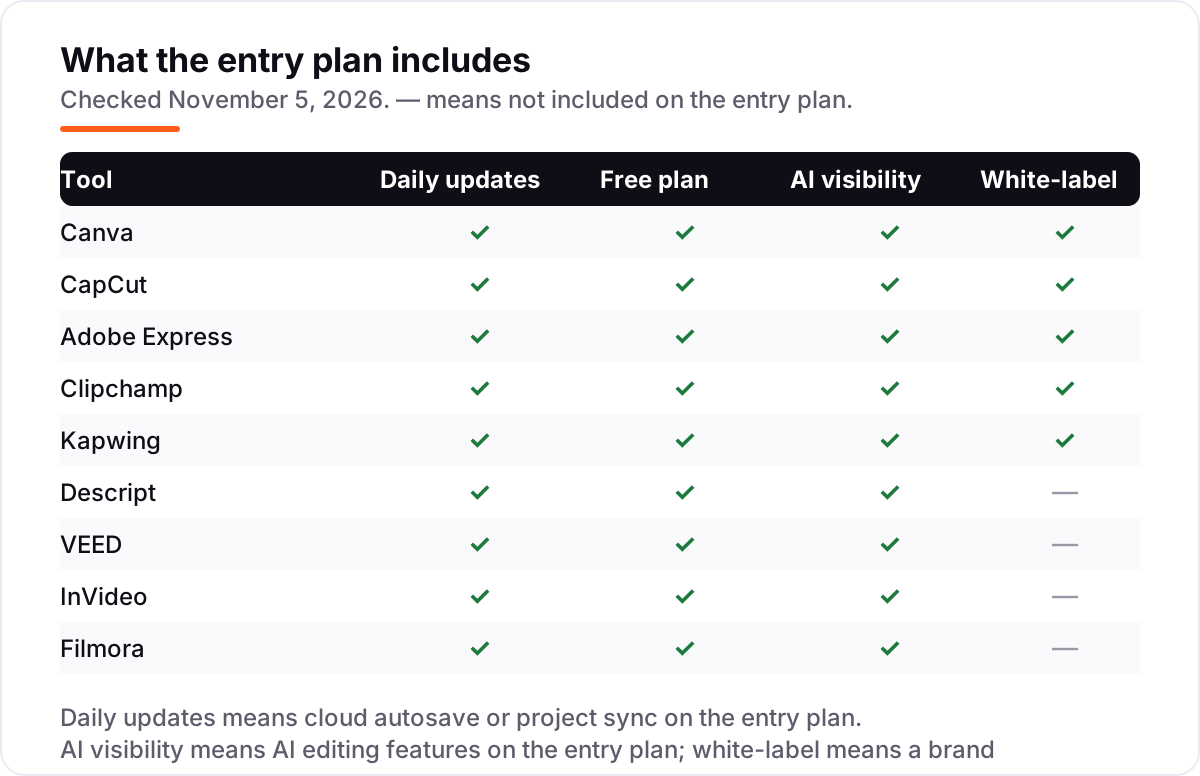
- Check the watermark before you check the price. Filmora, Kapwing, VEED and InVideo all watermark free exports; Clipchamp exports 1080p with no watermark for free.
- Check the caption workflow. If every video needs subtitles, VEED captions in 125+ languages and CapCut auto-captions in one tap — a manual caption workflow costs hours a week.
- Decide whether you need generation or editing. InVideo drafts a video from a prompt; CapCut, Filmora and Clipchamp cut footage you already shot. Buying a generator when you need an editor wastes the subscription.
- Think about where you edit. Browser tools like Clipchamp, Kapwing and VEED work on any computer; desktop tools like Filmora need installing but handle long projects better.
Social video is one system in your stack, not the whole stack. If the business also needs to be found online, our guide to marketing platforms for small business SEO covers the visibility side. And before you publish the landing pages your videos point to, run your titles through the free SERP snippet preview tool — it shows exactly how the title and description will look in Google.
Whatever you shortlist, try it with real footage before you pay. The free plans and trials in this list are long enough to cut one genuine week of posts — your clips, your captions, your brand colours — and that week tells you more than any review can. Check two things in the trial: that exports come out clean at the resolution your feed needs, and that the caption workflow does not eat your evening. Every tool here has a free plan, so there is no reason to buy before you have edited with it.
Editing software for social media pricing: what you will actually pay
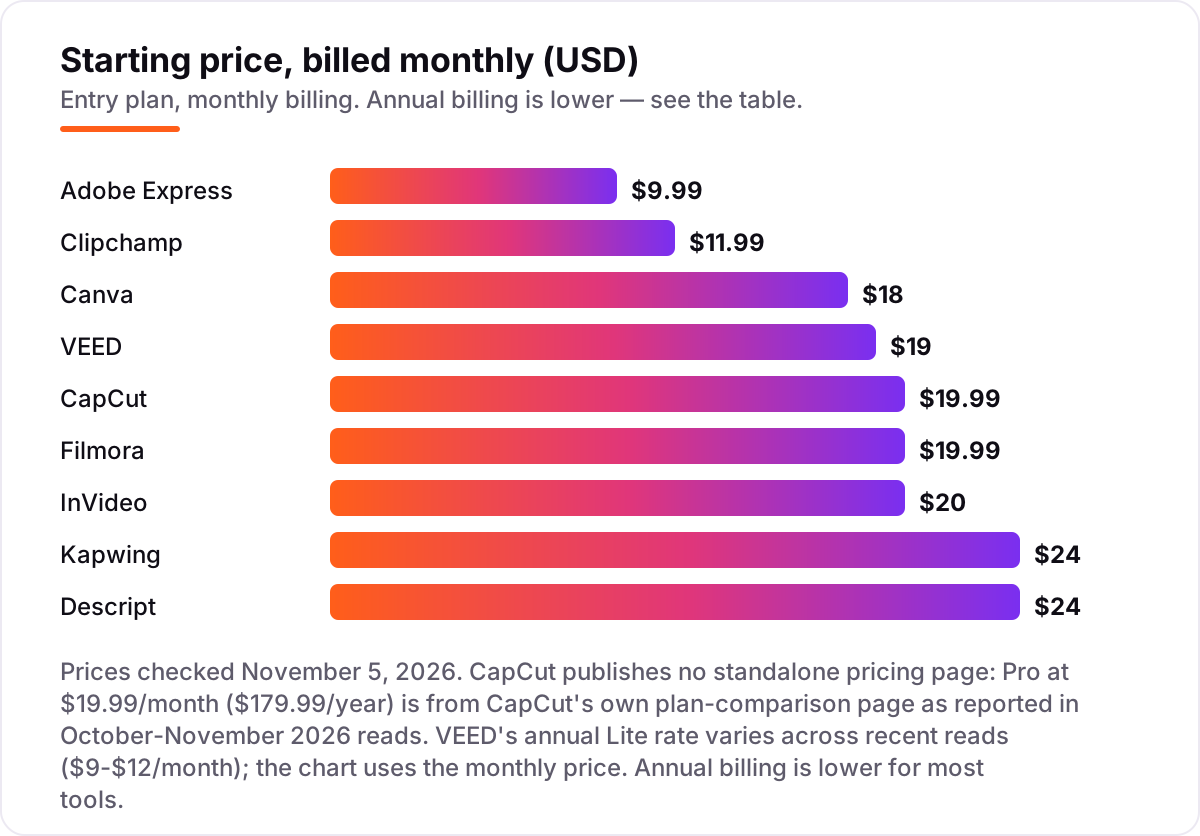
Take one creator publishing 20 short videos a month. On monthly billing, the subscription costs $9.99 on Adobe Express Premium, $11.99 on Clipchamp Premium, $18 on Canva Pro, $19 on VEED Lite, $19.99 on CapCut Pro or Filmora, $20 on InVideo Starter, and $24 on Descript Hobbyist or Kapwing Pro. Two of those numbers need adjusting before they are real: Kapwing Pro is priced per member, so a four-person team pays $96 a month, and Descript Hobbyist is priced per person, so a three-person team on Creator pays $72 a month on annual billing.
Over a year, annual billing cuts the bill on most tools here: Canva Pro drops from $216 to $144 a year, CapCut Pro from about $240 to $179.99, Kapwing Pro from $288 to $192 per member, and Descript Hobbyist from $288 to $192. Clipchamp has no published annual discount for standalone Premium, but Microsoft 365 Personal bundles the same Premium features for $99.99 a year — $44 less than the $143.88 a standalone year costs. Filmora's Basic annual plan is $49.99 a year, the cheapest yearly desktop licence here, against $239.88 for twelve monthly payments.
Three costs sit outside every number above. First, the credit meters: InVideo Starter's 400 credits and Descript's 10 media hours both expire monthly, so a heavy month can mean buying extra credits or upgrading a tier. Second, the add-ons: Filmora's full stock library costs $19.99 a month on top of the subscription, and Adobe's Firefly Pro tier is another $19.99 a month. Third, the per-seat multiplier: Kapwing, Descript and InVideo all price per member or per seat, so price the whole team, not one login. If video is only part of the marketing job, the visibility tools differ too — see our guide to the best video content creation software.
Annual billing is the cheapest lever in this list, but only when the tool is the one you will still use in six months. A $144 Canva year is a bargain if Canva becomes the daily tool and a waste if the team moves to CapCut in March. Start monthly, switch to annual once the tool has survived a full month of real posts, and re-check the price at renewal — CapCut's Pro price doubled in 2026, and Canva's annual price moved from $180 to $144 in the same year.
Know the difference: design tools, video editors and AI generators
The confusion in this category is that three different kinds of tool all call themselves editing software. Design tools — Canva and Adobe Express — start from templates and stills: they make a post look branded in minutes, and their video features are trims, captions and resize. Video editors — CapCut, Filmora, Clipchamp, Kapwing, Descript and VEED — start from footage on a timeline: they cut, caption and grade clips you already shot. AI generators — InVideo's agents — start from a text prompt and draft the whole video for you.
Buying the wrong kind is the most expensive mistake here. A design tool cannot cut a ten-minute talking-head video properly, a timeline editor cannot draft a video from a sentence, and a generator cannot fix footage it did not shoot. The right question is not which tool is best, but which kind matches the work: templates and graphics, cutting your own footage, or drafting from a prompt. Most creators end up with two — usually Canva for graphics and CapCut for the video cut — and that pairing costs $38 a month, less than most single all-in-one subscriptions.
A second distinction worth knowing is captions versus generation. Auto-captions — CapCut, VEED and Descript — transcribe footage you shot, while AI generation — InVideo, Canva's Magic Studio — creates new images, voice or video. Both are called AI, but only one of them saves you filming time. If you already shoot every week, captions matter more than generation; if you have no footage, generation matters more.
Quick comparison: tool type by need
| Buyer | Best pick | Why |
|---|---|---|
| Solo creator on a budget | Adobe Express | Cheapest paid plan at $9.99/month, templates and brand kit included |
| Most creators, graphics plus video | Canva | All-round templates and AI tools, from $18/month |
| Daily short-form video | CapCut | Fastest captions and templates, Pro is $19.99/month |
| Free watermark-free exports | Clipchamp | Free 1080p exports, Premium is $11.99/month |
| Team editing in the browser | Kapwing | Shared workspaces and repurposing, Pro is $24/month per member |
| Talking-head video and podcasts | Descript | Edit by transcript, Hobbyist is $24/month |
Mistakes to avoid
- Budgeting on the annual price while paying monthly. The $12-a-month Canva figure and the $16-a-month Kapwing figure are annual-billing rates; monthly billing costs $18 and $24. Compare tools on the billing cycle you will actually use.
- Buying on the free plan, then finding exports watermarked. Filmora, Kapwing, VEED and InVideo all watermark free exports. If clean exports matter from day one, Clipchamp's free plan is the only $0 route here.
- Ignoring the credit meter. InVideo Starter's 400 credits, Descript's 10 media hours and Kapwing's 1,000 credits all expire monthly. A heavy month can force an upgrade that doubles the bill.
- Paying for 4K before you need it. Most social feeds compress video hard, and 1080p is enough for Reels, TikToks and Shorts. Pay for 4K when clients ask for it, not before.
- Forgetting the per-member price. Kapwing, Descript and InVideo price per member or per seat. A $24 headline becomes $96 a month for a team of four on Kapwing — price the whole team before you commit.
How we chose
We checked each vendor's own pricing page on November 5, 2026 and recorded the starting price exactly as shown, including the annual-billing figure where the page lists one, and we ranked the tools by fit for the most common buyer — a creator or small team publishing short video and graphics several times a week — not by brand size. Two prices carry a caveat: CapCut publishes no standalone pricing page, so its Pro price of $19.99 a month comes from CapCut's own plan-comparison page as reported in October–November 2026 reads, and VEED's annual Lite rate varies across recent reads, between $9 and $12 a month, so we lead with its $19 monthly price. Ratings come from G2 pages checked November 5, 2026 for eight of the nine tools; CapCut has no G2 listing, so no rating is shown for it rather than an estimated one. No vendor paid for a place in this list, and none of the links here are affiliate links.
What to do next
Start with the free plan of your top pick and cut one real week of posts through it. Check that exports come out clean at the resolution your feed needs, that captions land without manual fixing, and that the tool still feels fast on your tenth video, not just your first. If the editing is sorted but new customers are not finding you, our monthly SEO service handles the visibility side — or compare tools in our guide to video editing software for small business. Once your tools are in place, find out what's holding your rankings back.
Your stack only works if people find you
SerpAstra fixes what keeps your site off page one and makes it easy for AI assistants to recommend.
Get a free audit→Sources we checked (17)
- Canva pricing — canva.com/pricing (checked November 5, 2026)
- CapCut pricing — capcut.com plan comparison, as reported October–November 2026 (no standalone pricing page)
- Adobe Express pricing — adobe.com/express/pricing (checked November 5, 2026)
- Clipchamp pricing — clipchamp.com/en/pricing (checked November 5, 2026)
- Kapwing pricing — kapwing.com/pricing (checked November 5, 2026)
- Descript pricing — descript.com/pricing (checked November 5, 2026)
- VEED pricing — veed.io/pricing (checked November 5, 2026)
- InVideo pricing — invideo.io/pricing (checked November 5, 2026)
- Filmora pricing — filmora.wondershare.com store (checked November 5, 2026)
- Canva reviews — g2.com/products/canva/reviews (checked November 5, 2026)
- Adobe Express reviews — g2.com/products/adobe-express/reviews (checked November 5, 2026)
- Clipchamp reviews — g2.com/products/clipchamp/reviews (checked November 5, 2026)
- Kapwing reviews — g2.com/products/kapwing/reviews (checked November 5, 2026)
- Descript reviews — g2.com/products/descript/reviews (checked November 5, 2026)
- VEED reviews — g2.com/products/veed/reviews (checked November 5, 2026)
- InVideo reviews — g2.com/products/invideo/reviews (checked November 5, 2026)
- Filmora reviews — g2.com/products/wondershare-filmora/reviews (checked November 5, 2026)
Shamim
Founder of SerpAstra
A full-stack SEO and digital marketer who spends most days on Local SEO for dental practices, AI search visibility and lead generation.
Frequently asked questions
What is the best editing software for social media?
Canva is the best all-round pick at $18/month because it covers graphics, short video and templates in one place. CapCut is better for daily short-form video at $19.99/month, and Adobe Express is the cheapest paid plan at $9.99/month. Start free on Clipchamp if the budget is $0.
How much does editing software for social media cost?
Entry prices run from $0 to $24 a month. Adobe Express starts at $9.99, Clipchamp at $11.99, Canva at $18 and CapCut at $19.99. Annual billing cuts most of them by a third or more — Canva drops to $144 a year, or $12 a month, and Kapwing Pro drops to $16 a month per member.
Is there really free editing software for social media?
Yes, with limits. Clipchamp exports 1080p video with no watermark for free, Canva's free plan covers 5 GB of storage and basic video tools, and CapCut's free tier covers the core editor. Filmora's free plan watermarks every export, so it is really a trial, not a free plan.
CapCut vs Canva — which is better for social media?
CapCut wins for short-form video: faster captions, trending templates and 4K export at $19.99/month. Canva wins when graphics matter as much as video, with the bigger template library, Brand Kit and resize tools at $18/month. Many creators use both — Canva for graphics, CapCut for the video cut.
Do I need a paid plan to remove watermarks?
On most tools, yes. Filmora, Kapwing and VEED all watermark free exports, and InVideo's free plan does too. The exceptions are Clipchamp, whose free plan exports 1080p with no watermark, and CapCut, whose free tier exports some formats watermark-free. Check the export screen before you publish.
What is the difference between a video editor and an AI video generator?
A video editor cuts footage you already shot — CapCut, Filmora and Clipchamp are editors. An AI generator drafts a video from a text prompt, like InVideo's agents do. Generators save time on first drafts, but editors give you frame-level control. Descript sits between the two: it edits your footage through the transcript.
Can I switch editing software later?
Yes, and it is easier than switching accounting or email tools. Export your finished videos, keep your raw footage and project files in a shared folder, and rebuild templates in the new tool — brand kits and templates do not transfer between tools. Switch at a quiet week, not in the middle of a campaign.
Free SEO and AI visibility audit
Find out what is holding your rankings back
Send us your site. Within 2 business days you get a written audit, an AI visibility check and a short fix list ranked by impact. Free, with no contract attached.
Request my free audit→Related guides
 Design, Video & Creative10 Best Video Editing Software for Small Business in 2026, ComparedCompare the 10 best video editing software for small business tools on price, free plans and AI features, with prices checked November 4, 2026.Read guide →
 Design, Video & Creative10 Best Video Content Creation Software in 2026, ComparedCompare the 10 best video content creation software tools of 2026 on price, free plans and AI features, with every price checked November 4, 2026.Read guide →
 AI, Data & Analytics12 Best AI Tools for Video Content Creation in 2026, Compared12 best AI tools for video content creation compared with real prices, free plans and G2 ratings, so you can pick the right video maker without overpaying.Read guide →