
6 Best Photo Organizing Software in 2026, Compared
Compare the 6 best photo organizing software, free and paid, on tagging, face recognition, catalogs and real cost, with every price checked on vendor pages.
 Shamim Mia, Founder, SerpAstraLast verified November 7, 20269 min read
We compare pricing pages, documentation and public reviews. We never accept payment for rankings.

Key takeaways
- digiKam is the best free photo organizing software: open source, no account, face recognition and AI-assisted tagging for libraries over 100,000 images.
- Adobe Bridge is free too and organizes your existing folders without a catalog, which suits people who already keep a tidy folder structure.
- If you want to stop paying subscriptions, ACDSee Photo Studio Home costs $49.95 once, and Photoshop Elements costs $99.99 for a three-year licence.
- Lightroom Classic is the standard for photographers who edit RAW files, at $9.99 a month on the Photography Plan billed annually.
On this page
Quick comparison
| Tool | Best for | Starting price | Free plan |
|---|---|---|---|
| digiKam | Anyone who wants a free, full-featured photo organizer with face recognition and no account or cloud | Free (open source) | Yes (free) |
| Adobe Bridge | People who already keep photos in sensible folders and want fast previews, ratings and batch rename for free | Free | Yes (free) |
| Adobe Photoshop Elements | Home users who want a guided organizer and editor in one desktop app without a monthly fee | $99.99 (3-year licence) | No (7-day trial) |
| ACDSee Photo Studio | Windows and Mac users with large libraries who want organizing and editing for one payment | $49.95 one-time (Home) | No (30-day trial) |
| Adobe Lightroom Classic | Photographers who shoot RAW and want organizing and editing in one catalog | $9.99/mo (annual) | No (7-day trial) |
| Photo Mechanic | Event, sports and wedding photographers who need to cull and tag thousands of frames fast | $14.99/mo; $299 perpetual | No (30-day trial) |
Make one of these tools?
We re-check this list every quarter. Send a correction, request a review, or ask about a clearly labeled sponsored spot.
Request a listingThe best photo organizing software

digiKam
Best for: Anyone who wants a free, full-featured photo organizer with face recognition and no account or cloud
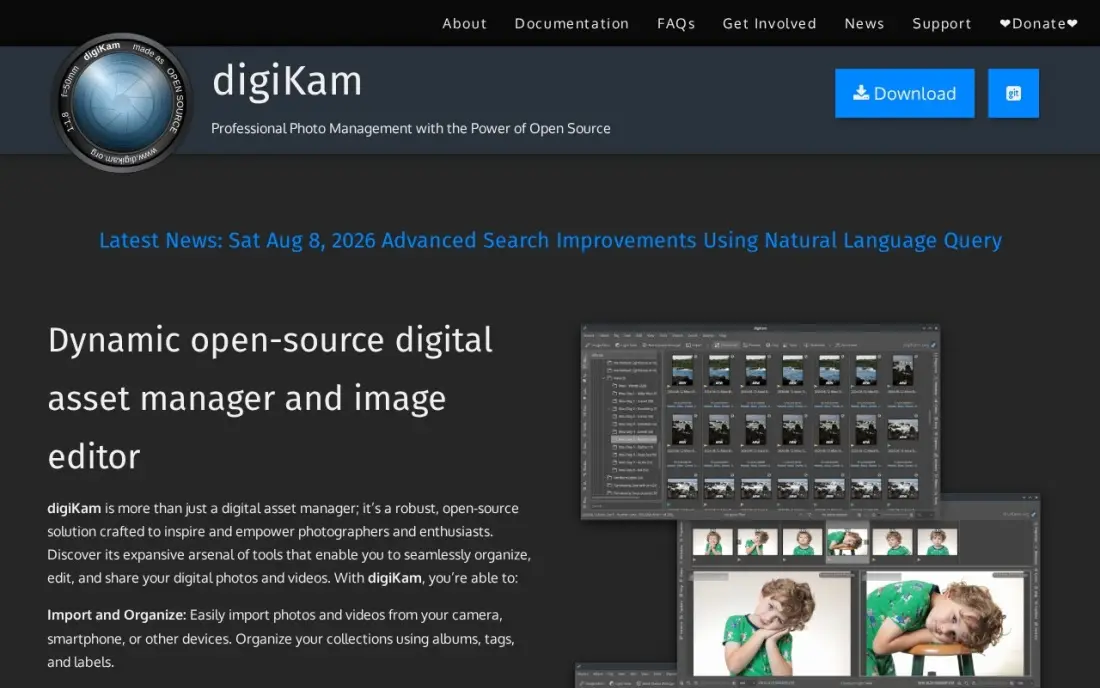
digiKam is the best free answer to a messy photo library. It is open source under the GPL, needs no account and sends nothing to a cloud, yet it handles libraries of more than 100,000 images with albums, tags, labels, face recognition and AI-assisted tagging. RAW processing, batch editing and metadata tools are built in.
The cost is time rather than money. The interface is functional rather than polished, setup takes patience, and support comes from the community. Mac and Windows builds trail the Linux version in maturity. If you can spend an evening setting it up, it organizes a family archive as well as paid tools.
What we like
- No cost, no account, no cloud, with the source code public under the GPL
- Handles libraries over 100,000 images with albums, tags, labels, face recognition and AI-assisted tagging
- RAW processing, batch editing and metadata tools built in
- The database can live locally or on a network server
Watch out for
- The interface is functional rather than polished
- Mac and Windows builds trail the Linux version in maturity, and support is community-based
- Setup takes more patience than a commercial app

Adobe Bridge
Best for: People who already keep photos in sensible folders and want fast previews, ratings and batch rename for free
Adobe Bridge organizes photos where they already live. Instead of importing them into a catalog, it browses your actual folders with fast previews, ratings, metadata editing and batch rename, and it costs nothing — you need only a free Adobe account, not a subscription.
Because nothing is pre-indexed, searches only cover the folders you browse and speed depends on your disk, so it is weaker for finding one photo across ten years of shoots. Editing through Camera Raw needs a qualifying Adobe product such as Photoshop. It suits people whose folder structure is already the system and who want better tools on top of it.
What we like
- Completely free with no Adobe subscription required — only a free Adobe account
- Browses your actual folder structure with fast previews, metadata editing and batch rename
- Tight handoff to Camera Raw and Photoshop for editing
Watch out for
- No true catalog, so searches only work on folders you browse
- Performance depends on your disk, since nothing is pre-indexed
- Camera Raw editing through Bridge needs a qualifying Adobe product such as Photoshop
Adobe Photoshop Elements
Best for: Home users who want a guided organizer and editor in one desktop app without a monthly fee
Photoshop Elements pairs a photo Organizer for sorting thousands of pictures with a guided editor for fixing them, so family photos can be tagged, found and touched up in one desktop app. Guided Edits walk beginners through jobs like replacing a sky, and full layer support is there when needed.
One $99.99 payment covers three years of use, not a lifetime: when the term ends, the app stops opening until you buy again. It needs Windows 11 version 24H2 or later on Intel or AMD, so older PCs and Arm laptops are out. Try the 7-day free trial on your own library first.
What we like
- Guided Edits walk beginners through each step, from sky replacement to double exposure
- Full layer support and an Organizer for sorting thousands of photos
- Generative AI can create images and backgrounds from a text prompt
- No monthly bill: one $99.99 payment covers three years of use
Watch out for
- The $99.99 licence lasts 3 years, then the app stops opening until you buy again
- Needs Windows 11 version 24H2 or later on Intel or AMD; Windows 10 and Arm laptops are not supported
- Only 25 generative AI credits a month, with more needing a separate Firefly subscription

ACDSee Photo Studio
Best for: Windows and Mac users with large libraries who want organizing and editing for one payment

ACDSee Photo Studio is a photo organizer first, with editing built in. Fast browsing and batch tools rename and export whole sets quickly, and AI tools for keywording, face detection and subject selection speed up the tagging that makes a library searchable. It is rated 4.4 out of 5 across 283 G2 reviews.
The Home edition costs $49.95 once, with no subscription, and higher editions cost more. The top edition is Windows-only, so Mac users need Home or Professional. Very large libraries can feel slow and the interface packs in a lot, but for one payment it covers more organizing than any other paid tool here.
What we like
- One app covers digital asset management, RAW editing and layered retouching for whole archives
- Fast browsing and batch tools make culling, renaming and exporting whole sets quick
- One-time purchase with no subscription, so the cost stops after the first payment
- AI tools for keywording, face detection and subject selection speed up organizing
Watch out for
- The 2026 Home edition starts at $49.95, while the top edition costs more — check which edition is on sale
- The top edition is Windows-only, so Mac photographers need the Home or Professional edition instead
- Can feel slow with very large libraries, and the interface packs in a lot to learn
Adobe Lightroom Classic
Best for: Photographers who shoot RAW and want organizing and editing in one catalog
Lightroom Classic is the catalog most working photographers use. Collections, smart collections, keywords, flags and ratings organize the library, and full non-destructive RAW editing sits in the same program, so there is no round trip to another app. It is rated 4.6 out of 5 across more than 900 G2 reviews.
The Photography Plan costs $9.99 a month billed annually and includes Photoshop and 20GB of cloud storage. It is subscription only: cancel and the catalog stops working as before. The catalog also lives on one machine, which takes planning if you switch between a desktop and a laptop. Choose it if you edit seriously.
What we like
- Catalog-based organization with collections, smart collections, keywords, flags and ratings
- Full non-destructive RAW development built in, so there is no round trip to another app
- Mature ecosystem of presets, plugins and mobile sync
- The Photography Plan also includes Photoshop and the cloud Lightroom app
Watch out for
- Subscription only — there is no perpetual license and the catalog stops working if you cancel
- The catalog lives on one machine, so moving between a desktop and a laptop takes planning
- The 20GB Photography Plan fills fast if you sync originals to the cloud

Photo Mechanic
Best for: Event, sports and wedding photographers who need to cull and tag thousands of frames fast

Photo Mechanic is the fastest way to sort a fresh shoot. It renders RAW previews far quicker than catalog apps, and code replacements, variables and IPTC templates let you caption and keyword hundreds of frames in minutes. The metadata it writes travels with the files into any other app. Reviewers rate it 4.8 out of 5, though on only 29 G2 reviews.
It costs $14.99 a month, $149 a year billed annually or $299 for a perpetual licence. It does not edit RAW files and is not built for long-term archive search, so most users pair it with Lightroom or Capture One. It is overkill for a family library.
What we like
- The fastest ingest and culling in the business, rendering RAW previews far quicker than catalog apps
- Code replacements, variables and IPTC templates built for wire-service metadata workflows
- Writes standard metadata that travels with the file into any other app
Watch out for
- It is a workflow accelerator, not a catalog, so long-term archival search is not its job
- The interface is utilitarian and the price is steep for casual use
- No RAW editing — selections must move into Lightroom, Capture One or another editor
The best photo organizing software turns thousands of loose files into a library you can search: by date, event, person or tag, without opening twenty folders. We compared six tools, from free open-source organizers to the catalogs working photographers use, and every price below comes from the vendor's pricing page as recorded in our checked database in November 2026. Two of the six are completely free.
How to choose the best photo organizing software
- Decide between a catalog and a folder browser. A catalog indexes everything for fast search; a browser leaves files in place and works on what you open.
- Check search by face and tag. Face recognition and AI tagging save hours on a family archive; digiKam and ACDSee include them.
- Look at what happens if you stop paying. Subscription catalogs stop working as before when you cancel, while digiKam, Adobe Bridge and ACDSee's one-time licence keep running.
- Make sure metadata travels with the files. Tags and captions written to standard metadata survive a move to another app; tags locked inside one database may not.
- Match the editing you need. If you shoot RAW, organizing and editing in one catalog saves time; if you only tidy phone photos, a free organizer is enough.
- Confirm your operating system. Photoshop Elements needs Windows 11 24H2 or later, ACDSee's top edition is Windows-only, and digiKam's Mac and Windows builds trail Linux.
A well-organized library also makes a better website: named, captioned images are easier for search engines to understand. If your photos power a portfolio or shop, our technical SEO audit checks how image pages are indexed, and the free article schema generator helps search engines read gallery and blog pages.
Which photo organizing software fits your situation
A family with ten years of phone and camera photos. digiKam is the strongest free choice. It handles libraries over 100,000 images, finds people with face recognition and adds AI-assisted tags, with no account and nothing sent to a cloud. Budget an evening for setup, since the interface is functional rather than polished and support comes from the community. If you would rather pay for a smoother start, ACDSee Photo Studio Home costs $49.95 once and adds AI keywording and face detection.
Someone whose folders are already tidy. Adobe Bridge keeps your folder structure as the system and adds fast previews, ratings, metadata editing and batch rename for free with only an Adobe account. The catch is search: nothing is pre-indexed, so it only covers the folders you browse.
A home user who wants to fix photos as well as sort them. Photoshop Elements pairs an Organizer with Guided Edits for jobs like replacing a sky, for $99.99 covering three years. Check your PC first: it needs Windows 11 version 24H2 or later on Intel or AMD, and the app stops opening when the term ends. Run the 7-day trial on your own library.
A photographer who shoots RAW. Lightroom Classic organizes with collections, keywords, flags and ratings and edits RAW files in the same catalog, at $9.99 a month billed annually with Photoshop included. It is subscription only, and the catalog lives on one machine, so plan ahead if you work across a desktop and a laptop.
An event, sports or wedding shooter on deadline. Photo Mechanic culls and captions fresh shoots faster than catalog apps, with IPTC templates and code replacements, for $149 a year billed annually or $299 perpetual. It does not edit RAW or replace an archive, so most users pair it with Lightroom Classic.
Photo organizing software pricing: what you will actually pay
Over three years, the gap between tools is wide. digiKam and Adobe Bridge cost $0. ACDSee Photo Studio Home costs $49.95 once. Photoshop Elements costs $99.99 for its three-year licence, or about $33 a year. Lightroom Classic on the Photography Plan costs $9.99 a month billed annually, which is $119.88 a year or about $360 over three years, with Photoshop included.
Photo Mechanic is priced for professionals: $14.99 a month billed monthly, $149 a year billed annually, or $299 for a perpetual licence. Over three years the perpetual licence is cheaper than $447 in annual subscriptions, as long as you do not need the newest version. For a home user tidying family photos, the free tools cover the job; the paid ones earn their price when editing or deadline work comes into it.
Know the difference: catalog vs folder browser
A catalog imports your photos into a database. Lightroom Classic and digiKam record every keyword, rating, face and edit there, so a search across ten years of photos returns results in seconds. The cost is that the database must be backed up and kept with the files, and moving machines takes planning.
A folder browser reads your folders as they are. Adobe Bridge and Photo Mechanic show previews and let you rate, rename and tag without importing anything, and the metadata is written into the files. It is simpler and portable, but without an index, search only covers the folders you open.
Quick comparison: tool type by need
| Buyer | Best pick | Why |
|---|---|---|
| Free, full-featured library | digiKam | Open source with face recognition and AI tagging, $0 |
| Folder-based organizers | Adobe Bridge | Free previews, ratings and batch rename on existing folders |
| Home users without subscriptions | Adobe Photoshop Elements | Organizer and guided editor, $99.99 for three years |
| Large libraries, one payment | ACDSee Photo Studio | AI keywording and face detection, Home $49.95 once |
| RAW photographers | Adobe Lightroom Classic | Catalog plus RAW editing, $9.99/month billed annually |
| Event and sports shooters | Photo Mechanic | Fastest culling and captioning, $299 perpetual |
Mistakes to avoid
- Organizing before backing up. Renaming and moving thousands of files is when accidents happen; make a full backup first.
- Using two organizers at once. Two catalogs tagging the same files end up disagreeing; pick one as the source of truth.
- Tagging everything on day one. Start with year and event, then add faces and keywords in batches you can finish.
- Keeping tags only in the database. Write metadata to the files where the tool allows it, so your work survives a switch.
- Ignoring the licence end. Photoshop Elements stops after three years and Lightroom stops as before when you cancel; plan for both.
Related comparisons: Photo Collage Software · Cheap Photo Editing Software · Photo Editing Software Without Subscription · Photo Editing Software for Real Estate · Portrait Software
How we chose
We took every price, licence term and limit from our verified tool database, built from each vendor's own pricing page and checked in November 2026, and recorded annual, monthly and one-time pricing exactly as shown. We ranked free tools first because many people searching for photo organizing software want a free option, then paid tools by how much organizing they add for the money. Ratings come from G2 pages on the dates shown in the sources; digiKam and Photoshop Elements have no rating listed because we had none verified. No vendor paid for a place in this list, and none of the links here are affiliate links.
What to do next
Copy one year of photos into a test folder, import it into digiKam or your chosen trial, and tag one event and five faces. If search finds them in seconds, roll it out to the rest. If your photos also run a business website, book a free SEO review.
Frequently asked questions
What is the best photo organizing software?
digiKam is the best free option, with face recognition and AI-assisted tagging for large libraries. Lightroom Classic is the best for photographers who also edit RAW files, at $9.99 a month billed annually, and ACDSee Photo Studio Home is the best one-time purchase at $49.95.
What is the best free photo organizing software?
digiKam and Adobe Bridge are both free. digiKam builds a searchable database with face recognition and tags, while Adobe Bridge organizes your existing folders with previews, ratings and batch rename and needs only a free Adobe account.
Is there photo organizing software without a subscription?
Yes. digiKam and Adobe Bridge are free, ACDSee Photo Studio Home costs $49.95 once, Photo Mechanic sells a $299 perpetual licence, and Photoshop Elements costs $99.99 for three years of use.
Should I use a catalog or folders to organize photos?
A catalog such as Lightroom Classic or digiKam indexes everything so you can search by tag, date or face across years of photos. Folder browsers such as Adobe Bridge are simpler and leave your files as they are, but search only works where you look.
Can photo organizing software recognize faces?
Yes. digiKam includes face recognition for free, and ACDSee Photo Studio includes AI face detection and keywording. Face tagging takes time to train, so start with the people who appear most often.
How do I start organizing thousands of photos?
Back up first, then pick one folder structure, usually by year and event, and import everything into one tool. Delete obvious duplicates and blurred shots, then add tags and faces a batch at a time rather than all at once.
Can photo organizing software manage photos on a NAS or external drive?
Yes. digiKam is the strongest fit here: its database can live locally or on a network server, it handles libraries of more than 100,000 images, and it is free. Adobe Bridge is a folder browser that leaves files in place rather than importing them into a catalog. Whichever you use, write tags to standard metadata so they travel with the files when drives change.
Sources we checked (10)
- digiKam — www.digikam.org (checked November 7, 2026)
- Adobe Bridge — www.adobe.com/products/bridge.html (checked November 7, 2026)
- Adobe Bridge reviews on G2 (checked November 7, 2026)
- Adobe Photoshop Elements — www.adobe.com/products/photoshop-elements.html (checked November 10, 2026)
- ACDSee Photo Studio — www.acdsee.com (checked November 8, 2026)
- ACDSee Photo Studio reviews on G2 (checked November 8, 2026)
- Adobe Lightroom Classic — www.adobe.com (checked November 7, 2026)
- Adobe Lightroom Classic reviews on G2 (checked November 7, 2026)
- Photo Mechanic — docs.camerabits.com/support/solutions/articles/48001252734-photo-mechanic-pricing-and-information (checked November 7, 2026)
- Photo Mechanic reviews on G2 (checked November 7, 2026)
Make one of these tools?
We re-check this list every quarter. Send a correction, request a review, or ask about a clearly labeled sponsored spot.
Request a listingShamim
Founder of SerpAstra
A full-stack digital marketer and SEO strategist covering technical and local SEO, AI search visibility, paid ads and lead generation for local businesses, e-commerce brands and SaaS teams.
Free SEO and AI visibility audit
Find out what is holding your rankings back
Send us your site. Within 2 business days you get a written audit, an AI visibility check and a short fix list ranked by impact. Free, with no contract attached.
Request my free audit→Related buying guides
 Photo Editing & Photography7 Best Digital Asset Management Software for Photographers in 2026, ComparedCompare the 7 best digital asset management software for photographers on price, catalogs, culling speed and free plans, with prices checked November 7, 2026.Read guide →
 Photo Editing & Photography9 Best Editing Software for Photography in 2026, ComparedCompare the 9 best editing software for photography on RAW quality, catalogs, AI tools and subscription vs one-time cost, with prices from vendor pages.Read guide →
 Photo Editing & Photography9 Best Apps to Edit Photos in 2026, ComparedCompare the 9 best apps to edit photos, from free GIMP and Photopea to Lightroom and Photoshop, on AI tools, free plans and real yearly cost, checked Nov 2026.Read guide →