6 Best System Image Software in 2026, Compared
Compare the 6 best system image software tools for full-disk backup, cloning and bare-metal restore, from free Veeam Agent to Acronis, checked November 2026.
 Shamim Mia, Founder, SerpAstraLast verified November 5, 20269 min read
We compare pricing pages, documentation and public reviews. We never accept payment for rankings.
Key takeaways
- Veeam Agent for Microsoft Windows is the best free system image tool: full-PC image backups, bootable recovery media and bare-metal restore at no cost.
- Macrium Reflect X was very fast and highly reliable in PCWorld's testing, at about $50 a year, but it is subscription-only and has no cloud storage.
- AOMEI Backupper has a free Standard edition and the cheapest one-time licence, Professional at $69.95 perpetual for one user.
- Acronis True Image at $49.99 a year adds ransomware protection to imaging and cloning, but cloud backup needs Advanced at $72.99 a year.
On this page
Quick comparison
| Tool | Best for | Starting price | Free plan |
|---|---|---|---|
| Veeam Agent for Microsoft Windows | Windows users who want free full-PC images with bare-metal restore | Free | Yes, free |
| Macrium Reflect X | Windows power users who want the fastest, most reliable disk imaging | $49.99/yr | No |
| Acronis True Image | Windows and Mac users who want imaging, cloning and ransomware protection in one app | $49.99/yr | No (30-day trial) |
| AOMEI Backupper | Home users who want a free imaging tool or a cheap one-time licence | Free; Pro $39.95/yr | Yes, Standard |
| EaseUS Todo Backup Home | Home users who want imaging with 1 TB of cloud storage in one yearly price | $39.95/yr | No |
| Clonezilla | Technicians and IT teams that image or clone many machines for free | Free | Yes, free |
Make one of these tools?
We re-check this list every quarter. Send a correction, request a review, or ask about a clearly labeled sponsored spot.
Request a listingThe best system image software

Veeam Agent for Microsoft Windows
Best for: Windows users who want free full-PC images with bare-metal restore
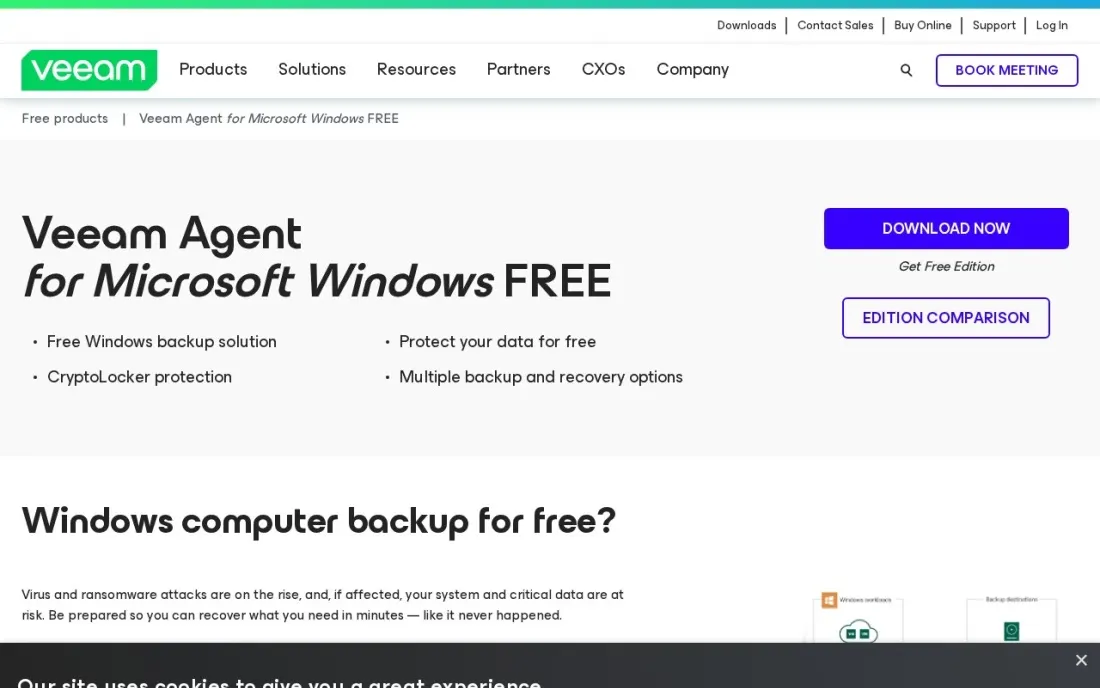
Veeam Agent for Microsoft Windows is free and comes from an enterprise backup company, which shows in what it does. It takes image-based backups of an entire PC, a single volume or chosen folders, writes them to an external drive, a NAS share or a Veeam repository, and builds bootable recovery media on USB, SD card, disc or ISO for a bare-metal restore.
It also offers file-level restore and restore to Microsoft Azure and AWS. The trade-offs are polish and scope: it is Windows-only, its settings read like an IT console, and it has no drive-cloning tool. For a small office, Veeam points to its Community Edition to manage up to 10 workstations centrally.
What we like
- Image-based backup of the entire PC, single volumes or files and folders
- Bootable recovery media on USB, SD card, disc or ISO for bare-metal restore
- Backs up to an external drive, a NAS share or a Veeam repository
Watch out for
- Windows only, with an interface aimed at IT staff more than home users
- No disk cloning tool and no cloud storage of its own

Macrium Reflect X
Best for: Windows power users who want the fastest, most reliable disk imaging
Macrium Reflect X is the imaging specialist's pick. It makes byte-for-byte copies of drives and partitions, runs full, incremental and differential backups in a single job on separate schedules, and ships a full Windows PE recovery disc. In PCWorld's June 2025 review a 240GB SSD-to-SSD image took two and a half minutes, and backups are guarded against tampering.
The catch is the price model. Reflect X Home is subscription-only at $49.99 a year, PCWorld's main complaint, and it supports no online storage, so cloud copies need another tool. Confirm the current price on Macrium's store, since our figure comes from that review rather than a vendor page.
What we like
- Very fast imaging: a 240GB SSD-to-SSD backup took 2 minutes 30 seconds in PCWorld's test
- Full, incremental and differential backups in one job, each on its own schedule
- Windows PE rescue media, and images can be mounted as virtual machines
Watch out for
- Subscription-only pricing adds up over time
- No online storage included or supported
- No plain-file sync and no multiple destinations in one job

Acronis True Image
Best for: Windows and Mac users who want imaging, cloning and ransomware protection in one app
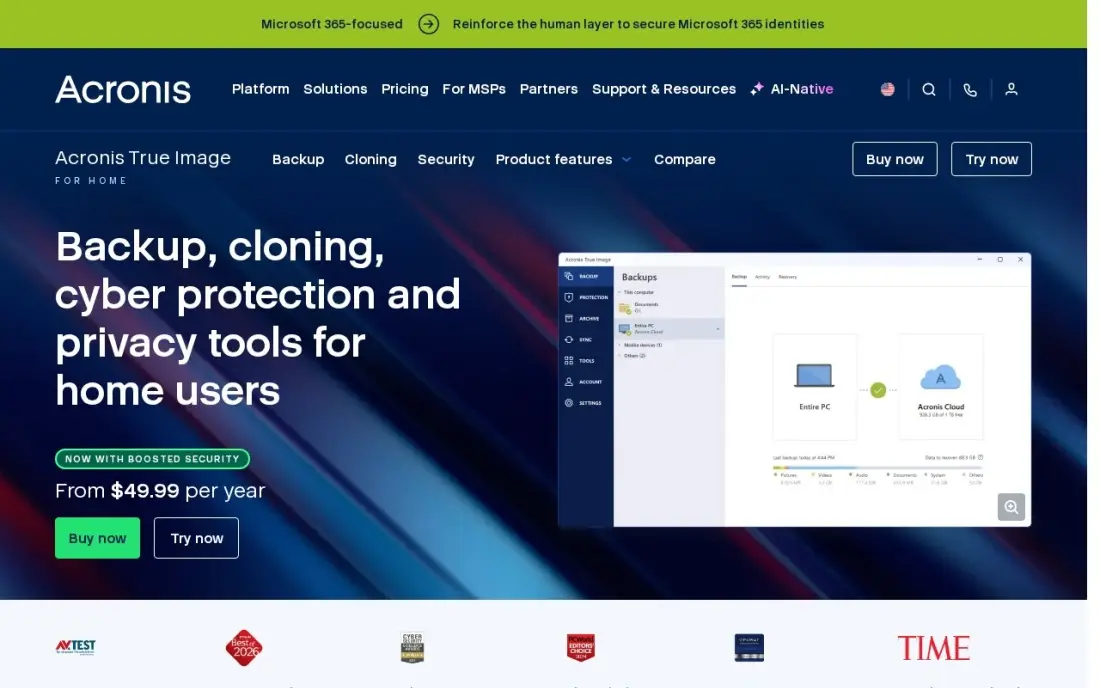
Acronis True Image is the all-in-one choice: Essentials at $49.99 a year for one computer covers full-disk imaging, drive cloning and anti-ransomware protection, and backups can go to local disks, network storage or FTP. A failed drive restores to a bootable system rather than a folder of files, on Windows or Mac.
Read the tiers before checkout. Essentials has no cloud storage — online backup starts on Advanced at $72.99 a year, and Premium at $124.99 adds 1 TB. Billing is annual only, the first-year discount does not carry to renewal, and each computer needs its own licence, so a three-PC household pays three times.
What we like
- Full-disk imaging and cloning, so a dead drive restores to a working system, not just files
- Anti-ransomware and cryptomining protection built into the entry plan
- Local, network and FTP destinations included alongside optional Acronis cloud storage
- Free upgrades to the newest product version for the life of the subscription
Watch out for
- Essentials includes no cloud storage: online backup needs Advanced at $72.99 a year
- Annual billing only, and the first-year discount does not carry to renewal
- One computer per license, so a household pays per machine

AOMEI Backupper
Best for: Home users who want a free imaging tool or a cheap one-time licence
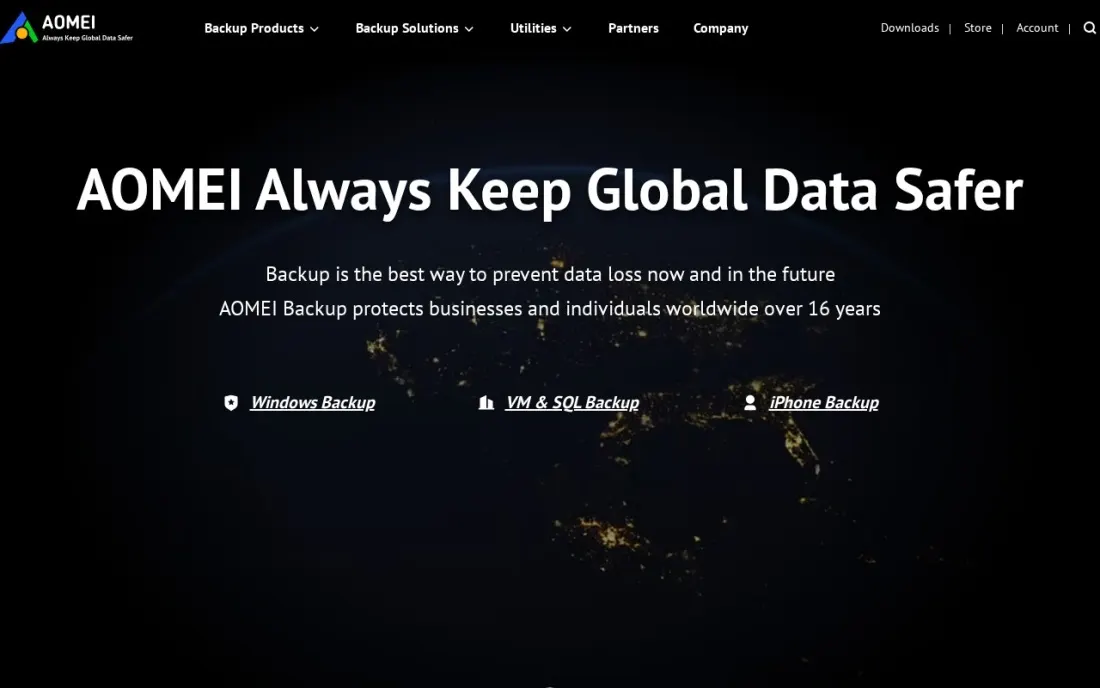
AOMEI Backupper covers imaging and cloning in one friendly program: system, disk, partition and file images, disk and system clones, hourly schedules, folder sync and ransomware protection. The Standard edition is free with a basic feature set, which makes it the easiest free starting point for home users.
Professional costs $39.95 a year, or $69.95 once for one user and $89.95 for five, the cheapest perpetual licence in this list. PCWorld's November 2026 review rated it 4 out of 5 but found the Windows PE boot drive was not recognized as bootable without lowering BIOS security, so test your recovery media straight away.
What we like
- Images and clones of the system, disks, partitions, files and folders in one program
- Perpetual Professional licence at $69.95 for one user or $89.95 for five
- Ransomware protection, hourly schedules and optional AOMEI Cloud storage
Watch out for
- PCWorld found the Windows PE boot drive was not recognized without a workaround
- No support for third-party online storage services

EaseUS Todo Backup Home
Best for: Home users who want imaging with 1 TB of cloud storage in one yearly price
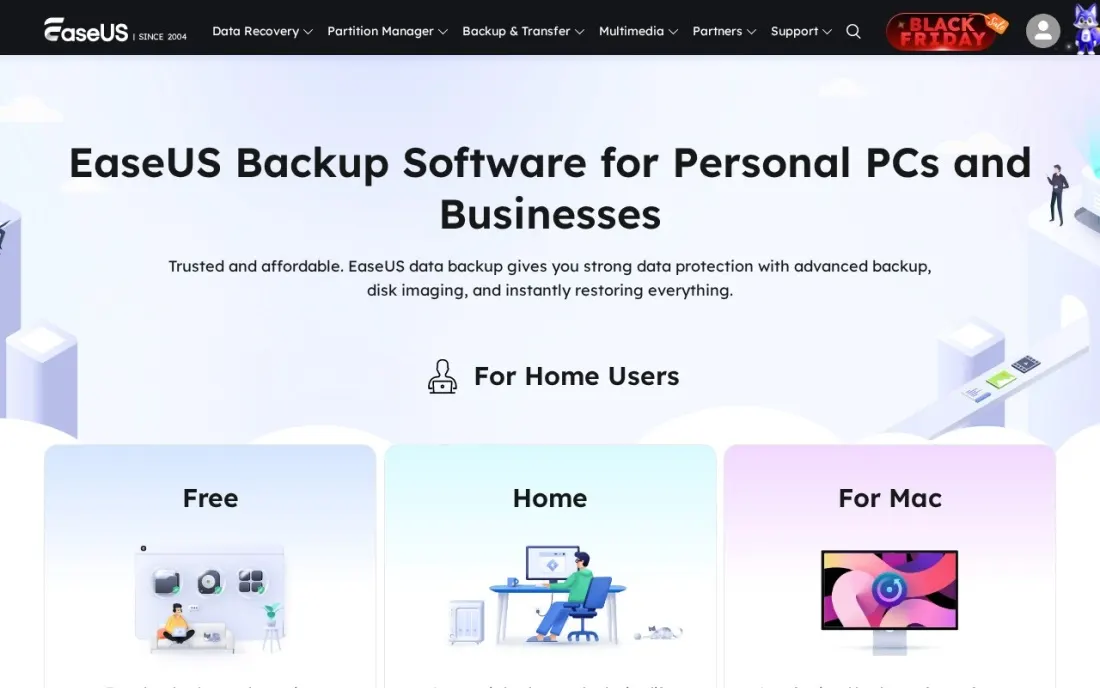
EaseUS Todo Backup Home bundles system backup with cloud storage. The yearly licence costs $39.95 for one PC, shown as a discount from $59.95, and includes 1 TB of cloud space, so an off-site copy of your image needs no second subscription. A 30-day money-back guarantee covers the purchase.
If you would rather own it, the perpetual licence costs $59.95 and Lifetime Upgrades costs $79.95, but neither lists cloud storage. Every option covers a single PC, and the buy page shows many prices as limited-time discounts, so confirm what the second year costs before you commit.
What we like
- Yearly licences include 1 TB of cloud storage
- Perpetual licence at $59.95, or $79.95 with lifetime upgrades
- Student pricing at 40% off
Watch out for
- Every licence covers one PC
- Cloud storage is only on the yearly plans, not perpetual ones
- Prices on the buy page are shown as discounts, so check the renewal price

Clonezilla
Best for: Technicians and IT teams that image or clone many machines for free
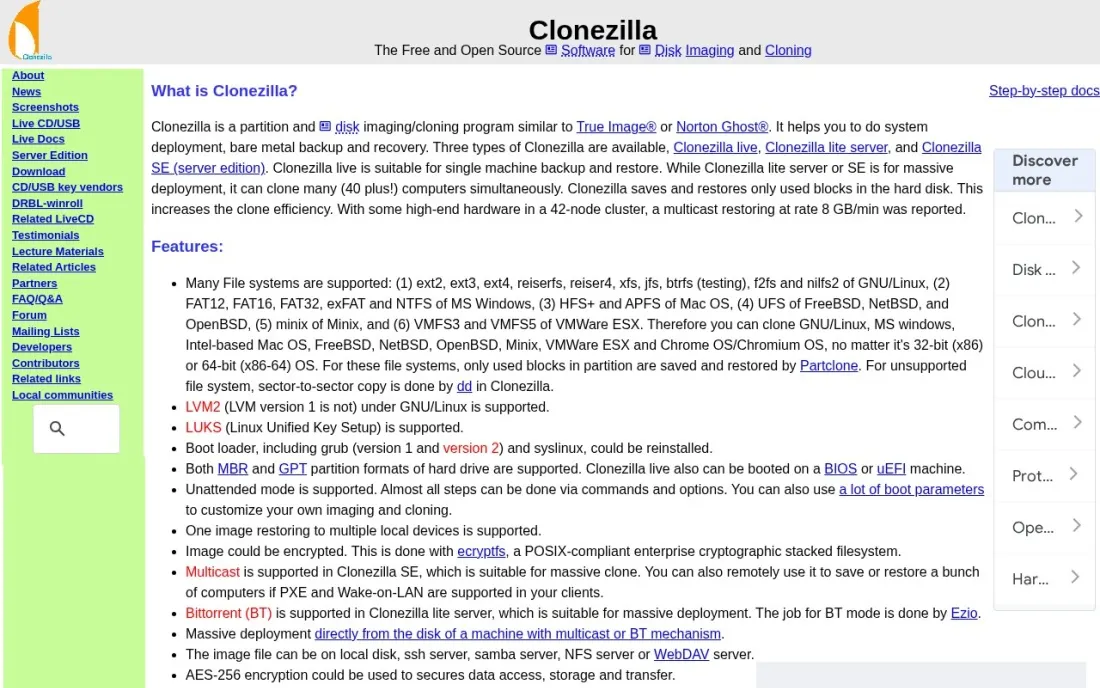
Clonezilla is free, open-source imaging software under the GPL v2 licence. You boot it from a USB stick or disc, and it images or clones whole disks and partitions, copying only used blocks, across Windows, Linux and macOS file systems on BIOS or UEFI machines. Images can be encrypted and saved to a local disk or an SSH, Samba, NFS or WebDAV server.
Its strength is deployment: the Lite Server and SE editions push one image to many machines at once by multicast. Its limits make it a poor everyday backup tool — no incremental images, no imaging while Windows runs, no single-file restore, and the target partition must be at least as large as the source.
What we like
- Images or clones whole disks and partitions, saving only used blocks
- Works with Windows, Linux and macOS file systems on BIOS or UEFI machines
- Lite Server and SE editions deploy one image to many machines by multicast
Watch out for
- No incremental or differential backups, and the disk must be offline
- Single files cannot be restored from an image
- Text-based boot menus intimidate home users
The best system image software lets you put a dead or infected computer back exactly as it was — Windows, apps, settings and files — in under an hour. We compared six imaging tools, three of them free, on full-disk imaging, cloning, recovery media, cloud options and real cost, using vendor pages and independent reviews checked in November 2026.
How to choose the best system image software
- Test the recovery media first. An image is worthless if the rescue USB will not boot; make it and boot from it on the day you install the software.
- Look for incremental images. Full images every day fill drives fast; incremental and differential backups save only what changed.
- Decide whether you need cloning. Moving to a new SSD is a cloning job; AOMEI, Acronis and Clonezilla include it.
- Plan an off-site copy. A local image does not survive theft or fire; Acronis Advanced and EaseUS yearly include cloud storage, and Macrium supports none.
- Compare subscription and perpetual costs. Over three years, a one-time licence can cost half of a yearly plan.
- Check the licence count. Most home licences cover one PC, so a family pays per machine.
An image protects a computer; a separate cloud backup protects the files on it. For that side, see our guide to the best online data backup services, which compares Backblaze, IDrive and others on unlimited and capped storage.
Which system image software fits your situation
A home user with one Windows PC and no budget. Start with Veeam Agent for Microsoft Windows. It is free, takes full-PC images to an external drive or NAS share, and builds bootable recovery media for a bare-metal restore. If its IT-style settings put you off, AOMEI Backupper Standard is the friendlier free option with a basic feature set. Neither gives you an off-site copy, and Veeam has no cloning tool, so pair it with a file backup and unplug the drive between runs.
A power user who images often and wants speed. Macrium Reflect X was very fast and highly reliable in PCWorld's testing, runs full, incremental and differential backups in one job, and ships Windows PE rescue media. Budget $49.99 a year with no perpetual option, and plan a second tool for cloud copies, because Reflect X supports no online storage.
A Windows and Mac household worried about ransomware. Acronis True Image runs on both systems and puts anti-ransomware protection, imaging and cloning in the $49.99-a-year Essentials plan. Each computer needs its own licence, and cloud backup starts on Advanced at $72.99 a year, so price the whole household before checkout and note that the first-year discount does not carry to renewal.
A family that wants local images and an off-site copy for one price. EaseUS Todo Backup Home's yearly licence at $39.95 includes 1 TB of cloud storage for one PC, so no second subscription is needed. The perpetual licences drop the cloud storage, and the buy page shows prices as discounts, so check the second-year cost. For several PCs without cloud, AOMEI Backupper's $89.95 five-user perpetual licence is the cheapest route here.
A technician setting up a room of machines. Clonezilla is free and its Lite Server and SE editions push one image to many machines by multicast, across BIOS and UEFI hardware. It suits deployment, not daily backup: there are no incremental images, the disk must be offline, single files cannot be restored, and the text-based menus take some learning.
System image software pricing: what you will actually pay
Take one Windows PC kept for three years. Veeam Agent, Clonezilla and AOMEI Backupper Standard all cost $0. AOMEI Backupper Professional costs $69.95 once, or $39.95 a year, which is $119.85 over three years. EaseUS Todo Backup Home costs $59.95 once without cloud storage, or $39.95 a year with 1 TB, about $119.85 over three years if the price holds.
The subscription-only tools cost more over time. Acronis True Image Essentials costs $49.99 a year, or $149.97 over three years, and adding cloud backup on Advanced at $72.99 a year brings that to $218.97. Macrium Reflect X Home costs $49.99 a year, or $149.97 over three years, with no cloud option.
For a three-PC household, multiply the per-PC prices by three — except AOMEI, whose five-user perpetual licence costs $89.95 once, the cheapest multi-PC route in this list.
Know the difference: system image vs file backup
A system image copies the whole drive, including Windows, installed programs, drivers and settings. If the drive dies or ransomware locks it, you boot from recovery media, restore the image to a new drive and the computer is back as it was on the day of the backup — usually far faster than reinstalling Windows and every app.
A file backup copies only your documents, photos and other data, usually to the cloud. It is lighter and keeps many versions of each file, but after a drive failure you still need to reinstall Windows and your apps before restoring the files. Most people need both: an image on a local drive for fast recovery, and a file backup off-site for disasters.
Quick comparison: tool type by need
| Buyer | Best pick | Why |
|---|---|---|
| Free full-PC imaging | Veeam Agent for Microsoft Windows | Free image backup, recovery media and bare-metal restore |
| Speed and reliability | Macrium Reflect X | Very fast, reliable imaging in PCWorld's tests, $49.99/year |
| Imaging plus ransomware protection | Acronis True Image | Imaging, cloning and anti-ransomware from $49.99/year |
| One-time licence | AOMEI Backupper | Free Standard; Professional $69.95 perpetual |
| Imaging many machines | Clonezilla | Free open-source imaging and multicast deployment |
| Imaging with cloud storage | EaseUS Todo Backup Home | $39.95/year with 1 TB cloud storage |
Mistakes to avoid
- Never testing a restore. Restore one image to a spare drive or mount it at least once, so you know it works before you need it.
- Keeping the only image on the same PC. A second partition dies with the drive; use an external drive or NAS.
- Leaving the backup drive plugged in. Ransomware can encrypt an attached drive; unplug it or use a tool that guards backups.
- Imaging once and forgetting. A year-old image restores a year-old computer; schedule incremental images.
- Confusing cloning with backup. A clone is a single copy, overwritten next time; keep versioned images for real protection.
Related comparisons: Image Cropper Apps · AI Image Generation Tools · AI Image Generators for Ecommerce
How we chose
We read vendor pages for Veeam, Clonezilla and EaseUS, the tool database entry for Acronis checked in November 2026, and PCWorld's hands-on reviews for Macrium Reflect X (June 2025) and AOMEI Backupper (November 2026), where we took prices from the review because the vendor page was not available to us. We weighted restore reliability, recovery media, incremental imaging and three-year cost. No vendor paid for a place in this list, and none of the links here are affiliate links.
What to do next
Install the free Veeam Agent or AOMEI Standard today, create recovery media, and take one full image to an external drive — then boot from the USB once to prove it works. If your business site needs the same kind of health check, book a free SEO review.
Frequently asked questions
What is the best system image software?
Macrium Reflect X is the pick for speed and reliability, based on PCWorld's testing, at about $50 a year. Veeam Agent for Microsoft Windows is the best free option for a single PC, Clonezilla for imaging many machines, and Acronis True Image at $49.99 a year is the best all-in-one with ransomware protection.
What is the best free system image software?
Veeam Agent for Microsoft Windows is free and creates full-PC images with bootable recovery media and bare-metal restore. AOMEI Backupper Standard is also free, with a basic feature set.
What is a system image?
A system image is a complete copy of a drive — Windows, apps, settings and files — that can be restored to a new or wiped drive so the computer boots exactly as it was. A file backup only saves documents and needs a fresh Windows install first.
Is there system image software without a subscription?
Yes. AOMEI Backupper Professional costs $69.95 perpetual for one user, EaseUS Todo Backup Home costs $59.95 perpetual, and Veeam Agent, AOMEI Standard and Clonezilla are free. Macrium Reflect X and Acronis True Image are subscription-only.
How often should I make a system image?
Make a full image after setting up a computer, then schedule incremental images weekly or daily depending on how much changes. Keep at least one recent image on a drive that is unplugged from the PC.
What is the difference between disk imaging and disk cloning?
Imaging saves the drive as a compressed file you can keep several versions of and restore later. Cloning copies the drive directly to another drive, which is the quick way to move to a new SSD but keeps only one copy.
Sources we checked (6)
- Veeam Agent for Microsoft Windows — www.veeam.com/products/free/microsoft-windows.html (checked November 16, 2026)
- Macrium Reflect X — www.pcworld.com/article/3204158/macrium-reflect-x-home-review-2.html (checked November 16, 2026)
- Acronis True Image — www.acronis.com/en-us/products/true-image (checked November 5, 2026)
- AOMEI Backupper — www.pcworld.com/article/3623011/aomei-backupper-6-review.html (checked November 16, 2026)
- EaseUS Todo Backup Home — www.easeus.com/backup-software/tb-home-buy.html (checked November 16, 2026)
- Clonezilla — clonezilla.org (checked November 16, 2026)
Make one of these tools?
We re-check this list every quarter. Send a correction, request a review, or ask about a clearly labeled sponsored spot.
Request a listingShamim
Founder of SerpAstra
A full-stack digital marketer and SEO strategist covering technical and local SEO, AI search visibility, paid ads and lead generation for local businesses, e-commerce brands and SaaS teams.
Free SEO and AI visibility audit
Find out what is holding your rankings back
Send us your site. Within 2 business days you get a written audit, an AI visibility check and a short fix list ranked by impact. Free, with no contract attached.
Request my free audit→Related buying guides
 PC Utilities, Backup & Recovery11 Best Online Data Backup Services in 2026Compare the 11 best online data backup services on price, storage caps, device limits and encryption, with every price checked November 5, 2026.Read guide →
 PC Utilities, Backup & RecoveryBest SAAS Backup Software for 2026: 11 Options Compared by Use CaseCompare the 11 best saas backup software options for Microsoft 365, Google Workspace and Salesforce, with starting prices checked November 7, 2026.Read guide →
 PC Utilities, Backup & RecoveryBest Email Backup Software for 2026: 9 Options Compared by Use CaseCompare the 9 best email backup software options for Microsoft 365 and Google Workspace on price and storage, with every price checked November 5, 2026.Read guide →